obs-shaderfilter

obs-shaderfilter 2.6.0

This plugin is fantastic, I've been able to make so many fun redeems and add so many little flourishes to my stream - but I have one little problem I hope someone here might be able to help out with.

There are some effects that add an unintended zoom. I was using the shake effect as one of them, and then overnight (perhaps since the last OBS update) it now adds a zoom in effect that I can't seem to correct within OBS. Is there a way to adjust this, or has anyone else come across this issue?
 
This plugin is fantastic, I've been able to make so many fun redeems and add so many little flourishes to my stream - but I have one little problem I hope someone here might be able to help out with.

There are some effects that add an unintended zoom. I was using the shake effect as one of them, and then overnight (perhaps since the last OBS update) it now adds a zoom in effect that I can't seem to correct within OBS. Is there a way to adjust this, or has anyone else come across this issue?

I've had issues with this too, like with the rain filter.
 
@enderpanda the 2.5.1 update of this plugin should fix an issue with OBS 31.1, what is not working properly? What is the effect you expect and what is the effect you get?
 
Created an account for future people struggling the same way.
Thanks for the amazing addon! :)

How To: Installation on Custom Linux Distro
  • Download latest via GitHub for Ubuntu, f.e. obs-shaderfilter-x.x.x-ubuntu-xx.xx.tar.gz
  • Copy the obs-shaderfilter.so from tar.gz:bin/64bit/ into "/usr/lib/obs-plugins/"
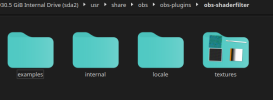
  • Create the folder "obs-shaderfilter" under "/usr/share/obs/obs-plugins/"
  • Copy all folders under data (f.e. /data/examples) from tar.gz:data/ into "/usr/share/obs/obs-plugins/obs-shaderfilter/"
  • Restart OBS & enjoy :)
fyi: Failing the second part, the shaders won't function, but you can see the variable names instead (f.e. the filter's name in OBS would then just be "ShaderFilter" instead of "User-defined shader").
 
I'm trying to do something that I thought would be simple but is currently eluding me.

I want to modify the existing "blink.shader" so that instead of a uniform sine wave, the opacity changes in a smooth random fashion, with the amount and timing of the opacity changes varying (perhaps with controllable ranges).

I thought I would be able to pull some code from either another shader (such as the perlin noise shader) or somewhere else to just get a smoothly changing value that I could plug into the code but nothing I've tried works and asking anywhere else (such as the OBS Discord) has generally been met with "Nobody really knows anything about shaders" so I'm asking here.

I can provide examples of what exactly I want to achive and what I've tried if necessary.
 
@enderpanda the 2.5.1 update of this plugin should fix an issue with OBS 31.1, what is not working properly? What is the effect you expect and what is the effect you get?
Any chance you can support the Flatpak version of OBS? I'm running Bazzite (Fedora atomic fork) and can't seem to find where to put this plugin. Thanks!
 
@RedGeist not all shaders provided have been tested on Linux. To fix shaders that are not working I need the name of the shader that has the error and the error from the OBS log file to have an option to fix it.
 
Installation on Ubuntu.
Hello guys. I am trying to install this plugin on my Ubuntu PC. I have found a message about this, but it mentions a folder for putting the
obs-shaderfilter.so file there, but it does not exist on my system. Then, I tried putting it under /usr/share/obs/libobs, but it did not work. I am using Ubuntu 24.04 and trying to install the new release of the plugin.
 
Installation on Ubuntu.
Hello guys. I am trying to install this plugin on my Ubuntu PC. I have found a message about this, but it mentions a folder for putting the
obs-shaderfilter.so file there, but it does not exist on my system. Then, I tried putting it under /usr/share/obs/libobs, but it did not work. I am using Ubuntu 24.04 and trying to install the new release of the plugin.
I solved it installing in my home directory under .config/obs-studio//plugins/obs-shaderfilter
Really nice plugin!
 
Created an account for future people struggling the same way.
Thanks for the amazing addon! :)

How To: Installation on Custom Linux Distro
  • Download latest via GitHub for Ubuntu, f.e. obs-shaderfilter-x.x.x-ubuntu-xx.xx.tar.gz
  • Copy the obs-shaderfilter.so from tar.gz:bin/64bit/ into "/usr/lib/obs-plugins/"
  • Create the folder "obs-shaderfilter" under "/usr/share/obs/obs-plugins/"
  • Copy all folders under data (f.e. /data/examples) from tar.gz:data/ into "/usr/share/obs/obs-plugins/obs-shaderfilter/"
  • Restart OBS & enjoy :)
fyi: Failing the second part, the shaders won't function, but you can see the variable names instead (f.e. the filter's name in OBS would then just be "ShaderFilter" instead of "User-defined shader").
I am following this exactly, and cannot make it work at all. If anyone could help me, that would be awesome. For whatever reason, nothing changes when I do these steps.
 

Attachments

  • Screenshot_20251219_150024.png
    Screenshot_20251219_150024.png
    23.3 KB · Views: 15
Can you be more specific? You click on it and it doesn't load for example. It would help to problem solve.
Sure. When I open OBS, and go to Filters for Camera source, it simply does not show up. The Effect Filters I can choose from are only the ones that came pre-installed with OBS. If I look under Audio/Video Filters, there is nothing there.
 
Sure. When I open OBS, and go to Filters for Camera source, it simply does not show up. The Effect Filters I can choose from are only the ones that came pre-installed with OBS. If I look under Audio/Video Filters, there is nothing there.
A camera is loaded in as a source. Filters are for effects. Video capture device is found under sources. Good luck!
 
A camera is loaded in as a source. Filters are for effects. Video capture device is found under sources. Good luck!
Please don't take this the wrong way, because I'm just trying to help you. My suggestion is to open OBS A little wider.You should see the scenes column to your left and the sources column next to it near the bottom. Either right click under sources or click the plus button to find video capture device. If you don't see the sources column next to it then try resetting docks in the upper left hand column under the docks menu. Most likely don't need to. It just repositions them to their default positions, sources should be there.. You change it to the way you like it.....you need to look for the "sources" column not filters. Filters are just for effects to your sources. Good luck!
In addition, after you find the camera source I'll help you with the Shader filters
 
Last edited:
Back
Top