


I don't think the Monitor Audio plugin has the ability to accept hotkeyYou might use the Advanced Scene Switcher to do that:
If the Audio Monitor can accept a hotkey, that appears in OBS's list to assign, then Adv. SS can send that hotkey directly, without having to actually assign it. That gets you cross-plugin automation, without the risk of fat-fingering something.
Adv. SS then, receives the MIDI command and sends the hotkey...in addition to a LOT of other capabilities! It can see and do almost anything inside of OBS proper, plus a few things in the outside world.
You are using an out of date browser. It may not display this or other websites correctly.
You should upgrade or use an alternative browser.
You should upgrade or use an alternative browser.


RaidLatte
New Member
I use Audio monitor for a lot of audio managing on my PC, and was wondering if a hotkey could be added to restart all outputs at once, instead of having to manually mute and unmute outputs, or my current method of just restarting OBS, which restarts everything at once
Attachments
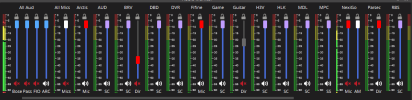
If you're fixing the runaway latency problem, a better solution would be to send each of your physical outputs to a virtual device first, and then from that virtual device to the physical one. Move the problem from OBS to somewhere else, where it *is* handled correctly....restart all outputs at once, instead of having to manually mute and unmute...
The problem has to do with clock drift. If the CPU and the sound card use the same physical clock, everything's fine. But if the sound card uses its own clock, they drift out of sync even for the same nominal sample rate. That causes buffer overruns or underruns, depending on which direction the drift is, and both cause OBS to increase the size of the buffer as if it were a network stream. Wrong response for a physical thing!
A virtual device uses the CPU clock, so it doesn't trigger OBS's bug, and has its own separate opportunity to handle the physical sound card correctly, which it usually does.
I might also suggest using a DAW for that, outside of OBS, so that OBS itself becomes completely silent except for a single dumb passthrough for the DAW's completely finished output. If you have audio sources inside of OBS, send them immediately to the DAW with no processing at all in OBS, continue to do everything in the DAW, and send the finished result back to OBS to pass through unchanged. For anything that doesn't *have* to originate in OBS, like mics or canned music, connect them directly to the DAW, not OBS at all....a lot of audio managing...
DAW = Digital Audio Workstation: a complete sound studio, all in one app. It's made to do that and only that, and it's really good at it!
If you need automation, the Advanced Scene Switcher plugin can send Open Sound Control (OSC) messages, that the DAW can pick up:

Allie Cat
New Member
i'm missing the output slider on some inputs, forcing me to control monitor from this dock and output from the classic dock. removing the filter from the source just removes it from the monitor dock but it doesn't come back when i put a new filter on. any idea how i might fix that? i think it might've started last update? i'm not too sure, i've just kinda put up with it for awhile
OBS Flatpak 32.1.0
OBS Flatpak 32.1.0
i keep encountering an issue with the plugin that is kind of niche:
when assigning the output of a certain OBS audio channel (e. g. #6) to a physical output like a USB mixer (because i want some of my OBS media sources to also play out in the venue i'm streaming from), that output will frequently just die off after a while (20-45 minutes), and require a restart of OBS to work again (which is very impractical during streaming ...).
i've tried feeding a constant, low-level noise signal to that OBS audio channel in order to keep the plugin output awake, too, but it doesn't help - at some point it will simply not output to the USB device anymore.
i'm on macOs, the USB device is a FLOW8, and i've had this problem across multiple OBS versions now. Any ideas?
when assigning the output of a certain OBS audio channel (e. g. #6) to a physical output like a USB mixer (because i want some of my OBS media sources to also play out in the venue i'm streaming from), that output will frequently just die off after a while (20-45 minutes), and require a restart of OBS to work again (which is very impractical during streaming ...).
i've tried feeding a constant, low-level noise signal to that OBS audio channel in order to keep the plugin output awake, too, but it doesn't help - at some point it will simply not output to the USB device anymore.
i'm on macOs, the USB device is a FLOW8, and i've had this problem across multiple OBS versions now. Any ideas?

Exeldro
Active Member
Exeldro updated Audio Monitor with a new update entry:
Version 0.10.1
Read the rest of this update entry...
Version 0.10.1
- Fix mute icon for OBS 32.1
- Fix crash loading configuration
Read the rest of this update entry...

KogaKing
New Member
So I'm hoping the developer can explain a few things about the audio monitor plugin. I have the plugin enabled and set a filter for my microphone. I clicked the gear box and have meter output, output slider, slider names, and only active options enabled. I also went down to the outputs menu and selected the track I wanted to show. I chose track 3 which is labeled and set to my microphone. I also selected the audio device and set it to my headphones for playback in that menu as well as the filter menu for audio monitor.
I'm not understanding two things. What's the difference between the track meter and the output meter? Also what is the difference between the Track slider, output slider and audio monitor slider? I know i can set the level of sensitivity of my microphone in my computer's audio settings to blockout background noise, (I use Fedora KDE by the way). but just don't understand the purpose of the slider for individual track compared to the output slider and monitor slider.
The audio monitor slider I am guessing can adjust on how faint or loud the mic is gonna sound for feedback, but what's the purpose of the output slider and track slider. Don't they control and show audio levels of the same the same thing?
I really am at a bit of a loss. Can someone explain the the full functionality of all the meters and sliders for the audio monitoring plugin, as well as the filter option. I just don't understand the full purpose of the audio monitor plugin's functionality.

I'm not understanding two things. What's the difference between the track meter and the output meter? Also what is the difference between the Track slider, output slider and audio monitor slider? I know i can set the level of sensitivity of my microphone in my computer's audio settings to blockout background noise, (I use Fedora KDE by the way). but just don't understand the purpose of the slider for individual track compared to the output slider and monitor slider.
The audio monitor slider I am guessing can adjust on how faint or loud the mic is gonna sound for feedback, but what's the purpose of the output slider and track slider. Don't they control and show audio levels of the same the same thing?
I really am at a bit of a loss. Can someone explain the the full functionality of all the meters and sliders for the audio monitoring plugin, as well as the filter option. I just don't understand the full purpose of the audio monitor plugin's functionality.
dannyrodcam
New Member
The plugin no longer works for my Mac M1 in the new OBS 31.1.2. I already tried updating to the 10.1 version of the plugin. Am I missing something? Or others can confirm the plugin isn't working?
It doesn't work for me on my M1 MAX. If I have a scene with an audio source and then I switch to another scene, when I come back to the first scene or another scene that uses that particular audio source my OBS bogs to a crawl and can only output 3 FPS from the normal 60 FPS.The plugin no longer works for my Mac M1 in the new OBS 31.1.2. I already tried updating to the 10.1 version of the plugin. Am I missing something? Or others can confirm the plugin isn't working?
If I restart, it's all fine again, until I come back to the same scene. It's like this plug-in is not releasing the audio source when you switch away from that scene, when I come back to a scene with that audio source OBS chokes, like perhaps it's trying to reestablish connection to the source but can't because it wasn't released the last time it was used.
Despite the render lag spike (2000ms+), CPU usage remains negligible (~3%). This suggests a synchronous call to the audio driver is hanging the main render thread, rather than a lack of processing power.
The issue is specifically related to re-initializing a source. Switching to a scene with a new instance of the U-PHORIA works, but switching back to a scene where the plugin has previously held a handle results in a deadlock. It appears the plugin fails to properly close the device session on scene exit.
Tested on M1 Max (OBS 32.1.2 macOS 2026 build and the newly updated plug-in didn't help. Both this year's and last year's update are choking up my OBS). This behaviour suggests a conflict with how the plugin interacts with CoreAudio's device management during scene transitions on Apple Silicon.
Update, I think this is not the case. Sorry.It doesn't work for me on my M1 MAX. If I have a scene with an audio source and then I switch to another scene, when I come back to the first scene or another scene that uses that particular audio source my OBS bogs to a crawl and can only output 3 FPS from the normal 60 FPS.
If I restart, it's all fine again, until I come back to the same scene. It's like this plug-in is not releasing the audio source when you switch away from that scene, when I come back to a scene with that audio source OBS chokes, like perhaps it's trying to reestablish connection to the source but can't because it wasn't released the last time it was used.
Despite the render lag spike (2000ms+), CPU usage remains negligible (~3%). This suggests a synchronous call to the audio driver is hanging the main render thread, rather than a lack of processing power.
The issue is specifically related to re-initializing a source. Switching to a scene with a new instance of the U-PHORIA works, but switching back to a scene where the plugin has previously held a handle results in a deadlock. It appears the plugin fails to properly close the device session on scene exit.
Tested on M1 Max (OBS 32.1.2 macOS 2026 build and the newly updated plug-in didn't help. Both this year's and last year's update are choking up my OBS). This behaviour suggests a conflict with how the plugin interacts with CoreAudio's device management during scene transitions on Apple Silicon.
dannyrodcam
New Member
What I notice is that the plugin is working in the latest OBS on Windows but not on Mac. An older version of OBS is required for Audio Monitor to work on a Mac.
Audio Monitor
I recently had a mac updated on my mac mini computer and OBS audio monitor plugin is not longer allowing me to using the plugin twice for 2 different music sources without the music glitching and my video being choppy and freezing. It only works if i use it for one of my music sources. It worked fine before I did the update. I'm using Blackhole 2ch as well. Is anyone else having this issue and is there a solution ?
I recently had a mac updated on my mac mini computer and OBS audio monitor plugin is not longer allowing me to using the plugin twice for 2 different music sources without the music glitching and my video being choppy and freezing. It only works if i use it for one of my music sources. It worked fine before I did the update. I'm using Blackhole 2ch as well. Is anyone else having this issue and is there a solution ?