
Internet speed seems great, but OBS keeps getting intense network lag

EBsessed

New Member
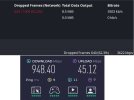
Hi there. I'm attaching an image showing OBS's network status during a livestream I did last night and a speedtest I did on Ookla's Speedtest.net while that very network problem was happening. Periodically my streams will plummet into such bad network lag that it nearly crashes (and sometimes outright does crash) the stream entirely. The connection gets better after a few minutes, but after some time it'll plummet again. I cannot figure out where this problem is coming from or what to do about it, and it's very stressful because I have to worry about my stream possibly nosediving into lag or even crashing at any given time. Please help me.

After I ended the stream but before closing OBS, I wasn't sure whether to grab the current session log or the previous session log, so here's both.

Current: https://obsproject.com/logs/4xoVPcPkBGg7TfZS
Previous: https://obsproject.com/logs/Mut3U7TMxDK4d70g
 

Attachments

  • OBS lag vs Ookla speed test.jpg
    OBS lag vs Ookla speed test.jpg
    40.5 KB · Views: 4
Your current log contains streaming sessions with dropped frames (max 64.5%). This can only be caused by a failure in your internet connection or your networking hardware. It is not caused by OBS but OBS can help. Follow the troubleshooting steps at: Dropped Frames and General Connection Issues.

The quick fix is to go to Settings > Advanced > Network > enable Dynamically change bitrate... [Apply] [OK]. Do this before you start streaming.
 
Your current log contains streaming sessions with dropped frames (max 64.5%). This can only be caused by a failure in your internet connection or your networking hardware. It is not caused by OBS but OBS can help. Follow the troubleshooting steps at: Dropped Frames and General Connection Issues.

The quick fix is to go to Settings > Advanced > Network > enable Dynamically change bitrate... [Apply] [OK]. Do this before you start streaming.
Thank you for your response.

How can it be a problem with my Internet connection when my connection showed a solid 948 mbps download speed and a 45 mbps upload speed during one of OBS's major lag spikes? As for networking hardware, I was having issues before while using an old modem/router, and so I bought a nice new one, and the problem persists, so my modem/router isn't the problem. I also had Lenovo run a diagnostic on my computer's wifi card and it came out completely clean, so that's not the problem, either. What possible networking hardware could be causing this if not my modem/router or my laptop's wifi card?

I don't want to use the Dynamically Change Bitrate option because I want a solid, consistent bitrate to ensure top visual fidelity on my streams, and that feature is only a Band-Aid, not a solution to whatever is causing the problem.

I'll enable network optimizations and TCP pacing to see if those help. However, I'm concerned about your response claiming the issue can only be with my Internet connection, which seems great, or my networking hardware, which all seems flawless. How do I figure out what's causing the problem so it can be legitimately repaired?

For the record, I've been streaming to both YouTube and Twitch through Restream, and I thought that might be causing a problem, so I did a test stream directly to YouTube alone without Restream, and the problem persisted. Here's the log file for that test stream: https://obsproject.com/logs/dMgF1wCPEtEJlnhq
 
You appear to be using a USB Ethernet adapter so it could be fighting for USB bandwidth with your capture card and causing problems. If your laptop doesn't have a proper Ethernet port, you could try a 5 GHz Wi-Fi connection which hopefully goes over PCI-E instead of USB and see if it resolves the problem. You can also try to prefer IPv4 in advanced network settings in case your ISP has poor quality IPv6 connectivity.

Note that relying on speed tests is not a good way to measure your connection stability, as speed test sites just throw as much data as possible at you and see what makes it through, ignoring any packet loss or latency issues. Try https://r1ch.net/projects/twitchtest to check your connection stability while OBS is open with your capture card active.
 
Start with the other suggestions first,
Then, if a USB Root Hub bottleneck does appear to be your issue,
- I used this thread https://obsproject.com/forum/threads/camera-limit-3-work-fine-4th-has-problems.78827/post-547106 for more in depth discussion
- one possibility would be moving USB ports to one that don't contend with each other (if that is possible, depends on make model specifics, and this isn't the forum to dive into such details... separate homework.. be forewarned, you may need to use diagnostic tools like from the thread I just mentioned and figure it out on your own. Even vendor tech support (1st level) may not be much help)
- does your laptop have a USB4 or Thunderbolt port? possibly using a quality dock with native Ethernet (though many just USB routed, so not necessarily a help)... maybe a better USB switch ? ideally test where you aren't committed to cost of dock if it doesn't work

Another possibility is that the drivers for your USB Ethernet adapter or USB Capture device are either poorly written or just 'conflicting' with each other ... causing the bottleneck. Potentially changing one or both USB devices and driver might help? or yet another USB device? I'd unplug any other USB device you don't need to test. Mind you - just throwing ideas out as food for thought, and something in an ideal world you'd be able to test without committing to more purchases (or abusing generous return policies).
 
Back
Top