I got it!
Took me about an hour to figure it out.
Mistake was that I assumed you had to define the scene as well, like for example:
OBSCommand.exe /showsource="Videos/Nice001.mp4" /delay=4.000 /hidesource="Videos/Nice001.mp4"
Where you show the clip 'Nice001.mp4' on the scene 'Videos', wait 4 seconds, and then hide it again.
But with the filter you don't specify the scene (I guess because a sourcename must be unique).
So, here to turn on and off a filter:
OBSCommand.exe /command=SetSourceFilterEnabled,sourceName=Color,filterName=Mask,filterEnabled=true
OBSCommand.exe /command=SetSourceFilterEnabled,sourceName=Color,filterName=Mask,filterEnabled=false
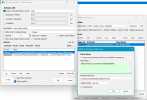
Where you turn on the Advanced Mask filter (thanks Exeldro) and off again on the source 'Color' (which resides on the scene main, but that's irrelevant, now I know).
And here's an example with spaces in the name of the source and the filter:
OBSCommand.exe /command=SetSourceFilterEnabled,sourceName="Color 2",filterName="Advanced Mask",filterEnabled=true
OBSCommand.exe /command=SetSourceFilterEnabled,sourceName="Color 2",filterName="Advanced Mask",filterEnabled=false
And to make it in a sweet combined command (one-liner) where you turn on the filter, wait 5 seconds, and turn it off again:
OBSCommand.exe /command=SetSourceFilterEnabled,sourceName="Color 2",filterName="Advanced Mask",filterEnabled=true /delay=5.000 /command=SetSourceFilterEnabled,sourceName="Color 2",filterName="Advanced Mask",filterEnabled=false
Thanks FSC!
Now, I'll be thinking about the fun things I can do with this.