
Blurry stream even when having perfect internet connection!

haroldrandolf4

New Member
Hello there everyone,
I hope you are doing well.

I recently got into the streaming scene and have been trying to stream quality videos. But while doing so, I get blurry quality when doing so.
I tried multiple settings and watched number of tutorials but to no avail.
I shall be sharing my settings and specifications here

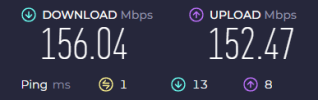
1.) Internet Speed :
1770817284766-png.118285


2.) Pc Specifications: Processor - inter i3-12100f
GPU - Nvidia GTX 1660super 6gb
Ram - 16gb DDR5 5100Mhz
OS - Windows 11 Pro (10.0.26200 Build 26200)

3.) OBS settings:
1770817501767.png


----------------------------------------------------------------------------------------------------------------------------------------------------------------------------------------------------------------------------------
----------------------------------------------------------------------------------------------------------------------------------------------------------------------------------------------------------------------------------
TEST STREAMS:

1.) I tried streaming RDR2 with:
a.) YouTube RTMPS service- http://youtube.com/live/qAzWEhETgqE
Using this, whenever I moved or sprinted with my horse, the stream ended up being even worse, which I know is said to be because of bitrate but I
even tried 10k and 12k bitrate and this was the case still.

b.) YouTube HLS service - https://www.youtube.com/live/nSrjHpFsJYc
I was informed from the internet to use this server which helped me out with the stream being worse while sprinting, but normally the stream still
looked bad. (Yes even at 10k and 12k bitrate)


Also, while watching these live stream currently, I am getting a lot of buffers. I also tried a software called Meld with which I tested streaming Resident Evil 8 and while the quality was better, the stream also was rid of the lag and stuff, but this could be since there were no overlays on the stream. The only issue was still the quality but it was better than the OBS. The settings however, were the same for both.

Link to the stream if someone wants to check it out: MELD - https://www.youtube.com/live/qaSRiIwb3X0
OBS - https://www.youtube.com/live/ZKXpcfBEaDo
 

Attachments

  • 1770817284766.png
    1770817284766.png
    13.3 KB · Views: 106
Your bitrate is way too low, youtube supports up to 51,000. Also youtube reencodes your video and will make it look worse on its own, you can avoid some of this by setting your output resolution to 2560x1440.
 
Your bitrate is way too low, youtube supports up to 51,000. Also youtube reencodes your video and will make it look worse on its own, you can avoid some of this by setting your output resolution to 2560x1440.
Ohkay, so up to what bitrate should I set mine to which can be handled by my internet? Also I am not getting an option for setting it to 2560x1440. My monitor is only FHD 1920x1080 60hz. Could that be the reason for it?
 
Some of these things may not seem like they apply but get them out of the way because your system is below minimum specs for OBS to run:
1. The Hardware-accelerated GPU scheduling ("HAGS") feature in Windows is currently known to cause performance and capture issues with OBS, games and overlay tools. We recommend disabling it via these instructions as a troubleshooting step. Be sure to restart after disabling it.
2. One of your audio devices has a sample rate that doesn't match the rest. This can result in audio drift over time or sound distortion. Check your audio devices in Windows settings (both Playback and Recording) and ensure the Default Format (under Advanced) is consistent. 48000 Hz is recommended.
OBS Sample Rate: 48000 Hz
Speakers (JBL GO 2): 44100 Hz
Moano Condenser Microphone (USB Condenser Microphone): 48000 Hz
Realtek HD Audio 2nd output (Realtek(R) Audio): 48000 Hz
3. Run OBS as Admin.
4. Your GPU is maxed out and OBS can't render scenes/encode frames fast enough (0.1% of the time). Running a game without vertical sync or a frame rate limiter will frequently cause performance issues with OBS because your GPU will be maxed out. OBS requires a little GPU to render your scene.

Enable Vsync or set a reasonable frame rate limit (60, 30) that your GPU can handle without hitting 100% usage.

If that's not enough you may also need to turn down some of the video quality options in the game. If you are experiencing issues in general while using OBS, your GPU may be overloaded for the settings you are trying to use. Please be aware that Multipass, look-ahead and Adaptive Quantization all use additional GPU.

Please check our guide for ideas why this may be happening, and steps you can take to correct it: GPU Overload Issues.
5. While using RTMP(S) (I don't think this works with HLS) and before you start streaming, go to Settings > Advanced > Network > enable "Dynamically change bitrate..." [Apply] [OK]. I'm not going to try to judge quality when over a third of the frames are missing and it's at 2/3 of the recommended quality. YouTube recommends 12,000 bitrate for 1080p 60 FPS H264 and 24,000 for 1440p 60 FPS.
With that said, it looks like your card supports H265/HEVC which YouTube recommends a max of 10,000 for 1080p 60 FPS because it's more efficient. Try that instead of H.264

Post new log if still having issues.
 
Ohkay, so up to what bitrate should I set mine to which can be handled by my internet? Also I am not getting an option for setting it to 2560x1440. My monitor is only FHD 1920x1080 60hz. Could that be the reason for it?

like I mentioned, the maximum for youtube is 51,000. as far as the resolution, you can type any resolution into the output resolution box so I'd suggest trying what I mentioned.
 
Some of these things may not seem like they apply but get them out of the way because your system is below minimum specs for OBS to run:
1. The Hardware-accelerated GPU scheduling ("HAGS") feature in Windows is currently known to cause performance and capture issues with OBS, games and overlay tools. We recommend disabling it via these instructions as a troubleshooting step. Be sure to restart after disabling it.
2. One of your audio devices has a sample rate that doesn't match the rest. This can result in audio drift over time or sound distortion. Check your audio devices in Windows settings (both Playback and Recording) and ensure the Default Format (under Advanced) is consistent. 48000 Hz is recommended.
OBS Sample Rate: 48000 Hz
Speakers (JBL GO 2): 44100 Hz
Moano Condenser Microphone (USB Condenser Microphone): 48000 Hz
Realtek HD Audio 2nd output (Realtek(R) Audio): 48000 Hz
3. Run OBS as Admin.
4. Your GPU is maxed out and OBS can't render scenes/encode frames fast enough (0.1% of the time). Running a game without vertical sync or a frame rate limiter will frequently cause performance issues with OBS because your GPU will be maxed out. OBS requires a little GPU to render your scene.

Enable Vsync or set a reasonable frame rate limit (60, 30) that your GPU can handle without hitting 100% usage.

If that's not enough you may also need to turn down some of the video quality options in the game. If you are experiencing issues in general while using OBS, your GPU may be overloaded for the settings you are trying to use. Please be aware that Multipass, look-ahead and Adaptive Quantization all use additional GPU.

Please check our guide for ideas why this may be happening, and steps you can take to correct it: GPU Overload Issues.
5. While using RTMP(S) (I don't think this works with HLS) and before you start streaming, go to Settings > Advanced > Network > enable "Dynamically change bitrate..." [Apply] [OK]. I'm not going to try to judge quality when over a third of the frames are missing and it's at 2/3 of the recommended quality. YouTube recommends 12,000 bitrate for 1080p 60 FPS H264 and 24,000 for 1440p 60 FPS.
With that said, it looks like your card supports H265/HEVC which YouTube recommends a max of 10,000 for 1080p 60 FPS because it's more efficient. Try that instead of H.264

Post new log if still having issues.

Thank you for the information.
Here a few things I wanted to mention and changed according to the advice above:

1.) Regarding my pc specifications, OBS's recommended specs are - Gpu --> GTX 10 series or higher
- CPU --> Intel i7 8700K or higher
(although Intel i7 8700K has 6 Cores, 12 Threads, compared to i3 12100f's 4 cores, 8 threads, i3 is still much faster and
efficient than i7)

Considering these things, my pc is well above the recommended setup specs.

2.) I have refrained from using my speakers now and will use the headphones which has 48k hz of sample rate.

3.) Running OBS as admin.

4.) Enabled v-sync and using lower graphics (high to medium). Disabled look ahead.

5.) Streamed using HEVC at 10k bitrate, 1080p 60, and with dynamically change bitrate option enabled on RTMPS.
------------------------------------------------------------------------------------------------------------------------------------------------------------------------------------------------

After doing these here are the results for the stream: https://www.youtube.com/live/Rb-kYF1fQSk
Log file after the test: https://obsproject.com/logs/BUiaptiOkcFfugMG

There does not seem to be any difference in the quality still.
 
like I mentioned, the maximum for youtube is 51,000. as far as the resolution, you can type any resolution into the output resolution box so I'd suggest trying what I mentioned.
Here is test result for streaming with upscaled to 1440p: https://www.youtube.com/live/DAAjT8EYh5Y
The bitrate i set for this was 12k. Going any higher than this was causing my stream to lag and freeze. Also that stream was around 9minutes long but when i tried to rewatch it, it only displayed 20seconds.

Log file - https://obsproject.com/logs/lFpI3x9F5dJAMSNx
 
the VOD you posted looks fine in terms of quality, the lagging/freezing when increasing bitrate would be a network issue you'd need to resolve with your ISP but as far as OBS goes things seem fine.
 
Back
Top