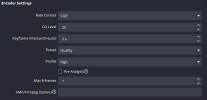
1. To ensure that OBS Studio has the hardware resources it needs for realtime streaming and recording, we recommend disabling the "Game DVR Background Recording" feature via
these instructions.
2. In Windows, we recommend that "Game Mode" be enabled. Game Mode can be enabled via the Windows "Settings" app, under Gaming > Game Mode.
3. Display and Game Capture Sources interfere with each other. Never put them in the same scene (INGAME and TALK-SCENE).
4. Your GPU is maxed out and OBS can't render scenes and encode frames fast enough. Running a game without vertical sync or a frame rate limiter will frequently cause performance issues with OBS because your GPU will be maxed out. OBS requires a little GPU to render your scene.
Enable Vsync or set a reasonable frame rate limit (120, 60) that your GPU can handle without hitting 100% usage.
If that's not enough you may also need to turn down some of the video quality options in the game. If you are experiencing issues in general while using OBS, your GPU may be overloaded for the settings you are trying to use.
Please check our guide for ideas why this may be happening, and steps you can take to correct it:
GPU Overload Issues.
5. Contact StreamElements to resolve their errors in your log.
If still having issues, post a new log.