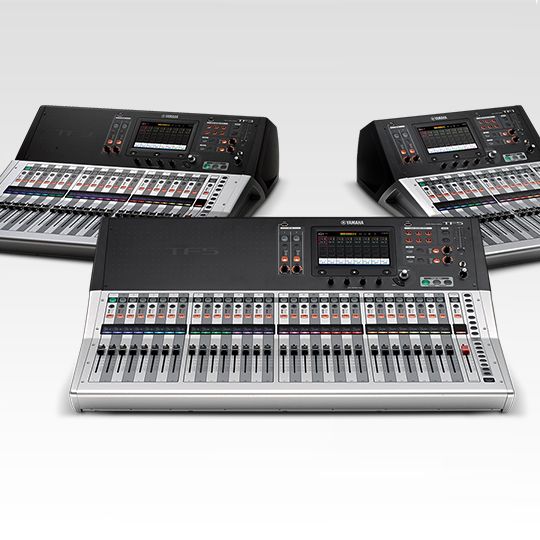
Question / Help Yamaha TF5 not sending audio to PC

MasterTemplerZ

New Member
So this might be a stupid question but im trying to use a Yamaha TF5 digital Mixer with OBS as a audio input source, windows does see the mixer but i still cant get audio into OBS for some reason. the first time it showed a audio sample mismatch but i was able to fix that but still no audio being received by OBS. any suggestions or thoughts?
 
If you use the normal Windows audio device you can only capture the first 2 channels coming in. So you have to make sure your mix is routed to the first 2 channels. From what i've seen there is also an ASIO driver for the mixer so you might want to try the obs-asio plugin for more channels.
 

MasterTemplerZ

New Member
i downloaded the driver but still nothing, where do i go to set it up? or is it supposed to just work? cause im still not getting any audio
 

MasterTemplerZ

New Member
My OBS doesn't see it now. all it sees it voicemeter as the ASIO device. Maybe the board isn't supported yet? Windows still sees it but as an output device.
 
I unfortunately do not own that board so i can't tell you how to exactly get asio working. Maybe there is a setting inside the mixer that you have to change. But as long as obs sees it as an ASIO device you can use it.
 

MasterTemplerZ

New Member
alright ill have to do some playing with it. maybe ill be able to find something about it. im just really confused on how to set it up.
 

sandSKout

New Member
Here's a workable hack to get a Yamaha TF series mixer audio into OBS. I am doing this currently.

As lebaston100 reported, since the Yamaha/Steinberg ASIO driver lacks the ability to specify which of the 34 USB output channels you want to tap if you are using it outside of one of their recording programs that provides that capability, Windows will only see USB channels 1 and 2 being sent from the Yamaha TF console. And the only audio capable of being sent by the console to these USB lines is the Direct Out of the #1 and #2 fader channels. You may find the Yamaha TF block diagram helpful to visualize what's going on internally.

Here are the steps:
  1. Channels 1 and 2 of the TF must be available, so if you've got something connected there move them to different input channels. Make sure the channels are off and/or the faders are fully down before going to the next step.
  2. Patch your desired mix bus output (in my case, Matrix 1/2 as a stereo pair) back into input channels 1 and 2 using either a pair of XLR cables from two Omni output jacks (use the Omni Out patch screen to assign the jacks if you need) or make the equivalent digital routing patch if you have a Dante or other digital environment. Adjust the input gain trim as needed.
  3. Set the input source selector for channels 1 and 2 as needed for the patch you just created (Input/USB/Slot). Enable the stereo linking for those channels. Use your headphones and Cue the channels to make sure your mix audio is there.
  4. Select which of the Direct Out tap points suits you (Pre-DG, Pre-HPF, etc.) and ensure the Direct Out is turned On. I recommend not choosing Post On as the Direct Out tap point (see note below).
  5. You should now be getting your mix into Windows, and thus into OBS, on the "Yamaha TF" input interface. In my experience (currently running version 25.0.4) you may need to close OBS and re-launch it for it to recognize the USB audio.

Now that you've got a console output patched to an input, use extreme caution to ensure the mix doesn't get fed back to itself. Choosing one of the Direct Out tap points that does not require turning the channel on or bringing up the fader will help avoid the risk. As an added safety you may also want to unassign channels 1 and 2 from the L-R bus and turn those channels off in all the Aux and Fx bus sends.

If anybody has a better way, or knows of a different ASIO driver that works with the Yamaha TF series and allows one to specify the particular USB input and output lines (so we can select 33/34 from our Yamaha boards) please chime in! I checked out that obs-asio plugin but it looks like that is still a no-go for the Yamaha TF series as of this writing.
 

sandSKout

New Member
In Step #2 I wrote "Adjust the input gain trim as needed." That actually belongs in Step #3. You can't adjust the gain until after you have selected an input! :-)
Saw that after the edit window closed.
 

willbrtec

New Member
In Step #2 I wrote "Adjust the input gain trim as needed." That actually belongs in Step #3. You can't adjust the gain until after you have selected an input! :-)
Saw that after the edit window closed.

Did you try the Voicemeeter (to route channels from TF5 in computer, before OBS) ???
 

sandSKout

New Member
Did you try the Voicemeeter (to route channels from TF5 in computer, before OBS) ???
My tutorial and the follow-up clarification all describe settings within a Yamaha TF series mixer in order to get its audio into the computer in the first place and recognized by the computer as an available audio input source by way of the Steinberg ASIO driver. Once that step is accomplished one can certainly use Voicemeeter or any other audio management or recording software, including OBS.
 

audiopro

New Member
Probably a bit late now, but there was a Firmware update few years ago (some time after above solution) by Yamaha that address this to make it easier.


Specification Changes (V4.50)​

  • USB outputs 1 / 2 of the USB TO HOST terminal can now be sourced from STEREO L / R and MATRIX Output channels, in addition to Ch1 / 2 Direct Out. This selection can be made via the [Setup>Preferences>Others] menu. This gives TF devices the flexibility to easily interface with live streaming and teleconference applications via USB.
 
Top