"stopping recording" issue with high end pc

toaster123

New Member
I was attempting to record minecraft with a high framerate in obs yesterday. I watched a bunch of different youtube videos for the best settings but every time I go to stop the recording it says "stopping recording" and ends. I thought this was weird because I have a gtx 3090 and a ryzen 9 5900x. when recording both the gpu and cpu usage are under 50% so I'm not sure what could be causing the issue. I also saw a message on the bottom left that said "encoding overloaded". if anyone knows a possible fix for this let me know! thanks :D
 
I was attempting to record minecraft with a high framerate in obs yesterday. I watched a bunch of different youtube videos for the best settings but every time I go to stop the recording it says "stopping recording" and ends. I thought this was weird because I have a gtx 3090 and a ryzen 9 5900x. when recording both the gpu and cpu usage are under 50% so I'm not sure what could be causing the issue. I also saw a message on the bottom left that said "encoding overloaded". if anyone knows a possible fix for this let me know! thanks :D
Hi, can you send a log file?

and quick tip you must have your audio tracks set to 1 and only 1 for high fps to work
 
I just tried to do the fix with 1 audio track but still had the same issue, heres the log file
I could not find what caused the "stopping recording..." issue, but here is what I advise on the encoding overload.

Try Using Game capture instead of Display capture.

Make sure you are on the latest NVIDIA driver.

To ensure that OBS Studio has the hardware resources it needs for realtime streaming and recording, it is recommend to disable the "Game DVR Background Recording" feature via these instructions: https://obsproject.com/wiki/How-to-disable-Windows-10-Gaming-Features#game-dvrcaptures

Recording format: mp4 (this is not recommended, but it is to test if your format is the issue. You can change it back if it still is not working or it was something else causing the issue.)
Audio tracks: 1
Encoder: NVIDIA NVENC H.264 (new)
Rescale output: unchecked
Rate Control: CQP
CQ level: 16-20 (start at 16 and raise it by 1 if you are getting encoding overload)
Keyframe interval: 0
Preset: Max Performance (there is no difference in quality between Max Quality and Max Performance as CQP is a quality target not a bitrate target. This may cause larger file sizes, if it is to big try raising it to Quality)
Profile: High
Look ahead: off
Psycho Visual Tuning: off (this can cause you final render to look weird if you are doing Smart resample/frame blending, and take more gpu usage)
GPU: 0
Max B-Frame: 0 (they are unneeded for local recordings and just take more encoding power)

In video set downscale filter to bilinear as you are not downscaling.

 
I could not find what caused the "stopping recording..." issue, but here is what I advise on the encoding overload.

Try Using Game capture instead of Display capture.

Make sure you are on the latest NVIDIA driver.

To ensure that OBS Studio has the hardware resources it needs for realtime streaming and recording, it is recommend to disable the "Game DVR Background Recording" feature via these instructions: https://obsproject.com/wiki/How-to-disable-Windows-10-Gaming-Features#game-dvrcaptures

Recording format: mp4 (this is not recommended, but it is to test if your format is the issue. You can change it back if it still is not working or it was something else causing the issue.)
Audio tracks: 1
Encoder: NVIDIA NVENC H.264 (new)
Rescale output: unchecked
Rate Control: CQP
CQ level: 16-20 (start at 16 and raise it by 1 if you are getting encoding overload)
Keyframe interval: 0
Preset: Max Performance (there is no difference in quality between Max Quality and Max Performance as CQP is a quality target not a bitrate target. This may cause larger file sizes, if it is to big try raising it to Quality)
Profile: High
Look ahead: off
Psycho Visual Tuning: off (this can cause you final render to look weird if you are doing Smart resample/frame blending, and take more gpu usage)
GPU: 0
Max B-Frame: 0 (they are unneeded for local recordings and just take more encoding power)

In video set downscale filter to bilinear as you are not downscaling.
okay thanks! I'll try it out :D
 
From my watching this forum over last year, a lot of the issues like this I've seen others have, have been to due to unstable 3rd party plug-ins
 
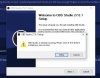
URGENT!!!!!! Please someone help me. I recorded my screen for a very important session.. and i really need this video. Have never faced this issue before. How can i get the recorded screen record video safely?
 

Attachments

URGENT!!!!!! Please someone help me. I recorded my screen for a very important session.. and i really need this video. Have never faced this issue before. How can i get the recorded screen record video safely?
urgent steps to follow first before you do anything else: update to current obs
 
Can't update.. since its still running.. and can't close it because i want the video
 

Attachments

  • Capture.JPG
    Capture.JPG
    41.9 KB · Views: 18
If you force stop the recording, you will retain whatever part of the video actually survived.

Ok so i tried closing the other running programs via task manager, with that i could see 20 mins of the recorded video in the output folder, i opened that file and checked it... but the video has to be 1.5 hrs video. Maximum of it is not saved. So i didn't force stop the program assuming maybe the rest of the file will also get retained, but that's not happening.
 
Back
Top