@AuieGames
1. Update your GeForce drivers to the newest available Studio Driver.
2. The Hardware-accelerated GPU scheduling ("HAGS") feature in Windows is currently known to cause performance and capture issues with OBS, games and overlay tools. We recommend disabling it via
these instructions as a troubleshooting step. Be sure to restart after disabling it.
3. Having the Color Range set to "Full" will cause playback issues in certain browsers and on various video platforms. Shadows, highlights and color will look off. In OBS, go to "Settings -> Advanced" and set "Color Range" back to "Limited".
4. Browser hardware acceleration is currently disabled. Enabling acceleration is highly recommended due to the improvements to performance and significantly lower CPU usage for your 89 browser sources. This can be enabled in Settings -> Advanced.
5. Multiple Game Capture sources are usually not needed, and can sometimes interfere with each other (Pixel Hive Café, Game Sources and Pix Hive Cafe Vert). You can use the same Game Capture for all your games. If you change games often, try out the hotkey mode, which lets you press a key to select your active game. If you play games in fullscreen, use 'Capture any fullscreen application' mode.
6. Window, Game and Display Capture interfere with each. Never put them in the same scene (Pixel Hive Café and FS Game)
7. Make sure all 4 of your plugins are compatible with OBS 32.1.2 and are up-to-date.
Code:
09:01:08.082:     "status": {
09:01:08.082:         "html_en_us": "Twitch Enhanced Broadcasting requires at least 2 tracks per canvas.  You have either requested too few encodes (3) to support this, or we believe your GPU would not handle this workload.",
09:01:08.082:         "result": "error"
09:01:08.082:     }
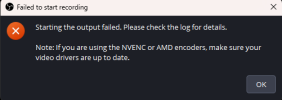
You need to disable Enhanced Broadcasting in the Stream settings and just do 1 video track.