Question / Help Fast Internet and good pc, but still ingame fps are dropping drastically

Skylar1412

New Member
Hello guys, I recently started to stream CS:GO.
Without the stream I have 350-400fps, as soon as I start stream, it's only hitting the 120 fps.

My PC specs:

Win7 64x
Intel i7-4790K @ 4.00GHz
NVIDIA GTX 970
16GB DDR3 RAM @ 2400MHz

My internet connection:

qzPRFy8.jpg


My OBS Settings:

wN7kEoh.jpg

cXHJw9m.jpg

3lBv8SK.jpg

JHFRPk6.jpg


Any tips? Is it really a hardware problem? - Dota stream runs fine.
 
Last edited:

dping

Active Member
Sorry, I must have miss-copy-pasted it.

http://pastebin.com/HWLeQb1F
make sure you are not using any launch options with CS:GO like -threads or -high. Those will cost more performance than it helps in many ways.

remember, since you only bought an i5, CS:GO is sharing CPU time (3-4threads) with OBS (uses up to 24 threads) so this is the main issue here more than likely the cause of your drop in fps.
 

Skylar1412

New Member
Ah, I mixed you up with the last guy I talked with, apologies.

No problem, I will try to stream tomorrow again - are the rest of my settings fine?
I have tried to switch the encoding to my graphics card, it gave me 20 fps but I don't think that 120fps ingame is normal, I also turned the graphic settings ingame down to "mid"
 

dping

Active Member
No problem, I will try to stream tomorrow again - are the rest of my settings fine?
I have tried to switch the encoding to my graphics card, it gave me 20 fps but I don't think that 120fps ingame is normal, I also turned the graphic settings ingame down to "mid"
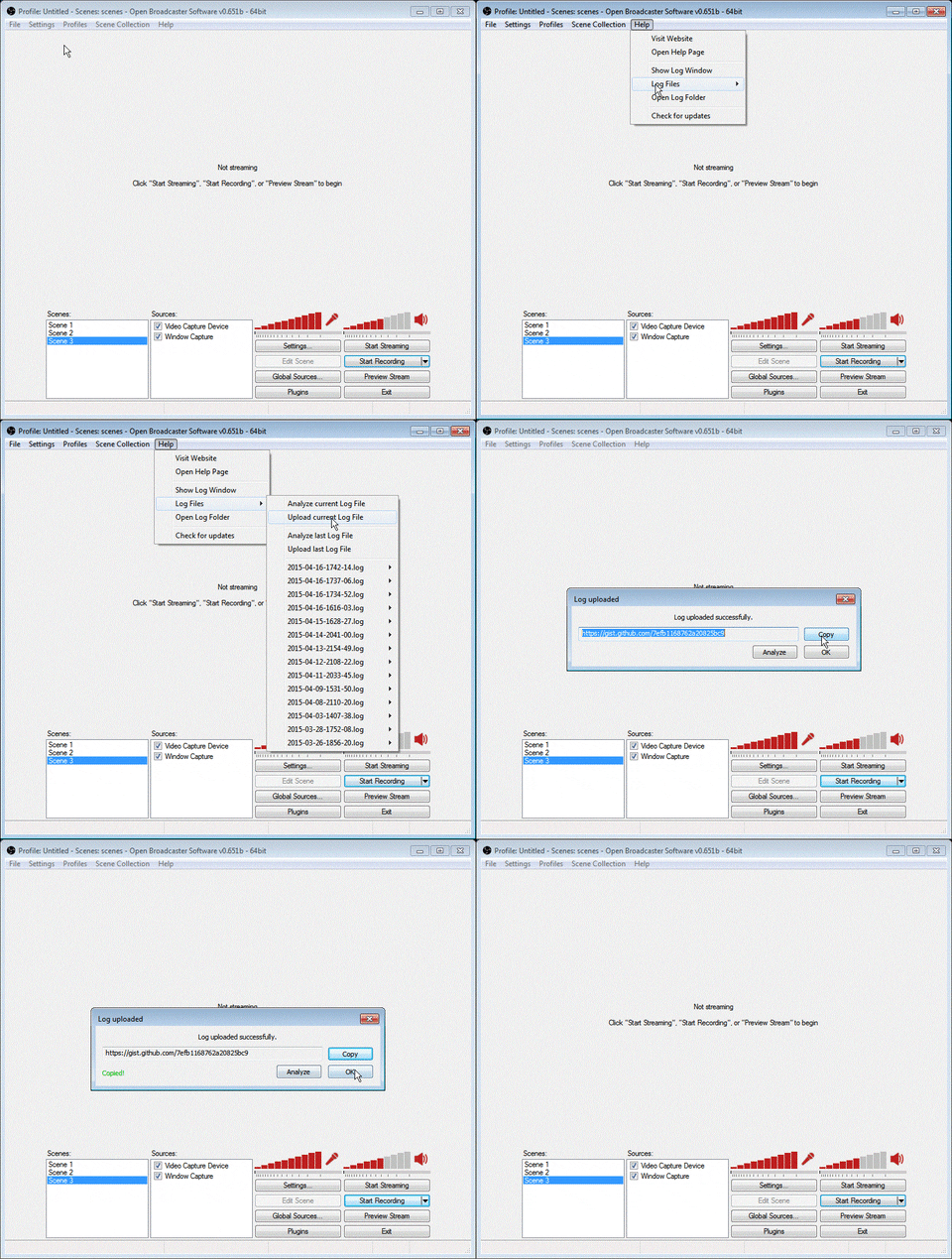
if you can repost a link to your log like this I will take a look
giphy.gif
 

dping

Active Member
haha, thanks. a guy made that for me about a year ago.

remove your monitor capture from that scene in fact from everywhere.
proper monitor capture can be done (if absolutely needed) by using a game capture pointed to dwm.exe, but put it in another scene, not your main one.

increase scene buffering to 700ms.

stick with x264, you'll get better quality once we get you fixed up (removing launch options, etc).

keep webcam at 720p or below. above is not needed and is a waste of USB bandwidth.
 

Skylar1412

New Member
haha, thanks. a guy made that for me about a year ago.

remove your monitor capture from that scene in fact from everywhere.
proper monitor capture can be done (if absolutely needed) by using a game capture pointed to dwm.exe, but put it in another scene, not your main one.

increase scene buffering to 700ms.

stick with x264, you'll get better quality once we get you fixed up (removing launch options, etc).

keep webcam at 720p or below. above is not needed and is a waste of USB bandwidth.


Thanks!
Will fix my settings, stream tomorrow and give you some feedback.
 

Skylar1412

New Member
So I tried streaming, but it got definitly worse.
As soon as I start the preview (streaming with 60 fps), fps jumps between 120-300
When I switch to 30 fps stream, and start the preview it stays constant at about 250
When I start to stream on 30 fps, my ingame fps drops to 120-300 back again.

New log:

https://gist.github.com/1fde8a50533a2b844939
 

dping

Active Member
So I tried streaming, but it got definitly worse.
As soon as I start the preview (streaming with 60 fps), fps jumps between 120-300
When I switch to 30 fps stream, and start the preview it stays constant at about 250
When I start to stream on 30 fps, my ingame fps drops to 120-300 back again.

New log:

https://gist.github.com/1fde8a50533a2b844939
a few thoughts. what is going on with your CLR browser configuration? it seems like its misconfigured. can you remove it for the time being? maybe rethink the way you have things set. I don't really use but I know your log shouldn't be shoting all of that stuff.

second, do you watch your own stream while you encode? if so, don't. use a popout chat instead. watching your own stream can seriously hurt performance since CPU usage is vital and watching twitch or sometimes even youtube can cause a negative impact.

Third, make your webcam a global source. you'll have to remove it from all scenes and readd it as a global source. from then on, when you add it, just select add then global source, then your webcam from the list of global sources.

what else do you have running while you stream? OBS, CS:GO and what else...even things in near the clock.

do you use gsync? if so, attempt to disable for now. this is more a grasp at straws but I'd like to see with and without if this is something you use.
 

Skylar1412

New Member
what else do you have running while you stream? OBS, CS:GO and what else...even things in near the clock.

.


Thanks for your reply, this is what helped me fix it.
I thought about it and just closed ALL applications except for OBS, Steam and GO.
Started the preview and had 350 fps constantly.
I was like "WOW, it was some strange program running in the background that caused all the problems - I have to tell that my friends", so I joined TeamSpeak, as soon as I opened TeamSpeak, my FPS dropped immediatly to 70.

So I disconnected from the TS Server, but kept TS open - same problem.
Reinstalled TS - same problem
Reinstalled TS 32-bit - same problem.

I just went full rampage mode and upgraded to Win10, now everything works fine.
While streaming I have 300 fps now :)

Thank you very much for your support and patience!
 

dping

Active Member
Thanks for your reply, this is what helped me fix it.
I thought about it and just closed ALL applications except for OBS, Steam and GO.
Started the preview and had 350 fps constantly.
I was like "WOW, it was some strange program running in the background that caused all the problems - I have to tell that my friends", so I joined TeamSpeak, as soon as I opened TeamSpeak, my FPS dropped immediatly to 70.

So I disconnected from the TS Server, but kept TS open - same problem.
Reinstalled TS - same problem
Reinstalled TS 32-bit - same problem.

I just went full rampage mode and upgraded to Win10, now everything works fine.
While streaming I have 300 fps now :)

Thank you very much for your support and patience!
np. teamspeak overlay could do it. OBS doesn't like to share hooks with other software. at that, no program really does. as I stated before I've heard if gsync in windowed mode game causing a similar issue, but you are using full screen so that probably wasn't it either.
 
Top