GingerGinger
New Member
Hello! I've had a weird issue that started after I had to re-install OBS on a fresh Windows 10 install. Previously I had no issues with the files that recorded, I was able to take them into DaVinci Resolve and edit them as usual. Ever since I basically had a fresh OS install and TRIED to copy all my same settings on the OBS install, the recorded files have video frames with missing data. It might be 5 minutes before one shows up and it might happen 3 times in a single minute.
I'm not sure why this is occurring since everything was working great before. I tried older versions of OBS, newer versions, different video drivers etc. and finally have to ask for help as I'm a little bummed I couldn't figure it out without bothering people.
I am streaming and recording at the same time, which was true before the problem occurred as well. The issue does also occur when I am ONLY recording.
No hardware has changed between the working setup and the non-working setup except I added a larger hard drive, which has shown no other issues so I'm still wondering if it's something I missed on the fresh install.
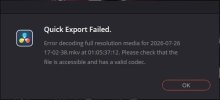
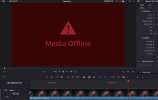
Attached are the error message I get when I bring the file into DaVinci and what that specific frame looks like on my editing timeline. I can navigate to the exact time on the error and see that the frame does not contain any image like the frames next to it. I've had other folks attempt the same thing with the file and get the same results and all my videos recorded BEFORE the install do not have this issue, so I do not suspect the issue to be on DaVinci's side but with the file integrity itself.
Here is the log from my last stream/record: https://obsproject.com/logs/6FGkps96LBjnimXi
Any ideas on what I should look at or try?
I'm not sure why this is occurring since everything was working great before. I tried older versions of OBS, newer versions, different video drivers etc. and finally have to ask for help as I'm a little bummed I couldn't figure it out without bothering people.
I am streaming and recording at the same time, which was true before the problem occurred as well. The issue does also occur when I am ONLY recording.
No hardware has changed between the working setup and the non-working setup except I added a larger hard drive, which has shown no other issues so I'm still wondering if it's something I missed on the fresh install.
Attached are the error message I get when I bring the file into DaVinci and what that specific frame looks like on my editing timeline. I can navigate to the exact time on the error and see that the frame does not contain any image like the frames next to it. I've had other folks attempt the same thing with the file and get the same results and all my videos recorded BEFORE the install do not have this issue, so I do not suspect the issue to be on DaVinci's side but with the file integrity itself.
Here is the log from my last stream/record: https://obsproject.com/logs/6FGkps96LBjnimXi
Any ideas on what I should look at or try?