Can't hear music track unless it's monitored, but then it's on stream

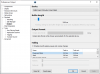
Hi! Trying to set up a vod track so that in VODs and recordings (replay buffer), there is no music. The only issue is that the music is playing, but can't hear it through the computer unless Monitoring is on, but then that is picked up by the default Desktop audio which plays it onto the recording. Here's the current setup. No GOXLR, just 1 virtual audio cable.
1630994995843.png

1630995006323.png
1630995012716.png

1630995030763.png


Not sure how to make the music play and be able to hear it on stream, but then it doesn't show up in recordings/VODs
 
The issue stems from the fact that you need to have a separate desktop audio device than your headphones/speakers. Anything that you hear yourself right now is what OBS will be capturing.

The way around this is to use separate devices for "desktop audio" and "headphone/speaker audio". You can do this using a program called Voicemeeter.
- Set your desktop audio to one of the Virtual Lines (i.e. Virtual Input)
- Have that virtual line sent to your headphones/speakers via Voicemeeter

You can also do this without using Voicemeeter -- just go to the Virtual Cable under Recording devices, and enable "Listen to this device", then select your headphones/speakers.

In either case, just make sure your Virtual line is set as your default windows audio device. Once that is set, set any programs you ONLY want to hear over headphones/speakers directly to the headphones/speakers via the windows sound routing.

With this separation, you can use the Virtual Line (default device) as the VOD track, with the headphone/speaker device as the live track.
 
The issue stems from the fact that you need to have a separate desktop audio device than your headphones/speakers. Anything that you hear yourself right now is what OBS will be capturing.

The way around this is to use separate devices for "desktop audio" and "headphone/speaker audio". You can do this using a program called Voicemeeter.
- Set your desktop audio to one of the Virtual Lines (i.e. Virtual Input)
- Have that virtual line sent to your headphones/speakers via Voicemeeter

You can also do this without using Voicemeeter -- just go to the Virtual Cable under Recording devices, and enable "Listen to this device", then select your headphones/speakers..

Did this, but it's still being picked up on OBS under DESKTOP AUDIO. Seems like there's no way around the fact that anything that goes through the headphones also shows up on stream, without using VM.
1633805496074.png


In either case, just make sure your Virtual line is set as your default windows audio device. Once that is set, set any programs you ONLY want to hear over headphones/speakers directly to the headphones/speakers via the windows sound routing.

With this separation, you can use the Virtual Line (default device) as the VOD track, with the headphone/speaker device as the live track.

This part didn't make sense. Is this not correct?
1633805671399.png


Trying to do everything without using VM, because that would be more programs to install, but maybe it's just too hard without VM.
 
- Set CABLE Input as the default audio device.
- Enable "Listen to this device" under FOOBAR properties.
- Set Music Program to output directly to Speakers (3- High Definition Audio Device)

Once this is set, FOOBAR should have the VOD audio mix, and Speakers (3-....) should have the full stream mix.
 
Maybe an odd question... It appears that Desktop Audio is only bothering you. Are you aware that you dont have to include it?
(You don't have to convince me, if you have to... that's ok. But for me it turned out great to only use Audio Input Captures and Audio Output Captures.)
 
Maybe an odd question... It appears that Desktop Audio is only bothering you. Are you aware that you dont have to include it?
(You don't have to convince me, if you have to... that's ok. But for me it turned out great to only use Audio Input Captures and Audio Output Captures.)
WAIT REALLY? How do you capture the game audio then??

- Set CABLE Input as the default audio device.
- Enable "Listen to this device" under FOOBAR properties.
- Set Music Program to output directly to Speakers (3- High Definition Audio Device)

Once this is set, FOOBAR should have the VOD audio mix, and Speakers (3-....) should have the full stream mix.

Hold on, kinda confused. Feels like something is wrong here. What needs to be changed?
1636213926751.png
1636213962869.png
1636213995743.png
1636214038883.png
 

Attachments

  • 1636213990656.png
    1636213990656.png
    38.6 KB · Views: 23
Last edited:
Back
Top