
Question / Help Audio / Webcam Desync [2016]

Okay... so I've been using OBS for 10 months and I have always struggled to syncronize my Webcam with my Microphone. Youtube has many personalities covering audio lag and general desyncronizations. But none of theirs solutions are working long term. So here we go.... I use ElGato which we all know has a 1.5 second delay when using OBS. To which I've adjusted my "Global Audio Syn Offset" to 1,350 ms (This works for my set up). And have altered the "Scene Buffering Time" to 2000ms and my Elgato to a -1350ms to compensate, as many videos have suggested... This solved my elgato issue. But now my Webcam and Mic, over time, gradually desynchronize as time goes on. To make things stranger is this doesn't occur 100% of the time. I have recorded video of my streams and on select videos the synchronization varies from the begining and the end of the stream.

This makes me think I am loosing frames or some other technobabble to cause my desynchronization. As evidense of my situation I have a Youtube video. ( https://youtu.be/VVtEHLOCxOw ) (NSFW) You'll notice the introduction is in sync at first to an extent. And at the last 5 min of the video you can see the dysynchronization more clear.

Any help, advise, tips, or hardware recommendations, will prevent me from loosing more hair.

Sincerely,
TheDrKrazy
 
Upon further observations, My last two streams and recordings went smoothly. Is it possible I am have Lost Frames during my stream which may be causing my Audio and Video to gradually desync. Again guys, I'm asking for any tips and advice.
 

dping

Active Member
Upon further observations, My last two streams and recordings went smoothly. Is it possible I am have Lost Frames during my stream which may be causing my Audio and Video to gradually desync. Again guys, I'm asking for any tips and advice.
write down the properties and setting you are using for your webcam and elgato video capture devices then remove both of them from all scenes, next add each back as a global source then assign them to your scenes.


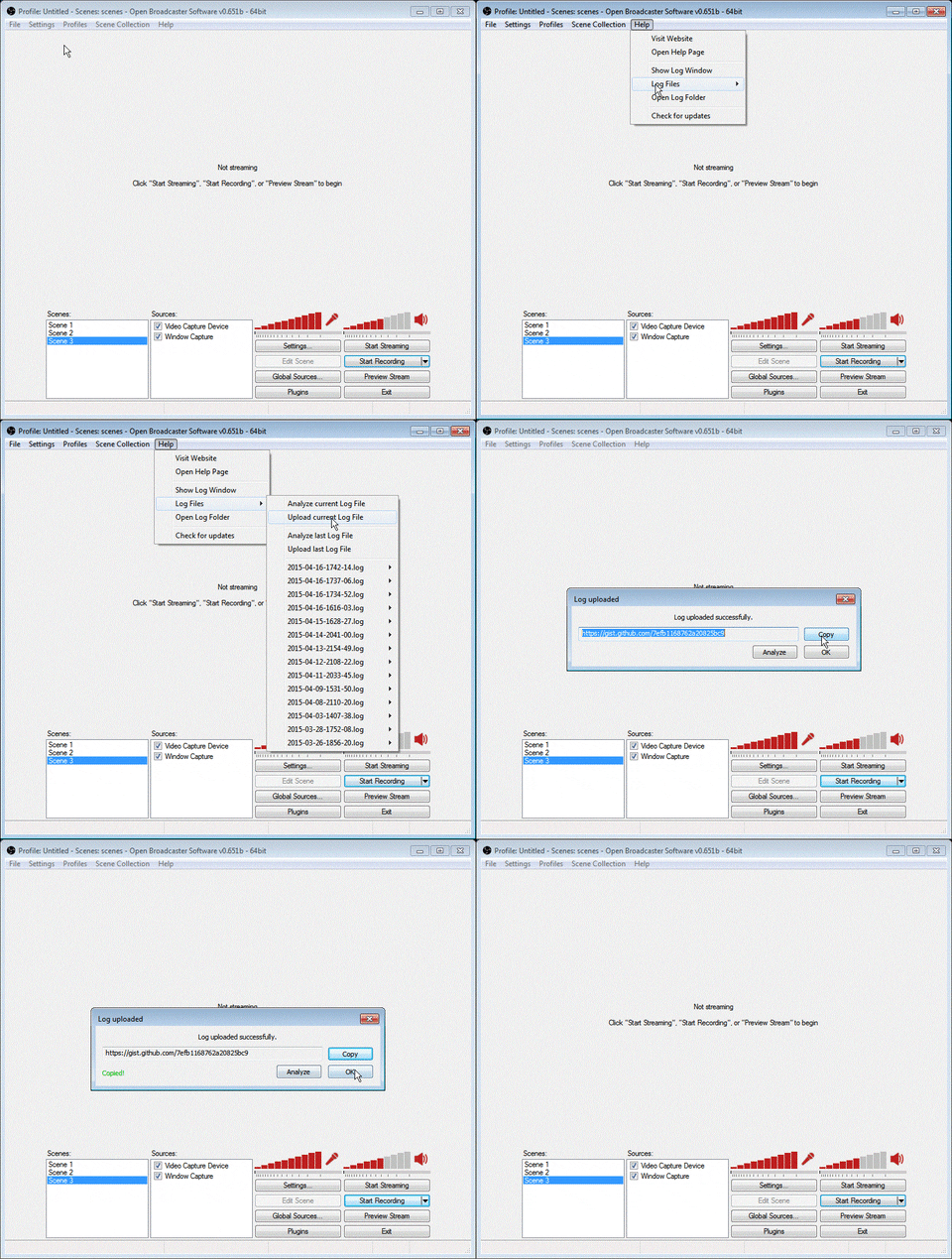
Also when requesting help, post a link to your OBS logfile from the help menu along with the video you posted.

giphy.gif
 
If they were already on as Global resources Should I remove those, then replace them all? As If I just installed OBS?
 

dping

Active Member
My bad.

https://gist.github.com/71c1ccbeee40edd94110

(Tell me if I did that wrong?)
Perfect. now enable aero (uncheck disable aero in video tab), then make sure you are using a windows aero enabled theme. Next go into the elgato video capture device properties in OBS and set 1ms buffer (not scene buffering, the buffer in the elgato properties).

Speaking of sene buffering, that might be a tad high. Most people find 1400 or 1500 is fine and set your webcam and mic offset to the same as the scene buffering that way everything comes out at the same time.
 
OBS is not responding since changes, and crashes almost all the time. The recording I would've had was lost and is not renderable. The Log file is proving difficult to attain. OBS continues to "Not respond" everytime I try to upload the Log file.

Update: Everything I try causes the "Not Responding" to happen I salvaged a Log file but I dunno if it'll help also I have to upload the txt file because Uploading it ain't happening. If all else fails how do I reset OBS and wipe everything. I've learned enough to establish the settings easy enough.
 
Last edited:

dping

Active Member
Log from Failed stream.
Code:
23:38:31:     use buffering: true - 13500000, fourCC: 'I420'
23:38:31:     audio device: Disable,
23:38:31:     audio device id Disabled,
23:38:31:     audio time offset -1350,

then set it back. you had scene buffering 2000 and your webcam delay was 1200ms (or 1350ms)

Also remove the -1350 audio offset in the webcams mic setting. I know the mic there isn't enabled but just to clear out settings that aren't correct. Instead go to the advanced tab and set a 1200ms (or 1350ms) auxillary/mic offset


you still haven't enabled aero (uncheck disable aero in video tab of OBS and also enable a windows aero enabled theme. OBS needs aero when using capture methods.
 
"you still haven't enabled aero (uncheck disable aero in video tab of OBS and also enable a windows aero enabled theme. OBS needs aero when using capture methods."

I've had aero Disabled for as long as I can remember streaming. How do I know I have a Aero enabled version of windows. If I recall correctly I am still using Win 7.

As for other suggestions I will try them Now... Gimme 30 min.
 
Bonus question. I'm testing setting utilizing the recording function to see if things Sync properly. Is this effective or should I try Streaming on and off to fine tune my Mic and webcam??
 

dping

Active Member
How do I know I have a Aero enabled version of windows. If I recall correctly I am still using Win 7.
I mentioned this when I said make sure that aero disabled isn't checked in OBS under the video tab, then use a windows enabled aero theme. go to themes in control panel. I think its under display or something. might take some google searching. performance in OBS will be better after you do that which could explain some audio desync issues.
Bonus question. I'm testing setting utilizing the recording function to see if things Sync properly. Is this effective or should I try Streaming on and off to fine tune my Mic and webcam??
As for a recording, it should be close to what you will see on a stream if not exact as long as your video player isn't crap at decoding. VLC is a pretty common player for your vids and works with almost all codecs.
 
23:29:47: Aero is Disabled

Its still disabled. UNCHECK disable aero in the video tab of OBS and use a windows enabled aero theme.

It's still showing unchecked. When I go to OBS > Settings > Video. Should I be un-disabling it somewhere else?
 
Top