Description
This script extends the classic Instant Replay workflow by adding replay history, navigation hotkeys, and clean single-file VLC playback. Save a replay, browse previous clips, jump straight to the latest one, and optionally archive replays into a timestamped folder, all without stacking endless clips inside VLC.Based on the original instant-replay.lua script by Jim and Exeldro. Extended and modified by DHGaming (softSinStudios)
Changelog
v1.3
- Reverted to the v1.0 codebase as the stable release foundation
- Removed optional session folders for copied replays
- Removed stream-name and session-based replay organization
- Removed tag-based replay saving and related hotkeys
- Removed v1.2 file scanning and numbering logic
- Returned the script to the simpler and more reliable v1.0 replay workflow
- Removed replay history cap
- Replay history is no longer limited by an internal maximum
- Replays remain available for the full OBS session unless manually cleared
- Removed the Max Replays Kept in Historysetting
- Simplified the script UI
- Returned replay retention control to the end user
- Preserved core replay behavior
- Instant Replay support using OBS Replay Buffer and a VLC source
- Replay history with navigation hotkeys
- Single-file VLC playlist behavior for direct replay loading
Why this rollback happened
v1.2 introduced additional replay management features, but those additions also increased complexity in the script and moved it away from the core behavior that mattered most. The v1.0 foundation proved to be the more reliable base for actual live-session use, especially for keeping replay handling simple, predictable, and easy to manage.
This rollback was done to restore stability, reduce unnecessary moving parts, and keep the script focused on its primary job: saving replays, loading them cleanly into VLC, and allowing straightforward session-based replay navigation without artificial limits.
v1.2
- Added optional session foldersfor copied replays
- Replays can be organized by stream name and session start time
- Disabled by default to preserve existing workflows
- Added tag-based replay saving(up to 6 tags)
- Each tag uses its own hotkey and filename prefix
- Tag numbering is derived by scanning existing files, ensuring correct increments across restarts
- Improved path handling and file detection for increased reliability
- Maintained clean single-file VLC playback behavior
- No changes to default behavior when new features are not enabled
v1.1
- Added user-defined stream name for copied replay filenames
- Improved replay file naming clarity without changing core workflow
v1.0
- Initial release
- Instant Replay support using OBS Replay Buffer and a VLC source
- Replay history with navigation hotkeys
- Single-file VLC playlist to prevent playback of old clips
Requirements
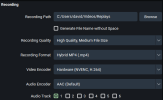
• OBS Studio: tested with 32.0.4 (64-bit)• Replay Buffer enabled in OBS
• VLC (64-bit) installed and registered in OBS
• A VLC Video Source in your replay scene
How To Use
1) Create your Instant Replay scene- Add a VLC Video Source
- Name it something like: InstantReplayVLC
- Leave the playlist empty
- Enable:
- Restart playback when source becomes active
- Close file when inactive
2) Load the script
- Go to Tools → Scripts
- Click +
- Select instant-replay-vlc.lua
3) Configure the script
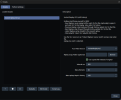
In the script properties:
• VLC Video Source: choose your replay VLC source
• (Optional) Replay Copy Folder: choose a folder to archive replays
• (Optional) Use copied file instead of original
• Adjust timing if needed (defaults are usually fine)
4) Set hotkeys
Go to:
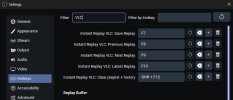
Settings → Hotkeys → Filter → VLC
Bind:
• Save Replay → F8
• Previous Replay → F9
• Next Replay → F10
• Latest Replay → F11
• (Optional) Clear playlist + history → Shift+F12
IMPORTANT: Do not assign a hotkey to Replay Buffer → Save Replay in OBS.
This script already triggers the replay save, and binding the built-in action will cause duplicate clips.
5) Workflow
- Turn on Replay Buffer in OBS
- Press F8 whenever something happens you want saved
- Use F9 / F10 to move backward/forward through replays
- Use F11 to jump to the newest replay
- Switch to your Replay Scene and it plays immediately
The VLC source will always contain only one clip, so you never accidentally play through a mountain of old replays.