Description
This script extends the classic Instant Replay workflow by adding replay history, navigation hotkeys, and clean single-file VLC playback. Save a replay, browse previous clips, jump straight to the latest one, and optionally archive replays into a timestamped folder, all without stacking endless clips inside VLC.Based on the original instant-replay.lua script by Jim and Exeldro. Extended and modified by DHGaming (softSinStudios)
Requirements
• OBS Studio: tested with 32.0.4 (64-bit)• Replay Buffer enabled in OBS
• VLC (64-bit) installed and registered in OBS
• A VLC Video Source in your replay scene
How To Use
1) Create your Instant Replay scene- Add a VLC Video Source
- Name it something like: InstantReplayVLC
- Leave the playlist empty
- Enable:
- Restart playback when source becomes active
- Close file when inactive
2) Load the script
- Go to Tools → Scripts
- Click +
- Select instant-replay-vlc.lua
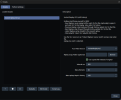
3) Configure the script
In the script properties:
• VLC Video Source: choose your replay VLC source
• (Optional) Replay Copy Folder: choose a folder to archive replays
• (Optional) Use copied file instead of original
• Adjust timing if needed (defaults are usually fine)
4) Set hotkeys
Go to:
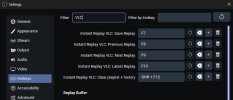
Settings → Hotkeys → Filter → VLC
Bind:
• Save Replay → F8
• Previous Replay → F9
• Next Replay → F10
• Latest Replay → F11
• (Optional) Clear playlist + history → Shift+F12
IMPORTANT: Do not assign a hotkey to Replay Buffer → Save Replay in OBS.
This script already triggers the replay save, and binding the built-in action will cause duplicate clips.
5) Workflow
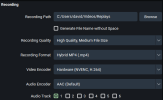
- Turn on Replay Buffer in OBS
- Press F8 whenever something happens you want saved
- Use F9 / F10 to move backward/forward through replays
- Use F11 to jump to the newest replay
- Switch to your Replay Scene and it plays immediately
The VLC source will always contain only one clip, so you never accidentally play through a mountain of old replays.