Using browser as source, camera/mic not blocked but crossed out camera image on OBS screen

briesmith

New Member
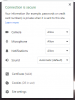
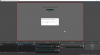
I'm using OBS Studio 25.0.8 64 bit on a Windows 10 Professional PC. I want to use Chrome to access a Google Meet session but I get a problem when I try to do so. I have checked my Chrome settings and both camera and mic are unblocked and the Google Meet page when accessed directly lets me control them. When I switch to looking at the browser page in OBS I get a grey outline of a camera with a line through it or the attached image showing a refusal to connect. Anybody know how I can fix this? I've spent hours on it so far and on 2 different PCs. Chrome is up to date and so is Windows 10 and OBS on both.

Log file https://obsproject.com/logs/lIRymsZuoW5OEyap and https://obsproject.com/logs/cvqFD-nPdw0F2fPW
 

Attachments

  • Blocked message.png
    Blocked message.png
    67.9 KB · Views: 1,566
  • Camera permissions.png
    Camera permissions.png
    26 KB · Views: 1,578
I am looking for a solution for this as well. The reason this is happening is because OBS Studio uses its own browser with its own permissions. I can't figure out how to access those permissions.
 
Dear, have you tried confidentialty parameters in Windows ?
parameters->confidentialiy->Camera
Unfortunately, there is no option there to enable camera for OBS Studio's built-in browser. Just applications and browsers, and it is turned on for OBS as well as all browsers listed.
 

carlmmii

Active Member
That's great news!

I'm going to have to try this myself... been wanting to try something with live audio visualization, this seems like it would solve the problem of media permissions.
 
I've been testing extensively and it has opened up MANY doors for us. If we go live with the workaround we developed based on your awesome tip, I'll be sure to post back here. Thanks again!!
 

Advansys

New Member
Does this solution still work? I am trying to use Webcaptioner and it cannot access my microphone. I used the Run command to start OBS for Windows 64-bit with the suggested command line and yet cannot see the permissions dialog in the OBS interactive browser window.

Any suggestions?

Thanks in advance!
 

QuietKiller

New Member
This is a long-shot, but try running OBS with "--use-fake-ui-for-media-stream".
I created a webpage that needs access to a virtual line out and virtual cam to stream. My goal was to put it in OBS so that someone doesn't accidentally close the browser which would stop the stream. With OBS 25 on PC they now have dockable websites which the code below works to allow for it to prompt for audio and video. However, MAC does not support this feature yet, so I tried to create a browser as a scene and ran the command "open /Applications/OBS.app/Contents/MacOS/OSB --args --use-fake-ui-for-media" which opened up OBS, but still did not open access to the web page to allow video/audio.

PC: this worked for me, HOWEVER the right command for PC is"-use-fake-ui-for-media-stream" (just one dash in the front) for those that need to know. On PC create a shortcut, then right-click edit.. change the target and add the "-..." from above and save.

STIll NEED HELP WITH RUNNING A WEBPAGE IN OBS/MAC THAT WILL ALLOW ACCESS TO VIDEO AND AUDIO.
 

Advansys

New Member
PC: this worked for me, HOWEVER the right command for PC is"-use-fake-ui-for-media-stream" (just one dash in the front) for those that need to know. On PC create a shortcut, then right-click edit.. change the target and add the "-..." from above and save.

Unfortunately the single dash suggestion did not work for me in trying to allow microphone access to OBS browser.
 

fullmontis

New Member
Same problem here. I have a webpage that requires access to the microphone. Either with or without the "--use-fake-ui-for-media-stream" option microphone doesn't work.
I don't know if it may be of help, but when running OBS without any option, I get the following error in the log:
Code:
warning: obs-browser: Uncaught (in promise) NotReadableError: Could not start audio source (source: http://localhost:8000/:0)
while if I use the "--use-fake-ui-for-media-stream" option, I get the following:
Code:
warning: obs-browser: Uncaught (in promise) NotAllowedError: Permission denied (source: http://localhost:8000/:0)
Which is perplexing... I mean, isn't the whole function of that option to grant access? Why is it being blocked?
 

konsolenritter

Active Member
@fullmontis But the ":0" at the end of your url seems to be very unusal, at least the colon!
Are you sure the url will be right? Maybe if you fix the url, one of the fake-ui-tricks work for you then?
 

fullmontis

New Member
@fullmontis But the ":0" at the end of your url seems to be very unusal, at least the colon!
Are you sure the url will be right? Maybe if you fix the url, one of the fake-ui-tricks work for you then?
I was too thinking about that! However the url is right in the settings of the browser source and it opens any webpage perfecly fine, it just doesn't seem to want to give access to the microphone. Probably something added by the embedded browser? No idea where that is coming from, but I don't feel like that is the problem.
 

fullmontis

New Member
Okay after some tinkering for some reason now it works! I have no idea what I did differently to be honest. I just launched OBS with the following line:
Code:
obs --use-fake-ui-for-media-stream
And now it seems to work with onlinemictest.com and my own page. It finds the mic without problem. Which is strange, but I'll take it.
Sorry for the double post but it doesn't allow me to edit my last one.
 
I tried that same switch, but it did not work… but I have a number of switches I also using.

I wonder if there is a limit to how many switches OBS will pay attention to??!!
 
I tried just using the one switch, obs --use-fake-ui-for-media-stream, when running OBS, and stilll cannot get speech recognition to work when launched with the OBS browser (using my custom web page that works fine outside OBS).
 

kn1

New Member
Okay after some tinkering for some reason now it works! I have no idea what I did differently to be honest. I just launched OBS with the following line:
Code:
obs --use-fake-ui-for-media-stream
And now it seems to work with onlinemictest.com and my own page. It finds the mic without problem. Which is strange, but I'll take it.
Sorry for the double post but it doesn't allow me to edit my last one.
Any update on getting this to work? Trying to use a web browser / microphone and not having any luck either.
And where/how are you adding that line of code? Apologies for the noob question.
 
Top