Resource icon

Twitch Auto Category Manager 1.1

Troyo

New Member
Troyo submitted a new resource:

Twitch Auto Category Manager - A script that automatically changes your twitch category based on the process open.


Automatically updates your Twitch stream category based on running applications.
Supports custom game mappings and the Discord detectable apps database as a fallback.

For further information about it please visit the github where I also made an extensive tutorial on how to install!

This plugin is licensed under GPLv3. You are free to use, modify, and distribute it, but any derivative work must also be open-source...

Read more about this resource...
 
Nevermind. The fix (at least in my case) was to affix the port number to the end of "localhost"
Yes, that is indeed my mistake, I forgot I put the authentication on a fixed port. I corrected the Read Me on github, thank you for telling me this!
 
Glad to help.


I do also have some suggestions if you like? Obviously youre free to do none of it, but i was wondering about some stuff.

Is it possible to perhaps have supplying the GAMEID according to Twitch be tied to an exe? For example, I loaded Resident Evil 2 2019 and it didnt know what to do with it because it thought "re2.exe" was the demo. So, when i told it re2.exe = Resident Evil 2, it automatically it to gameID 8645 which is the old game. I would like to be able to supply 293693714 to re2.exe and set it to priority 1, for example.

Another thing, is a way to change/set the drfault category. "Just Chatting" is something i hardly ever do.

And also, is it possible to perhaps set sub-process/window name? This helps with some emulators and PC games where the exe name may not be reliable but the window name is.

Or, is there a way to pause the scriot in case i wanna manually set the details myself for whatever reason?
 
Glad to help.


I do also have some suggestions if you like? Obviously youre free to do none of it, but i was wondering about some stuff.

Is it possible to perhaps have supplying the GAMEID according to Twitch be tied to an exe? For example, I loaded Resident Evil 2 2019 and it didnt know what to do with it because it thought "re2.exe" was the demo. So, when i told it re2.exe = Resident Evil 2, it automatically it to gameID 8645 which is the old game. I would like to be able to supply 293693714 to re2.exe and set it to priority 1, for example.

Another thing, is a way to change/set the drfault category. "Just Chatting" is something i hardly ever do.

And also, is it possible to perhaps set sub-process/window name? This helps with some emulators and PC games where the exe name may not be reliable but the window name is.

Or, is there a way to pause the scriot in case i wanna manually set the details myself for whatever reason?
Thank you for your comment!
I have to say I have worked on a plugin that includes everything in this script and I will take in consideration your problem and suggestions, I understand the simplicity of a script but I think making it into a general plugin for obs will have a lot of pros for both me as a dev, potential devs that fork the plugin and modify it and users. Making it simpler to use and customize.
I will try to release it in the next few days but I can't give an ETA due to me working on it in my free time.

Hope you'll consider trying the plugin when it comes out!
 
Yeah, I'll try it out. Hopefully that stuff ain't too ahrd to implement. I think i heard scripts can potentially lag OBS, anyway.
 
something else that came to mind... idk if you're any good at making the plugin appears as a source filter. This could work for detecting the game via Game/Window Capture.

but again, just do what you feel is best.
 
Troyo submitted a new resource:

Twitch Auto Category Manager - A script that automatically changes your twitch category based on the process open.


Read more about this resource...
I think a small tutorial should be included as to how to install and configure python. Based on this post by OBS only version 3.12 of Python will work with OBS and also ONLY the 64-bit version seems to work. The last working version is 3.12.10 (64-bit). No version of 32-bit of Python works to get the Scripts > Python Settings tab say "Loaded Python Version: 3.xx". The last Python 32-bit is flavor 3.12.07 for 32-bit only and fails to load in my OBS (probably because I am running a 64-bit version of OBS).

The correct version that loads for OBS (currently as I write this OBS v32.0.4 64-bit) is Python version 3.12.10 can be found here:

This article is now over 1 year old but it talks about Python version 3.13 not being supported and to stick with version 3.12:

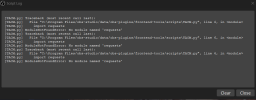
I got Python running, the TACM.py file is not working and gives odd error messages like such (attached). It seems the error message shows a "\scripts/TACM.py" path so the "/" may be the problem. NOt sure if I should edit the python file but I do not know how to do that without breaking it.
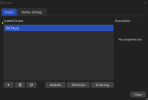
Also, no Description is visible at all so I am at a loss as to what to do here. (also attached)
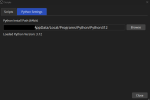
Python Settings tab is also attached as well
Your Githhub tutorial is exquisitely perfect I just wish the Description would show once the TACM.py file was loaded into OBS then everything would work. I feel this is an OBS issue outside the weird forward and backslash error that could be the problem. Not sure. What do you think?
 

Attachments

  • 2026-01-02 17_32_58-Scripts.png
    2026-01-02 17_32_58-Scripts.png
    12.8 KB · Views: 42
  • 2026-01-02 17_34_13-Script Log.png
    2026-01-02 17_34_13-Script Log.png
    31.4 KB · Views: 40
  • 2026-01-02 17_36_25-Scripts.png
    2026-01-02 17_36_25-Scripts.png
    20.3 KB · Views: 51
Last edited:
Back
Top