Question / Help Streamlabs Alerts pop up but have no audio!

SwanzzyJ

New Member
Hello,

I am using Windows 10 with OBS 22.0.2 and I am getting sound when I test my alerts, but no sound when I am streaming/recording. I am using Google Chrome. Also, have not contacted Streamlabs support. I can't recall the exact version as I don't pay too much attention to when Updates roll out. Maybe an update or two ago?

Here is my current log file after following your instructions above: https://obsproject.com/logs/rL7qG3kFBzFmORQL

UPDATE: After streaming today, it turns out the only alert that is making no noise are Cheers (bits). My follow & host alerts make a sound. Unsure about the donation alert. I am very confused.
 
That's 100% an issue with your streamlabs setup. Go to your dashboard->alerts page, select the bits tab, and scroll all the way down to the variants section. One of those variants is probably overriding your alert settings.
 
I have the same problem with notifications from DonationAlerts and DonatePay websites. Alerts can be seen on the stream, but there is no sound. The browser does not have this problem. Tech support DonationAlerts nothing could help. Everything works well on their side.
 
No problem. What I'm really wondering is whether the problem is with the browser source able to create sound, or if the sound it's creating doesn't have a path to the capture. Anything to help narrow down where to check settings.

Since you mentioned that it works in a normal non-OBS browser window, that leads me to suspect the audio chain from the browser source, just as long as there's nothing funny going on with how the sound is being produced on the page.
 
Yes, problem is extraordinary. Developers assured that nothing has changed in Browse Source for a long time. And last year the notifications worked perfectly.
I believe that changes have occurred in Windows. But the sound settings in the operating system are primitive.
So we'll have to wait until I get home.
 
Hello.
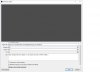
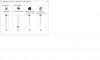
Post log and screenshots of the settings OBS Studio and Windows.
 

Attachments

  • Donat.jpg
    Donat.jpg
    70 KB · Views: 2,414
  • Mixer.jpg
    Mixer.jpg
    45.3 KB · Views: 2,376
  • 2019-02-25 13-55-45.txt
    2019-02-25 13-55-45.txt
    5.7 KB · Views: 674
I checked all Windows 10 settings related to sound and games.
1. Options for disabled people - off
2. Game. DVR. XBox etc - off
3. Default devices - only SoundBlaster card. No mic from Web-camera etc.

Рroblem is gone - I can hear and see alert in OBS.
Thanks for help.
 
Bumping a dead topic, but I have the same issue and only just noticed it recently when I told my mom to follow me!

This has worked fine in the past and I'm pretty sure nothing changed on my end either.

I have these sources:

Alert Box (source > control audio via OBS)
Audio (audio input from my mixer)
Webcam
Game Source

I have three audio devices (default for windows, one dedicated to my game and one dedicated for voice comms).

The audio from my audio input is a mix of what is output over game audio, music and my microphone input. So no Windows default audio!

When I test the alert box it plays the audio on the default audio device, you can see in the mixer section of OBS that it plays sound as well. Yet, this sound is completely absent from the stream...

If you disable the "Control audio via OBS" option, you wont see it play audio on the OBS mixer... but it still plays on the default audio device.

Now I personally do not want my default audio device on stream, but there is nowhere to select the default audio device that OBS uses!

Either way, this worked fine in the past and notification sounds from the alert box have always played on stream using the same setup.
 
I don't know about fixing the alerts if they're not playing through stream, but this might help anyway. I found out today that if you go into "advanced audio settings" there is a setting on the right hand side that handles something called "Monitor". essentially this is the thing OBS uses to play sounds back to you, as well as on stream, or not if you so choose. make sure the dropdown is set to "monitor and output" for the source you want to be able to hear. this needs to be applied to anything you want to hear the alerts from. keep in mind that Twitch alerts and Streamelements ones are two separate elements so you'll have to change the setting for both of them individually.


If you still can't hear it, check settings> audio> advanced> monitoring device is set to what you hear everything else through. i.e. your headphone speakers or other default playback device.
 
If you're using a "streamlabs recent-events" custom dock, make sure it's not muted. I had the same problem, turns out it was as simple as that.
1610711964180.png
 
I don't know about fixing the alerts if they're not playing through stream, but this might help anyway. I found out today that if you go into "advanced audio settings" there is a setting on the right hand side that handles something called "Monitor". essentially this is the thing OBS uses to play sounds back to you, as well as on stream, or not if you so choose. make sure the dropdown is set to "monitor and output" for the source you want to be able to hear. this needs to be applied to anything you want to hear the alerts from. keep in mind that Twitch alerts and Streamelements ones are two separate elements so you'll have to change the setting for both of them individually.
I dont know if you helped the OP, but you sure helped me, so thanks!
 
what in the world are you guys making this so hard for , go to the source, " sub alert or whatever alert in obs and click control audio via obs and done,
 
I'm having this problem in OBS (using StreamElements, not Streamlabs, but I don't see that makes a difference). Testing of the alerts works perfectly, but as soon as I go live the audio from the alert disappears. The audience can hear it just fine, which is the most important thing, but I can't - which means I sometimes miss when people follow me. I have 'control audio via OBS' enabled, and the advanced audio properties is set to 'monitor and output'. But can't hear a thing.

I'm quite happy to accept I've done something wrong, I just can't work out what it is.
 
what in the world are you guys making this so hard for , go to the source, " sub alert or whatever alert in obs and click control audio via obs and done,

THANK YOU SO MUCH! I couldn't find a fix to this, and it was as simple as that...
I have to mute my desktop source when I'm streaming from the capture card [because it creates echo], so people couldn't hear the alerts [I could]. Now at least I have the alerts source in Audio Mixer. Gonna see tomorrow if it fixes the problem.
 
Not sure if this will help but this guy has a fix.
 
Back
Top