

You are using an out of date browser. It may not display this or other websites correctly.
You should upgrade or use an alternative browser.
You should upgrade or use an alternative browser.
SEQUOIA (15.0) AND OBS
- Thread starter TFE
- Start date

robert.rybarsky
New Member
Hello. Cameras connected via NDI but also via RTSP stopped working for me.
I’m having problems with starting virtual camera – even though I selected the option to allow installation of apps from anywhere in the security settings, OBS still shows a window saying that this needs to be allowed in the Mac OS settings.Anyone OBS users updated to 15.0? Any problems? Thanks!
I also went in an under privacy and security i gave OBS access to every single option, this has to be a change apple made to the allowed access in 15.0 beta - gotta love beta issues -Im glad i decided to test it in beta before work rolled it to all the mac's they use OBS cameras and zoom/discord so im glad i found itView attachment 108161 same issue here on the beta - Ive added all of the options i can find - i even ran the old fix for legacy drivers i found In recovery: system-override legacy-camera-plugins-without-sw-camera-indication=on, same error notice after. ill wait for some feed back but i dont know where else to even start to look for support or what else to do
Not my answer - as I found it in Reddit - Full credit to Short_Shelf_Life for sharing this answer.
"
I was able to find the issue after following the suggestions here and doing full reinstalls (as well as cleaning up supporting files) and the issue was not in the privacy and security settings.
Upon installing OBS I gave the OK to install the camera extension. I'd forgotten about that, so I checked on the extension (in Login Items and Extensions) and it turns out that the extension was installed, but had to be manually enabled in the extension information. After that the virtual camera started right away, no additional installation as mentioned previously as well. Very weird and unintuitive resolution, but we got there."
in Summary, Choose General, Login Items and Extensions.. Look for Camera Extensions. Choose the i icon to the right. Turn "on" OBS. Choose done. Once I closed the dialog, I was able to go back to obs and "Start Virtual Camera".
"
I was able to find the issue after following the suggestions here and doing full reinstalls (as well as cleaning up supporting files) and the issue was not in the privacy and security settings.
Upon installing OBS I gave the OK to install the camera extension. I'd forgotten about that, so I checked on the extension (in Login Items and Extensions) and it turns out that the extension was installed, but had to be manually enabled in the extension information. After that the virtual camera started right away, no additional installation as mentioned previously as well. Very weird and unintuitive resolution, but we got there."
in Summary, Choose General, Login Items and Extensions.. Look for Camera Extensions. Choose the i icon to the right. Turn "on" OBS. Choose done. Once I closed the dialog, I was able to go back to obs and "Start Virtual Camera".

ArthurGerhardt
New Member
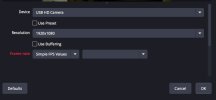
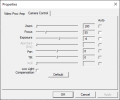
I have a problem with OBS Studio Mac version. My video card capture is not recognized on OBS Studio. But I already installed Windows 11 on Parallels and the OBS works properly. How can I fix this issue with the version of OBS Studio for Mac? My MacBook Air M2 with macOS 15 Sequoia installed.
ashsimmons
New Member
Created an account just to say thank you! This absolutely worked for me and I would have never found it without your commentNot my answer - as I found it in Reddit - Full credit to Short_Shelf_Life for sharing this answer.
"
I was able to find the issue after following the suggestions here and doing full reinstalls (as well as cleaning up supporting files) and the issue was not in the privacy and security settings.
Upon installing OBS I gave the OK to install the camera extension. I'd forgotten about that, so I checked on the extension (in Login Items and Extensions) and it turns out that the extension was installed, but had to be manually enabled in the extension information. After that the virtual camera started right away, no additional installation as mentioned previously as well. Very weird and unintuitive resolution, but we got there."
in Summary, Choose General, Login Items and Extensions.. Look for Camera Extensions. Choose the i icon to the right. Turn "on" OBS. Choose done. Once I closed the dialog, I was able to go back to obs and "Start Virtual Camera".
Thank you!!!!Not my answer - as I found it in Reddit - Full credit to Short_Shelf_Life for sharing this answer.
"
I was able to find the issue after following the suggestions here and doing full reinstalls (as well as cleaning up supporting files) and the issue was not in the privacy and security settings.
Upon installing OBS I gave the OK to install the camera extension. I'd forgotten about that, so I checked on the extension (in Login Items and Extensions) and it turns out that the extension was installed, but had to be manually enabled in the extension information. After that the virtual camera started right away, no additional installation as mentioned previously as well. Very weird and unintuitive resolution, but we got there."
in Summary, Choose General, Login Items and Extensions.. Look for Camera Extensions. Choose the i icon to the right. Turn "on" OBS. Choose done. Once I closed the dialog, I was able to go back to obs and "Start Virtual Camera".
You are welcome.Created an account just to say thank you! This absolutely worked for me and I would have never found it without your comment
paomas1981
New Member
Hallo, my name is Paolo. I've seen that gstreamer plugin don't work in Sequoia.
I've install previously on Sonoma and it work perfectly. After I upgrade to Sequoia it disappears from source menu.
I've install previously on Sonoma and it work perfectly. After I upgrade to Sequoia it disappears from source menu.
Digitalchou
New Member
Hi Pablo.Hallo, my name is Paolo. I've seen that gstreamer plugin don't work in Sequoia.
I've install previously on Sonoma and it work perfectly. After I upgrade to Sequoia it disappears from source menu.
Install the last plugin version from download section in obs plugin forum and then follow instructions on this video:
- YouTube
Enjoy the videos and music you love, upload original content, and share it all with friends, family, and the world on YouTube.
 www.youtube.com
It worked for me, good luck!
turingsroot
Member
For anyone still hitting issues with OBS on Sequoia, here is a consolidated checklist:
Virtual Camera not working:
1. Go to System Settings > General > Login Items & Extensions
2. Find "Camera Extensions" and click the (i) icon
3. Toggle OBS to ON, then click Done
4. Restart OBS — virtual camera should now start without errors
Screen/Window Capture broken:
1. System Settings > Privacy & Security > Screen Recording
2. Remove OBS, re-add it, toggle ON
3. Quit and relaunch OBS
NDI/RTSP streams dropping:
- Update OBS to the latest version (31.x+) and update the NDI plugin separately
- Sequoia changed some network permissions — check System Settings > Privacy & Security > Local Network and make sure OBS is allowed
Capture card not recognized:
- Most USB capture cards need updated drivers for Sequoia. Check the manufacturer site. Some generic cards work with the built-in macOS UVC driver — try removing any third-party driver and let macOS handle it natively.
Make sure you are on OBS 31.0.1 or later, which includes official Sequoia compatibility fixes.
Virtual Camera not working:
1. Go to System Settings > General > Login Items & Extensions
2. Find "Camera Extensions" and click the (i) icon
3. Toggle OBS to ON, then click Done
4. Restart OBS — virtual camera should now start without errors
Screen/Window Capture broken:
1. System Settings > Privacy & Security > Screen Recording
2. Remove OBS, re-add it, toggle ON
3. Quit and relaunch OBS
NDI/RTSP streams dropping:
- Update OBS to the latest version (31.x+) and update the NDI plugin separately
- Sequoia changed some network permissions — check System Settings > Privacy & Security > Local Network and make sure OBS is allowed
Capture card not recognized:
- Most USB capture cards need updated drivers for Sequoia. Check the manufacturer site. Some generic cards work with the built-in macOS UVC driver — try removing any third-party driver and let macOS handle it natively.
Make sure you are on OBS 31.0.1 or later, which includes official Sequoia compatibility fixes.