Recording 4k60 (Near) Lossless - Noob here

hamzaaa

New Member
Hi there,

I am not an expert in streaming or capturing so please excuse me if I might ask some noob questions.

So I am trying to capture 4k60 (Near) Lossless footage and I have tried several capturing methods but I just can't seem to get it right.

The machine I am using: AMD Radeon RX6800XT, Ryzen 7 5800X, M2 SSD

I have tried several simple presets (Lossless, Indistinguishable quality) and advanced presets (ProRes 422, ProRes 4444, AVC/HEVC Quality CQP). Then I tried using another PC with weaker hardware but with a capture card (Elgato 4k60 Pro Mk 2) but that also didn't help much, also I have no experience with capture cards and I thought they would enable me to capture footage that might be otherwise too heavy for the hardware but it seems it's only purpose is to bridge the signal to another pc? No matter what I did the capture came out choppy. The last thing I tried was using the capture from built in Radeon Software (HEVC) which achieved acceptable results but its not really lossless or near-lossless I think...

I am kinda lost here and I feel my hardware is just not able to handle the capture although I thought the hardware should be more than enough or isn't it? Some directions would be really nice.. Thanks! :)

This is the initial log right after I launch OBS https://obsproject.com/logs/r4DY_EqsEjZVF_2S What stands out is the "AMF_NOT_FOUND (Code11)" message. Already googled it and used DDU to remove and freshly install the VGA drivers but the error persists. Not sure what else I can do here. I will post more logs with exact settings soon.
 
Best would be to do a live test-recording (as in, actually recording the stuff you want to eventually record) at least 30s-2m in length, end the recording, then post that logfile here (as a file attachment, not as the text from the file). We'll be able to see what's going on much more clearly, and actually be able to offer troubleshooting and constructive advice. As-is, any advice would just be shooting blind.
 
Oh btw I made a mistake I have a AMD Ryzen 9 5900X >___>

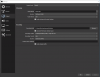
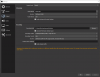
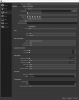
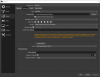
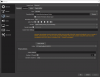
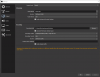
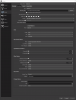
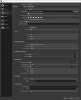
Ok I made some tests and attached them as files, the OBS settings are sorted chronologically how they appear in the log. I felt like the HEVC Quality CQP (OBS_settings_08) was working the best although I still feel there are some micro chops. For additional info I am trying to capture Anno 1800 which is a very CPU hungry game. Maybe it makes sense then, that GPU encoders seemed to work better than CPU encoders? Still I would have expected this CPU to handle this easily.

Also can someone clarify to me what the purpose of a capture card actually is? I have a Elgato 4k60 Pro Mk2 and I thought the purpose of those is not only to bridge the signal from an output (Console, PC) to an input (Capturing PC) but also taking away some CPU workload of the capturing PC to ensure smooth streams/capture? Or am I getting the concept wrong?

Thanks a lot!
 

Attachments

  • 2021-06-02 10-48-03.txt
    2021-06-02 10-48-03.txt
    28.7 KB · Views: 54
  • Obs_Settings_01.png
    Obs_Settings_01.png
    39.1 KB · Views: 229
  • Obs_Settings_02.png
    Obs_Settings_02.png
    45.1 KB · Views: 218
  • Obs_Settings_06.png
    Obs_Settings_06.png
    136.8 KB · Views: 182
  • Obs_Settings_05.png
    Obs_Settings_05.png
    53.2 KB · Views: 164
  • Obs_Settings_04.png
    Obs_Settings_04.png
    53.5 KB · Views: 150
  • Obs_Settings_03.png
    Obs_Settings_03.png
    43.8 KB · Views: 147
  • Obs_Settings_07.png
    Obs_Settings_07.png
    135.7 KB · Views: 147
  • Obs_Settings_08.png
    Obs_Settings_08.png
    123 KB · Views: 208
Also can someone clarify to me what the purpose of a capture card actually is?
A capture card is for capturing video from external devices such as game consoles or cameras with hdmi output. It's not meant for capturing from the device it is built in, because directly capturing from the frame buffer of the GPU is many times more resource friendly than to read it through some capture device.

The thing with "taking away some CPU workload" is the encoding. Some capture devices have a hardware encoder and come with an app that directly stream to some streaming provider. In this case, the video is encoded on the capture device and sent directly to some streaming provider. This actually conserves resources, because only the encoded video is transferred not encoded on the CPU. But this is not how OBS works, because OBS does compositing of multiple sources and always encodes on its own. It will decode any video that comes from a capture device, load it into GPU memory, performs compositing and encodes the composited video. It will use either CPU or a supported hardware encoder. Hardware encoders on capture cards are not supported. So you see directly reading the frame buffer of the GPU is much faster than reading data from the capture card, decode it and upload it to GPU memory.
 
Hey Koala,

thanks for clarification! I tried around a little bit more with the 2-PC Capture card setup and from what you described I encountered something weird:
So I have a gaming PC running Anno 1800 on 4k60 and then I have my capture PC with the Elgato 4k60 Mk2 installed using a GeForce GTX 960. Now when I try to capture using OBS and the Capture Card as input I immediately run into encoding lag on basically every possible setting. Elgato also has a 4k Capturing Utility that seems to use the GPU for encoding where I cranked up the bitrate to max (see screenshot). When I capture with this software the captures turn out fine and I don't seem to run into encoding lag. Could it be that the Elgato 4k Capturing Utility indeed does utilize the capture card more together with the GPU other than OBS? I am confused ^^
 

Attachments

  • elgato_utility.png
    elgato_utility.png
    951.7 KB · Views: 102
Unfortunately, I cannot help you further, since I neither have such a capture card, nor an old GTX 960, nor a 2 PC setup, nor a 4k@60 source.

There used to be a Nvidia article describing the maximum fps achievable with the different nvenc versions, but I'm unable to find any that described the old GTX 900 series. May be it's not capable to encode 4k at 60 fps, despite what you're getting from the Elgato tool - check if the video created by it is really 60 fps and really has 60 different (and not any duplicated) frames per second.
 
Yeah seems like the GTX 960 cannot handle 4k60 although in task manager the video encode was only running at 40% workload.. I tried 1080p60 and that mostly worked. Good point, maybe the Elgato software is cheating somehow but wouldn't the recording be stuttery if frames were duplicated?
 
Again: you need to inspect the created video. May be it's not true 60 fps. You cannot tell by just watching it. You have to analyze it with proper tools.
 
Okay I will try to check that out.

In the meantime I did another capturing test with a different rig (3060 Ti, Ryzen 5 5600x) with simple nvenc indistuingishable quality setting. There I have the problem that the game runs smoothly with 60 fps, stats show no rendering or encoding lag but still the recording comes out stuttery. I attached my logfile.
I ran as admin, I checked that the refresh rates of my monitors are aligned, game mode on (I know in the past it was recommended to turn it off but as of today I can leave it on right?). So from my understanding I did everything that needs to be done, still I have problems.. I have no idea why.

Edit: I noticed that the preview in OBS is already stuttery compared to the game, can this be a hint maybe?
 

Attachments

Last edited:
Thanks for your feedback Tomasz! As you can see from my log I got my refresh rates aligned but I have a gsync monitor so I turned gsync off for this next test and turned vsync on in the game to ensure constant 60 fps (although doesn't gsync basically do the same?). Also I used the advanced recording settings but used basically the same ones I would get with simple recording settings indistuinigishable quality plus I turned psych_aq off. Also I ran the game with DX11 now although I don't quite understood your comment about DX12.. All in all it doesn't make any difference unfortunately. OBS preview and resulting recording still laggy.. Any other ideas? As I am now doing tests in 1080p60 the title of this thread is kinda irrelevant but I guess we can just go with it ^^
 

Attachments

DX11 and DX12 has two diffrent capture mode.
60 in monitor or game can be deceptive as it can be 59.94 fps as well as 60 fps. Have you tried setting 59.94 in OBS?
G-Sync tries to match the refresh of the data from the graphics card with the refresh of the screen, this is not the fps limitation in the game but better vsync.

Why you use CQP ?

Check recording on disable preview.
 
Tried recording again with preview turned off and 59.94 fps setting in OBS. No difference. What I actually noticed is that the game doesn't seem to run at exactly 60 fps but between 61 and 62 fps, but I would think this should not cause stuttering?
I use CQP because this is basically the setting being used when using simple indistinguishable quality. I just used advanced to turn off psyco_aq as you suggested.
 
Why you use CQP ?
https://obsproject.com/forum/threads/best-settings.140188/#post-514693 @FerretBomb comment #2
..snip..
2) Record using CQP or CRF, not CBR [or VBR]. CBR is only used for streaming, where the back-end infrastructure requires it. CQP/CRF are quality-target based encodes, and will use as much or as little bitrate as is needed to maintain a constant image quality. No wasting bitrate on simple/slow scenes, no choking on fast-moving or complex scenes. 22 is a good starting point. 16 will result in much larger files, but near-perfect video. 12 should only be used if you plan to edit and re-encode later, and will be VERY large. Anything lower than 12 shouldn't be used unless you know exactly why you need it, and what problems it can cause.
3) Use the Quality preset, not Max Quality. Likewise, turn off Psychovisual Tuning. Both of these options use CUDA cores, and tend to cause significant problems like encoding overload when it should otherwise not be happening.
-- Later post with a little more detail --
22 is the normal 'good' point, 16 for 'visually lossless', and 12 is generally the lowest you'll want to go even if you plan to edit the video later (to cut down on re-encoding artifacts). The lower the number, the closer to 'lossless' video it gets. But below 16 the filesizes get ridiculously large very fast.
 
Yep I think that's why I use CQP, I read the same post you quoted. I use the Quality setting and turned off psychovisual tuning. OBS doesn't report encoding or rendering lag.. still stuttery recordings :( Don't know what to do
 
So the problem is frame capture.
I suggest starting with CBR and increasing bitrate, then switching to VBR and then CQP and always starting with worse parameters to increase them - then you can judge if and when your recorded material has problems.
 
Made some more tests with CBR. I see 2 things here: The first one is that I think there are some rendering spikes in the game so this might be a reason for some stutters even though the fps counter shows constant 60 fps. The second thing is that somehow the OBS preview is kinda laggy but the final recording is not. I made a test with CBR 25000 Max performance and the preview was super janky but the final video - apart from some micro stutters which might come from the game itself - looked fine. Its kinda weird because I set both monitors to 60hz, but the one that is displaying the game is a gsync monitor. I turned gsync off and turned vsync on in the game. Could the gsync monitor still somehow display a smoother picture? Because some of the rendering spikes I couldn't see on the gsync monitor but they were still in the recording..
 
Back
Top