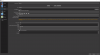
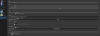
I wouldn't be quite sure about that on the CPU WizardCM, he is using his GPU. I'm having trouble with this as well and I am pretty good at computers and this has been stumping me for a couple of years and decided that I need to get on the forums and see what options I can pull out. BaroxTV the third picture I see your advanced settings there and there is one I would fix, under "General" change your process priority from "normal" to "high" what I have read up in other forums that helps a lot of people out. But if that doesn't work, in the second picture I see you are set the downscale to Bilinear, which seems like a good move to do for me because I tested it out and works great for me but test out the other downscales and see what that does for you might get a better picture but it might make it more laggy like it did for me. I did kind of copy the first picture down and that seems to work fine. Once you are out of the settings click on the "studio mode" and two screens will appear, the one on the right is the one everyone else should be seeing if that is laggy then your recording/streamings are going to be laggy as well. Next is I don't know if you are using SLI or not but if you are you need to go into your Nvidia Control Panel by right clicking on your Desktop then goto "Configure SLI, Surround, PhysX" Click the "Maximize 3D performance" and the next you want to select which card you want the PhysX to be used on (You must to do this or you will be back to the same spot again and if you get an update on your video card you might need to redo it when you can) and Dedicate it to that Card and click apply... it may require you to close some programs but this should help if you are using SLI.
This next part might concern you and it might not but since we have the same GPU the setup might be close to the same.
I have a second screen that I have been using so I can play the game and look on the second screen and see what I'm getting for the record/stream. Next I would also have the task manager up and click on GPU to see how much of your GPU is being used on whatever you are doing. Now I think this is where my problem is and I am trying to figure this one out because I have two 960's and the are SLI'ed together but my GPU is saying it is at 90-95% being used for the game I am trying to record from. I know that OBS needs somewhere around 10-15% of the GPU and might need a bit more which I am guessing around 20%. :/ Next is I can see that my CPU is using around 30-40% most of the time and wondering if I should tap into that and see if I should use that instead but the GPU's should do better than CPU's can which kind of makes me wonder if that would really work. But I also have another idea but I don't know if I can find a way to do it on Windows 10 but I know you can do it on Windows 7 in the Task Manager by right clicking on the program you are using and change the process priority like you have done in OBS and have OBS a priority above the game which the chances are higher that could work than using the CPU.
Yeah this is a lot but I felt like I would give you what I came across with my setup but I am getting closer with mine but if anyone else has anything else let us know this can help out a lot.
Thanks.