OBS Streaming Issue

Fanh

New Member
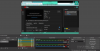
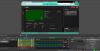
So I tried to stream on youtube my OBS sources and scenes are all fine (the display, overlays, and everything), but the stream just capturing the sound and green screen. Can someone help?
 

Attachments

  • Rep1.png
    Rep1.png
    112 KB · Views: 20
  • Rep2.png
    Rep2.png
    99.3 KB · Views: 23
  • Rep3.png
    Rep3.png
    51.2 KB · Views: 20
  • 2021-05-26 12-05-28.txt
    2021-05-26 12-05-28.txt
    24.9 KB · Views: 13
  • 2021-05-26 12-11-52.txt
    2021-05-26 12-11-52.txt
    163.2 KB · Views: 11
  • 2021-05-26 13-28-02.txt
    2021-05-26 13-28-02.txt
    108 KB · Views: 14
  • 2021-05-26 14-11-41.txt
    2021-05-26 14-11-41.txt
    47.7 KB · Views: 11
  • 2021-05-26 14-20-47.txt
    2021-05-26 14-20-47.txt
    30.4 KB · Views: 14
I already try to change the colour format but it still the same, except RGB instead of green its black screen
 
That is a low power CPU (U = ultra low power), optimized for battery life, not the computationally demanding task of real-time video encoding.
I recommend monitoring hardware resource (CPU, GPU, RAM, etc) utilization [for ex. using Task manager’s Performance tab and/or Resource Monitor] to see if your system is being maxed out with your settings (and I'm sure it is)

Be aware that your PC is old (6 generations of CPU), and under-powered for such work. Livestreaming with OBS on your PC can work, but realistically if you become VERY knowledgeable about optimizing Win10 OS and OBS for an under-powered PC [for real-time video encoding].
Others stream just fine with even older gear, but they also aren't using a number of CPU intensive filters/effects.

And
- start with 30 fps and see if you can get that to work, well, before trying 60fps
- always best to avoid WiFi for streaming unless you know EXACTLY what you are doing (know how to analyze WiFi spectrum & channel usage, etc)
- your logs are full of
14:20:51.473: Device Remove/Reset! Rebuilding all assets...
basically - don't do that. If you are physically removing something OBS configured to use, let the OS have time to settle down. And you may need to adjust OBS, or exit/restart OBS [depends on what you removed]

As basic troubleshooting, start with NO color corrections/chromekeying, etc. And remove all audio effects/filters. that is - getting a very simple OBS setup. Get that working reliably. Then start adding on (and monitoring your hardware) until you hit a limit, then back off some to get yourself a little headroom
 
Back
Top