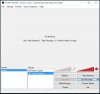
Question / Help No specified server to connect to? help

Tes96

New Member
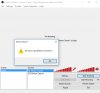
All I want to do is record an mp4 file while it's playing and I keep getting this "no server to connect to" message when recording. It's never done this before and I'm connected to the internet. Not that I see any reason why I need to be connected to the internet since I'm just recording a video. How can I get rid of this message? Thanks.

I'm using most recent stable version, which I installed this morning.
 

Attachments

  • Untitled.jpg
    Untitled.jpg
    53.7 KB · Views: 31
Ah, thanks.
Also, I'm trying to record this mp4 while it plays so I can have a copy of it. It's on my external drive and is corrupted and cannot be copied over to my hard drive. So the only way to get a copy of it is to record the video itself since the original won't copy over.

I've already done that except the recorded version of the original video is in lower resolution, kinda blocky... I used Window Capture to record the video and Wondershare Filmora for editing. So, can OBS just record the video that is playing and not the entire window screen and still retain the same quality that the original has? That would greatly help me out. Thanks.
 
When OBS saves directly to mp4, ANY non-graceful shutdown of the encoding process corrupts the entire file segment.

We highly recommend saving to flv and remuxing to mp4 after recording is complete.
 
When OBS saves directly to mp4, ANY non-graceful shutdown of the encoding process corrupts the entire file segment.

We highly recommend saving to flv and remuxing to mp4 after recording is complete.
What's the first step? Do I use Motion Capture or Window Capture? The video I'm trying to record only fills up half the screen and enlarging it to full screen makes it slightly less clear. Should I change any default settings?

I'm fine if the video remains in FLV format. How do I set that up?
 

Attachments

  • Untitled.jpg
    Untitled.jpg
    56.5 KB · Views: 21
Which capture type you use depends on what you're trying to capture.

If you're trying to capture a game, you shouldn't use monitor (it's not called motion) or window capture. you should use game capture.

In Settings -> Broadcast, you can choose "File Output Only" and specify a path and filename. Include "$T.flv" as the filename and the files will be saved with the time the recording was started as the filename and flv as the filetype.

And while we're on the subject of recording - https://obsproject.com/forum/resources/how-to-make-high-quality-local-recordings.16/
 
Which capture type you use depends on what you're trying to capture.

If you're trying to capture a game, you shouldn't use monitor (it's not called motion) or window capture. you should use game capture.

In Settings -> Broadcast, you can choose "File Output Only" and specify a path and filename. Include "$T.flv" as the filename and the files will be saved with the time the recording was started as the filename and flv as the filetype.

And while we're on the subject of recording - https://obsproject.com/forum/resources/how-to-make-high-quality-local-recordings.16/
I want to record an mp4 video that's on my external drive but there's a minute section of it that is corrupted so I can't copy the video to my desktop. I'm able to watch the whole thing but I have to manually skip the corrupted part. So I want to record it, minus the corrupted part, so I can have a clean copy.

1. So I start with Game Capture and do I select the video in the application dropbox? I tried that and the recorded video filled only part of the screen. Is that what it's supposed to do?
 

Attachments

  • Untitled.jpg
    Untitled.jpg
    87.1 KB · Views: 15
Well first I want to know if I'm recording the video correctly. Do I use Game Capture to just record an mp4 video? I don't know what you mean by saving directly to mp4 as I'm not saving anything. I'm playing a video on my hard drive and I'm recording that video with OBS. I want to know if Game Capture is what I want to use.
 
No it's not.

And OBS shouldn't be used for conversion/transcoding of files. There are programs for that.

If you want the video on your hard drive to play to your stream as an overlay of some sort, use the video source plugin
 
No it's not.

And OBS shouldn't be used for conversion/transcoding of files. There are programs for that.

If you want the video on your hard drive to play to your stream as an overlay of some sort, use the video source plugin
That's not quite what I'm wanting to do. I have a corrupted mp4 video on my external drive. It's an hour long and around the 9 minute mark, it stops playing and I have to shutdown the video. This corrupted part is only for a minute. So if I skip the corrupted part while playing the video, the rest of the 50 minutes will play fine. Problem is I can't copy the video over to my main hard drive or any other drive because the video is being read as corrupted. So I want to record the whole thing playing (skipping the corrupted minute part) so I can have a clean copy. Think of it like recording a movie on tv with a video camera.

I tried using Wondershare Filmora but it too reads the video as corrupted and won't cut/chop that part out of the video file.
The best I've been able to do so far was record the whole thing using Game Capture and edit it in Wondershare. When I play the video I have to use the mouse to skip over the broken part so that the video will play continuously.

I hope I explained it clearly. Video editors (like Wondershare) won't edit the video because it's read as "corrupted". The best approach seems to be to record the whole movie. The only problem I had was that the quality was worse with the newly recorded video. That's why I was asking if Game Capture what I wanted to use. However, if OBS is not the best option, what other program would I use?
 
Use ffmpeg to try to repair it then. it's not something OBS should be trying to do.

Also, mp4s are an extremely fragile format.
 
Back
Top