Nikon DSLR vs OBS

tlcamerica1946

New Member
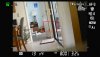
Ok, I have looked at more YouTube videos until my vision started going. I have a Nikon D7000 dslr, I upgraded the firmware so I would have a clean screen without any information on the recording. I first tested it out with a direct record from the camera to the internal SD card. It looks great. A perfect clean and clear picture. I then setup OBS and now the Nikon information is all over the screen during a recording and I can't get a clean screen. Tried every dropdown menu in OBS but still uses all the clutter from the Nikon even though the screen is pure in the recording direct to the internal SD card. The camera is connected to a 3.0 USB, HDMI and capture card. Please, any help would be appreciated. I need this camera to work for a live recording of our church service on July 18.
 

Attachments

  • Nikon.jpg
    Nikon.jpg
    307.1 KB · Views: 282
Loks like there is no solution to the problem. Limited corrections in the menu for the Nikon D7000 through the HDMI feed. Don't know why your are going off on saving as an mp4. From BoxCast...
"These display icons should be removable from a stream by entering the camera's settings and toggling them to off (cameras will often list this setting as Output Display or HDMI Info Display".
That's not an option on this camera.
 
"These display icons should be removable from a stream by entering the camera's settings and toggling them to off (cameras will often list this setting as Output Display or HDMI Info Display".
That's not an option on this camera.
Then you're not going to be able to get rid of them without cropping the video feed.


Don't know why your are going off on saving as an mp4
Ignoring for the moment that you're replying to my signature and not the post. Because, as reported in the warning when you choose mp4 as your recording format, when recording directly to mp4 and the recording doesn't finalize, the ENTIRE recording is IRRECOVERABLY LOST.
 
It helps to understand what is going on when using a DSLR, so for anyone interested in context, here you go

Recording to SD card internal camera follows one data processing path,
But, on Older Cameras from Nikon (and Canon, and others) which were never designed to function as webcams, have had recent mfg firmware and associated USB drivers and software made available, to enable use of DSLR as a webcam easier
HOWEVER, The challenge is that all but the most recent DSLRs have USB2.0 interfaces, and the cameras were never designed to output a full/high resolution image via USB. so your USB data path is often lower resolution (sometimes MUCH lower). An old Logitech C920 produced a much cleaner image than my upper-end consumer DSLR would via USB.
Again, depends on camera model, but often HDMI is much higher resolution output than USB (especially USB 2.0). If you are using HDMI out on the camera, and a HDMI capture card on OBS PC, then you would NOT use a USB connection. If going the HDMI route, then you should be searching for clean HDMI out {and camera / model) to see what settings you need, and potential gotchas. For example, one camera I looked up (not yours) in order to get clean HDMI out required turning off Auto-Focus... so your mileage may vary (ymmv)
Be aware that getting what is known as a clean video out from a camera has NOTHING to do with OBS. And there are better forums for details on a per camera model (at least for my camera mfg that is the case)

Another option, is if the video feed from camera to computer (be that HDMI or USB) has info around the edges (as one would see in the viewfinder), you could use OBS's to simply crop off that info (meaning lower resolution, effectively, but at least clean assuming focus point indicators don't display - red square in middle of original posters Nikon image )

For our church setting, planning for long-term (which we are now at having resumed in-person service recently), the camera needed to be far enough back in the sanctuary, and the lighting not that bright, that an expensive lens would have been required. It was easier/cheaper to simply get a decent PTZ camera. But I recognize some need to make due with what they have.

 
We use this to "clean" the video from our camcorder. Our older camcorder when connected directly to a TV using HMDI has the overly on the screen, but with this splitter there is no overlay. One micro HDMI-to-HDMI cable to this splitter, then a 35 ft HDMI cable to the capture box - we do not use the second output.
There is nothing in the manual about stripping out the overlays, but it works for us!


https://www.amazon.com/gp/product/B07DQBY5TX/ref=ppx_yo_dt_b_search_asin_title?ie=UTF8&psc=1
 
cx240 have clean hdmi output (you can change from menu).
But don't have audio output in liveview, if play recorded files, sound exists.
 
I wanted to make sure that the splitter above did actually remove to overlay, so I hooked the camcorder directly to a TV.
As you can see, the image not going thru the splitter has an overlay and going thru splitter does NOT have the overlay.
20210719_184937 (2).jpg
20210719_184325 (1) (2).jpg
 
This can definitely be done, I'm currently using a D7000 to stream with OBS, using custom firmware to produce a clean hdmi output, then a mini-hdmi to hdmi cable to connect the camera to a hdmi capture card (£20 USB capture stick from Amazon)

The only thing is the output is a bit of a weird ratio so I have to add a transformation in OBS to correct the ratio slightly.
 
Are you using the same outputs on the camcorder?
Can this be an menu from the TV itself?
Yes exact same output.
The menu is not from the TV it is what is on the tiny screen viewer on the camcorder . The yellow symbol is a flashing warning that the camcorder does not have a SD card inserted.

All I did was unplug the HDMI cable from the splitter and plug it into the TV.
 
It helps to understand what is going on when using a DSLR, so for anyone interested in context, here you go

Recording to SD card internal camera follows one data processing path,
But, on Older Cameras from Nikon (and Canon, and others) which were never designed to function as webcams, have had recent mfg firmware and associated USB drivers and software made available, to enable use of DSLR as a webcam easier
HOWEVER, The challenge is that all but the most recent DSLRs have USB2.0 interfaces, and the cameras were never designed to output a full/high resolution image via USB. so your USB data path is often lower resolution (sometimes MUCH lower). An old Logitech C920 produced a much cleaner image than my upper-end consumer DSLR would via USB.
Again, depends on camera model, but often HDMI is much higher resolution output than USB (especially USB 2.0). If you are using HDMI out on the camera, and a HDMI capture card on OBS PC, then you would NOT use a USB connection. If going the HDMI route, then you should be searching for clean HDMI out {and camera / model) to see what settings you need, and potential gotchas. For example, one camera I looked up (not yours) in order to get clean HDMI out required turning off Auto-Focus... so your mileage may vary (ymmv)
Be aware that getting what is known as a clean video out from a camera has NOTHING to do with OBS. And there are better forums for details on a per camera model (at least for my camera mfg that is the case)

Another option, is if the video feed from camera to computer (be that HDMI or USB) has info around the edges (as one would see in the viewfinder), you could use OBS's to simply crop off that info (meaning lower resolution, effectively, but at least clean assuming focus point indicators don't display - red square in middle of original posters Nikon image )

For our church setting, planning for long-term (which we are now at having resumed in-person service recently), the camera needed to be far enough back in the sanctuary, and the lighting not that bright, that an expensive lens would have been required. It was easier/cheaper to simply get a decent PTZ camera. But I recognize some need to make due with what they have.
I've got to make a few comments from your post that you were right on about. It is true that Nikon cameras have specific problems when it comes to obs and when using a capture card they are direct plugins by USB to the 3.0 and an HDMI connection to the camera. But with us on the Nikon D7000 herein lies the problem... I'm not getting it clean screen through the HDMI connection and the lockdown of the Live View mode after 29 minutes. Way too many problems. As you mentioned in your post we are going to a p t z camera and scrapping the $350 Canon video cameras that we use to record from the back of the church and thereby compromising the video quality. It's just a quality of the lenses regardless of the fact that they are 30 x cameras recording in 1080p but from the distance that we use these cameras they just aren't practical. We went to a church if anyone is interested, they can go online to Grace Lutheran Church in Ormond Beach and after visiting them in reviewing their system. this is the way we want to go with a p t z camera. When we reviewed what they were using they use the pan and zoom remote function for only one camera. We have a pastor that does not want us to zoom or pan. He prefers to use the OBS software function that allows us to go from one camera to another which creates a seamless video. The PTZ camera that was used at Grace Lutheran Church are about $1,200. Yes expensive but in a marketing sense we want our best
to be broadcasted on YouTube for both new members thinking about joining our church as well as our congregation that are snowbirds or unable to attend our weekly Sunday service. Just trying to spread the word of the Lord.
Michael Winans
Palm Coast, Florida
 
There are ways to use pan tilt zoom that is distracting during a service. However, done thoughtfully (with training/practice), it doesn't have to be an issue.
For example, we start wide angle with main shot of Sanctuary. Using the PTZ camera, we zoom in on the priest (often in front of Alter). When pulpit or lectern is used, we zoom out, pan/tilt over, then zoom back in (using presets). no big deal, looks fine. Sure multi camera would be even nicer, but at significant expense, and even more work for livestream operator. I'm very technical, and I can handle it, with lots of experience and mistakes along the way. New folks, trying to pick things up, can easily get overwhelmed with watching feedback online for technical issues (like priest forgetting to turn on wireless mic), to keeping Service Bulletin on right page, and camera operations. Now add multi-cam to that... doable, but an impact to not quickly dismiss as irrelevant. If you can have a multi-person person teamed, trained, for every service, more power to you. And that is before adding a DAW (digital Audio Workstation) and monitoring/adjusting individual mic channels.

feel free to reach out to me direct for a link to a video history of our service so someone can watch what PTZ operations can look like in a single camera setup. I'd love a 2 camera setup, but between cost, necessity, and operator implications, for us, a 2nd camera can easily wait.

And as for PTZ camera price, I'm researching the new PTZOptics clone/knock-offs (not sure legit) which are about 1/2 price. I won't be surprised if many of these knock-off vendors disappear meaning no firmware updates (ex NDI updates). For a device with a multi-year life, a no-name knock-off with poor english translations and firmware bugs may, nor may not, be a reasonable value at 1/2 price. Further, these cameras (including PTZOptics itself) have a reputation for poor PTZ movement (ex lack of diagonal), and not as good low-light performance (a common House of Worship challenge). A 20x NDI PTZ (non knock-off) runs around $2K for 1080p (4K cameras are a lot more)

And I checked before going PTZ with my good DSLR and lens setup. My image stabilized 70-300mm F/4-5.6 was not good enough at 40-50ft in our sanctuary. It is unlikely even a F4 lens would have been good enough, and a F/2.8 lens would cost more than the entire PTZ setup... so no brainer for us (though the overall price-tag, with new PC, cabling, network gear, construction, etc was not insignificant)
 
Last edited:
Just my two cents:

I understand the fear of the pastor: too much flurry or agitation in movement.
A good rule of thumb that we experienced with two camera setup over the last years is:
One camera on air stays calm, while the other is moved and pointed to its next position/setting, than a cross dissolve to that. Then the other cam might be moved, refocused aso.

Every now and then, but not more often than two or three times in half an hour, a completely smooth and super-slow zoom (or pan+zoom) movement looks absoluteley professional. And zoom out into long shot is just to prefer over its counterpart, because it gives the viewer an understanding of the ambience surrounding (for instance at the end of a prayer). The importance is to have it super-slow to keep everything calm and concentrated onto the word. Then a cut to the other cam kicks in when the next part comes.

One short example is following 38 secs after this: https://youtu.be/UDEZ-YED1Ew?t=1621

That are rulez the german television obey for their transmissions of church services, too. The best i've ever seen was a zoom out from the pastor on the pulpit over the nave till the edge of the gallery with the organ came into sight. It lasted over 50(!) seconds and was a typical european cathedral with a loooooooooooong nave. All was shot with a single ultra-zoom (absolutely high-performance) lens of a first-class cam of the german national tv. Sometimes i try that. =D (Panasonic on its 4K-Camcorders have super-slow zoom motors. The slower the better.)
 
Back
Top