

You are using an out of date browser. It may not display this or other websites correctly.
You should upgrade or use an alternative browser.
You should upgrade or use an alternative browser.
Question / Help Local recording a little choppy. Wasn't before. Please help
- Thread starter GJRoo
- Start date
Sorry about that. Here a log with recording information on it. I am recording using gaming capture in a simple scene. I noticed stuttering in the recordings and sometimes even in the game that i am playing.
I am running 144hz monitor and set the games to that as well sometimes with vsync sometimes not.
Never had any issues until I lost my Recording Settings in the advanced output mode. Im pretty sure this is how I had it setup before.
X264 CRF=10 Keyframe Interval=0 auto CPU=Ultrafast. But the recording are still not up to par like i had them.
I am running 144hz monitor and set the games to that as well sometimes with vsync sometimes not.
Never had any issues until I lost my Recording Settings in the advanced output mode. Im pretty sure this is how I had it setup before.
X264 CRF=10 Keyframe Interval=0 auto CPU=Ultrafast. But the recording are still not up to par like i had them.
Attachments

DEDRICK
Member
Are still choppy if you minimize OBS?
None of your recording attempts actually worked in that log
14:38:32.125: [ffmpeg muxer: 'adv_file_output'] Writing file 'A:/OBS clips/2019-01-09 14-38-32.flv'...
14:38:32.343: [ffmpeg muxer: 'adv_file_output'] os_process_pipe_write for info structure failed
14:38:32.344: [ffmpeg muxer: 'adv_file_output'] Output of file 'A:/OBS clips/2019-01-09 14-38-32.flv' stopped
None of your recording attempts actually worked in that log
14:38:32.125: [ffmpeg muxer: 'adv_file_output'] Writing file 'A:/OBS clips/2019-01-09 14-38-32.flv'...
14:38:32.343: [ffmpeg muxer: 'adv_file_output'] os_process_pipe_write for info structure failed
14:38:32.344: [ffmpeg muxer: 'adv_file_output'] Output of file 'A:/OBS clips/2019-01-09 14-38-32.flv' stopped
DEDRICK
Member
You have a smidgen of Lagged Frames, not a lot but enough for it to be noticeable. Lets try to see if it is Game Mode, you are on Redstone 4 (April 2018 Update)
You can RegEdit it off or you can "Disable Fullscreen Optimizations" on the Compatibility settings of the .exe for the game in question. If you do it via the registry, reboot to be sure.
Windows 10 "Fall Creators Update" 1709 and "Redstone 4" 1803 (April 2018)
Game Mode is enabled automatically by Windows if supported by your hardware and needs to be disabled individually per-application or globally using the Registry. It's recommended to disable it globally.
Disable Game Mode globally using the Registry
This requires a change in your Registry.
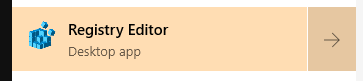
Run regedit.exe or search for Registry Editor in the start menu and launch it. This requires administrator access.
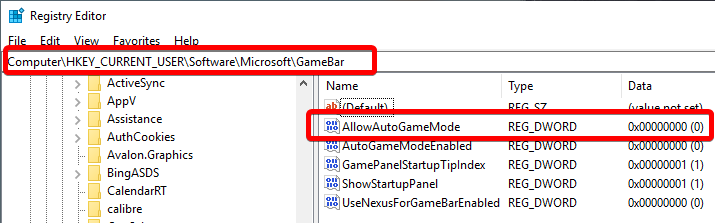
In the editor, navigate to HKEY_CURRENT_USER\Software\Microsoft\GameBar. You can paste this directly into the address bar at the top to go there quickly.
At the folder, look for a key called AllowAutoGameMode in the right panel. If the key is not there, create it. Right-click inside the right panel and select New > "DWORD (32-bit) Value". Rename the new value to AllowAutoGameMode.
To disable Game Mode, set this value to 0. To enable Game Mode, set it to 1.
Disable Game Mode per-game
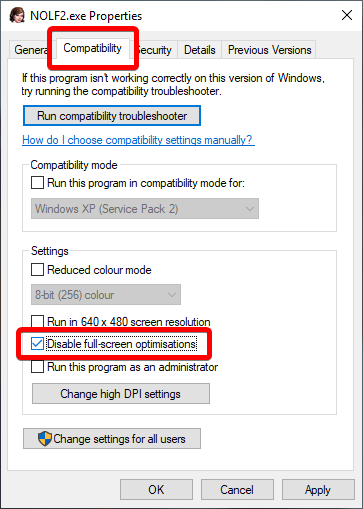
To disable it per-game, open the properties of the game shortcut or executable, go to Compatibility and check "Disable full-screen optimisations"
There is a 3rd option that involves enabling the Game Bar, bringing it up in game, then turning off Game Mode for that game.
You can RegEdit it off or you can "Disable Fullscreen Optimizations" on the Compatibility settings of the .exe for the game in question. If you do it via the registry, reboot to be sure.
Windows 10 "Fall Creators Update" 1709 and "Redstone 4" 1803 (April 2018)
Game Mode is enabled automatically by Windows if supported by your hardware and needs to be disabled individually per-application or globally using the Registry. It's recommended to disable it globally.
Disable Game Mode globally using the Registry
This requires a change in your Registry.
Run regedit.exe or search for Registry Editor in the start menu and launch it. This requires administrator access.
In the editor, navigate to HKEY_CURRENT_USER\Software\Microsoft\GameBar. You can paste this directly into the address bar at the top to go there quickly.
At the folder, look for a key called AllowAutoGameMode in the right panel. If the key is not there, create it. Right-click inside the right panel and select New > "DWORD (32-bit) Value". Rename the new value to AllowAutoGameMode.
To disable Game Mode, set this value to 0. To enable Game Mode, set it to 1.
Disable Game Mode per-game
To disable it per-game, open the properties of the game shortcut or executable, go to Compatibility and check "Disable full-screen optimisations"
There is a 3rd option that involves enabling the Game Bar, bringing it up in game, then turning off Game Mode for that game.
Last edited:
Thank you very much for your assistance. Its looking a lot better now.
Before it would cause my gameplay to be choppy itself with just OBS open not even recording. Its very smooth now.
There were some hiccups here and there when I watched the video recording .flv file, but overall a big improvement. Does this log indicate anything noticeable. Thank you again.
Before it would cause my gameplay to be choppy itself with just OBS open not even recording. Its very smooth now.
There were some hiccups here and there when I watched the video recording .flv file, but overall a big improvement. Does this log indicate anything noticeable. Thank you again.
Attachments
DEDRICK
Member
It's a lot less than before
17:46:01.516: Output 'adv_file_output': Number of lagged frames due to rendering lag/stalls: 462 (0.8%)
If you want you can do a Test Scene Collection. Don't worry, you old scene collection will still be under "Untitled"

Once you create the new scene collection, add a single Game Capture, nothing more.

Do some test recordings and see if you still lag close to 1% frames. If it is clear, then you know it is one of your Sources or filters that is pushing your GPU usage a little too much.
Other people will tell you to cap your FPS in game to reduce your games GPU usage, I will not tell you to do this unless you still have > 0.1% lag frames with just a Game Capture.
There are things other than GPU Usage that will cause you to lag frames, it's not strictly GPU usage
17:46:01.516: Output 'adv_file_output': Number of lagged frames due to rendering lag/stalls: 462 (0.8%)
If you want you can do a Test Scene Collection. Don't worry, you old scene collection will still be under "Untitled"
Once you create the new scene collection, add a single Game Capture, nothing more.
Do some test recordings and see if you still lag close to 1% frames. If it is clear, then you know it is one of your Sources or filters that is pushing your GPU usage a little too much.
Other people will tell you to cap your FPS in game to reduce your games GPU usage, I will not tell you to do this unless you still have > 0.1% lag frames with just a Game Capture.
There are things other than GPU Usage that will cause you to lag frames, it's not strictly GPU usage