
Is this even possible??

MKK

New Member
Before I dig through all the guides and videos I'm wondering if something is even possible...and hopefully I'm in the right forum page.

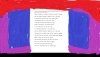
Basically I want to have an overlay with a cutout of what you see on the screen. So imagine, for instance, a stage with curtains (just hypothetical for now, actual design to be determined). I'd want the stage/curtains to cover the top and sides, but I want a space in the center to show what I'm streaming. As you can see in the picture, I want the open space to be roughly the size of a word document, but with the overlay covering the top "ribbon" and the sides, so that on stream only the document can be seen?

I looked around but couldn't find any way to do this (more specifically, putting the overlay on top of something rather than beneath it I guess)...I very well could have just missed it or misunderstood the terms or whatever...but can anyone confirm if this is at least doable? And maybe point me in the right direction of the guide or video showing how?

Any and all help appreciated, thanks!!
 

Attachments

  • Outline.jpg
    Outline.jpg
    908.8 KB · Views: 39
Use Google Drawings (docs.google.com/drawings), create your scene as you described with nothing in the middle and save as a PNG. Then import the png as an image in OBS.
 
Use Google Drawings (docs.google.com/drawings), create your scene as you described with nothing in the middle and save as a PNG. Then import the png as an image in OBS.

What if I'm a terrible artist and want to use a pre-made image? Do I just crop it?
 
If you want to use a pre-made image just delete the part in the middle that want to show you screen/stream so it's transparent.
This is actually a good way to improve the quality of your stream as more bits should used for moving parts of your stream compared to the static border.
 
Is there a way to do this within OBS??
That depends on what you are asking. Making part of an image transparent can be done using an image editor. Not within OBS.

Get an image that suits your need. Keep the dimensions and aspect ratio of your OBS output in mind. You might try to add this image first to a scene to see if it fits...
stage-curtain-isolated_1284-3768.jpg

Image created by macrovector

Make the opening between the curtains transparent (here it's done quite roughly, just as an example).
stage-curtain-isolated_1284-3768.png


Now have an Image source with this partially transparent image over your web cam, or over whatever you want to show.
result.png

image Chilly morning in Iceland by Daniel Mirlea
 
Last edited:
  • Like
Reactions: MKK
That depends on what you are asking. Making part of an image transparent can be done using an image editor. Not within OBS.

Get an image that suits your need. Keep the dimensions and aspect ratio of your OBS output in mind. You might try to add this image first to a scene to see if it fits...

Yes this is exactly it! So first I need an image editor, then I use it to make part of an image transparent, then I use that as the source for OBS on top of my stream. Seems doable, thank you very much, if you have a recommended editor I'm open to suggestions
 
I use the open source GNU Image Manipulation Program (GIMP) but there are literally hundreds around. Some might have less options so less of a learning curve, but I don't know by experience. You might start giving the above mentioned Google Drawings a try.
 
Here is a tricky way to do it. I just tried and it works somewhat. You will have to play with it to get it to be exactly what you want. Once you get it working, make a recording of it. Then in your next project, import the recording of your curtains that open and close when you want.
  1. Add a Windows Capture of a Google Slide in the Sources panel.
  2. Make sure the Google Slide has a green background.
  3. Add your curtains with transparent backgrounds to the Google Slide. Add animation to the images.
    1. One image is the outside curtain that doesn't move
    2. The other is the inside curtain that moves either up or to the left and right when clicked
  4. In OBS, key out the green background in the Google Slide
  5. Then on the Google Slide, engage the animation so the curtains open up.
 
Back
Top