Hi everyone,
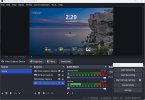
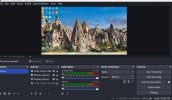
I'm a newbie to this process. I have a mini pc running Windows 11 which I have hooked up to my Lenovo Yoga laptop also running Windows 11. I want to project what is on my mini pc to my laptop. I have used Windows update on both so they are current. I am using a hdmi video capture card (hdmi to usb c) 4K 30 Hz U3 . HDMI into the hdmi port on the mini pc to usb c on the laptop. I also have a wireless keyboard and mouse hooked up to the mini pc. When I set this up, I chose Video capture ubc as the source. It does project, but only to the top part of my screen. The bottom half of my screen displays the OBS menu, audio mixer, scene transitions, controls. I am trying to project just the mini pc to the laptop, not the OBS menu. I've tried clicking on the full screen interface under the View drop down menu and clicking on f11 on the keyboard to no avail. Thanks in advance for any suggestions. I am attaching a screenshot to show what I'm talking about.
I'm a newbie to this process. I have a mini pc running Windows 11 which I have hooked up to my Lenovo Yoga laptop also running Windows 11. I want to project what is on my mini pc to my laptop. I have used Windows update on both so they are current. I am using a hdmi video capture card (hdmi to usb c) 4K 30 Hz U3 . HDMI into the hdmi port on the mini pc to usb c on the laptop. I also have a wireless keyboard and mouse hooked up to the mini pc. When I set this up, I chose Video capture ubc as the source. It does project, but only to the top part of my screen. The bottom half of my screen displays the OBS menu, audio mixer, scene transitions, controls. I am trying to project just the mini pc to the laptop, not the OBS menu. I've tried clicking on the full screen interface under the View drop down menu and clicking on f11 on the keyboard to no avail. Thanks in advance for any suggestions. I am attaching a screenshot to show what I'm talking about.