Samuel Urban
New Member
Hi guys! This is my first post on these forums, so I do apologize if I miss anything or post the incorrect reference information.
I'm going to be as comprehensive as I possibly can, and I'll post all the information, logs, and screenshots that I would think you'll need to gain an understanding of my problem.
This is my most recent log file: https://hastebin.com/ujojovezoy
DUE TO THE OVERALL LARGENESS OF THIS POST, I HAVE LABELED IT IN SECTIONS SO WE CAN COMMUNICATE MORE EASILY ABOUT THE THINGS I WRITE HERE.
1: MY SPECS:
I'm streaming using a dual PC setup.
1A: Gaming PC: i7 6700K // GTX 1080 // 16GB DDR4 RAM
<Connected to streaming PC with Elgato HD60 Pro using "Fullscreen Projector (Source) to Elgato" method>
^ I recently started doing this rather than cloning the displays together, due to the cloning method causing screen tearing. I've observed no loss in performance nor quality on either end while using this method.
1B: Streaming PC: i5 7600K Liquid Cooled by the H// GTX 1050 // 4GB DDR4 RAM
(I recently upgraded to this GTX 1050 from my previous GT 710.)
2: MY PREVIOUS SETUP:
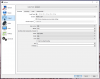
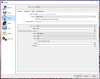
As I mentioned above, I used to have a GT 710 in the streaming PC, and even with the crappy GPU, I was able to stream pretty smoothly with the following settings:
2A: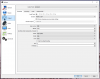 2B:
2B: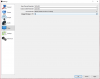
HOWEVER! I recently noticed that my stream was not actually running at 48FPS like I wanted. It looked like an erratic, unstable ~30FPS.
3: THINGS I CHANGED TO FIX ^THAT^:
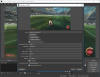
In an effort to change this, I *obviously* upgraded the GPU and installed the latest drivers for that, and then I did some research. Turns out, the solution to getting the FPS up to 60 was in changing some settings in the "Properties" of my Elgato HD60 Pro. Here's what I set it to, so that the capture card would supply the 60fps footage I was looking for:
3A: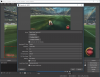
EDIT: The FPS is incorrect in this screenshot. It should show that it's set to 60 fps. I think when I was scrolling down to get a view of the whole list, the option got changed and I didn't notice.
4: THINGS THAT GOT MESSED UP WHEN I DID ^THAT^:
Now that OBS had started receiving 60fps from the Elgato, I was finally able to stream 900p60! WRONG. There was now a major problem with the quality of the stream.
The preview in OBS began intermittently freezing for about 0.5-1.0 seconds, and occasionally, during one of these freezes, the "High Encoding" warning would show up in the OBS Status Bar. This issue even occurs while idling on the preview. Disabling the preview on the streaming PC doesn't seem to make a difference when I analyzed the footage in slow motion. The frames are clearly not as even and smooth as they should be.
Here's a clip of me testing the current settings on Rocket League:
4A: https://clips.twitch.tv/LaconicAdorableTildePJSugar
Currently, this is my most prominent issue. Even while idling in the preview window, I am often seeing about 25-30% CPU usage in the OBS Status Bar. This also reflects down to my Logitech G13 which has a CPU monitor option. This actually tends to tell me that my CPU is idling under a load of approximately 30%-50%.
5: VERIFYING THAT THIS ISSUE IS WITH OBS via WINDOWS RESOURCE MONITOR
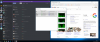
Something I noticed while troubleshooting this is that my CPU usage is little to none whilst OBS is closed and there are no programs running on the Streaming PC. The CPU performs as expected (near 0% load at all times) when it is running minimal programs like Google Chrome, Logitech Configuration Softwares, Discord, etc.
With this information I was able to verify that my issue is definitely rooted somewhere in OBS.
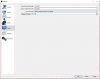
I gathered some screenshots to reinforce this point, waiting about 2 minutes for the CPU to calm down after launching the various programs, until I saw a consistent steady load, then took the screenshot.
5A: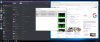 5B:
5B: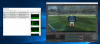
6: I HAVE ATTEMPTED QUITE A FEW FIXES INCLUDING:
6A - Decreasing the resolution of the stream in "Video" tab
6B - Messing around with x264, but finding that no matter how light of a configuration I use, the system overloads.
6C - Doing a pristine install of all programs involved, after which, I set all of them up again. (OBS, Elgato Softwares, NVIDIA GeForce Experience + Drivers)
6D - Overclocking my CPU (I went ahead and reverted the overclock to factory and uninstalled the program after that didn't solve the issue.)
6E - Windows Update and Graphics drivers on both PCs
6F - Updated Chipset drivers for my motherboard to most recent.
7: QUESTIONS I HAVE:
7A - Is this CPU just simply not powerful enough to stream? Is it likely that there's a defect with my CPU?
7B - Can it be that the 4GB of ram is causing this type of behavior?
7C - Is there something I'm missing about my settings in OBS?
I've done nothing but follow popular tutorials on getting my settings right, and I feel confident that I know what most of the settings mean and do. My impression is that this behavior is uncharacteristically choppy and laggy.
If you have insight as to why my Streaming PC's system can't seem to handle this task, work with me please! I've been focusing on this problem for the last few days and I haven't found a solution!
I'm so dedicated -- as is probably apparent by the massiveness of this post -- to making my stream look and feel as professional and comfortable as possible.
Thanks for reading and helping!
Feel free to use the labels (1B, 5C, 6B, for example) as a reference so we can communicate more efficiently on this topic.
I'm going to be as comprehensive as I possibly can, and I'll post all the information, logs, and screenshots that I would think you'll need to gain an understanding of my problem.
This is my most recent log file: https://hastebin.com/ujojovezoy
DUE TO THE OVERALL LARGENESS OF THIS POST, I HAVE LABELED IT IN SECTIONS SO WE CAN COMMUNICATE MORE EASILY ABOUT THE THINGS I WRITE HERE.
1: MY SPECS:
I'm streaming using a dual PC setup.
1A: Gaming PC: i7 6700K // GTX 1080 // 16GB DDR4 RAM
<Connected to streaming PC with Elgato HD60 Pro using "Fullscreen Projector (Source) to Elgato" method>
^ I recently started doing this rather than cloning the displays together, due to the cloning method causing screen tearing. I've observed no loss in performance nor quality on either end while using this method.
1B: Streaming PC: i5 7600K Liquid Cooled by the H// GTX 1050 // 4GB DDR4 RAM
(I recently upgraded to this GTX 1050 from my previous GT 710.)
2: MY PREVIOUS SETUP:
As I mentioned above, I used to have a GT 710 in the streaming PC, and even with the crappy GPU, I was able to stream pretty smoothly with the following settings:
2A:
2B: HOWEVER! I recently noticed that my stream was not actually running at 48FPS like I wanted. It looked like an erratic, unstable ~30FPS.
3: THINGS I CHANGED TO FIX ^THAT^:
In an effort to change this, I *obviously* upgraded the GPU and installed the latest drivers for that, and then I did some research. Turns out, the solution to getting the FPS up to 60 was in changing some settings in the "Properties" of my Elgato HD60 Pro. Here's what I set it to, so that the capture card would supply the 60fps footage I was looking for:
3A:
EDIT: The FPS is incorrect in this screenshot. It should show that it's set to 60 fps. I think when I was scrolling down to get a view of the whole list, the option got changed and I didn't notice.
4: THINGS THAT GOT MESSED UP WHEN I DID ^THAT^:
Now that OBS had started receiving 60fps from the Elgato, I was finally able to stream 900p60! WRONG. There was now a major problem with the quality of the stream.
The preview in OBS began intermittently freezing for about 0.5-1.0 seconds, and occasionally, during one of these freezes, the "High Encoding" warning would show up in the OBS Status Bar. This issue even occurs while idling on the preview. Disabling the preview on the streaming PC doesn't seem to make a difference when I analyzed the footage in slow motion. The frames are clearly not as even and smooth as they should be.
Here's a clip of me testing the current settings on Rocket League:
4A: https://clips.twitch.tv/LaconicAdorableTildePJSugar
Currently, this is my most prominent issue. Even while idling in the preview window, I am often seeing about 25-30% CPU usage in the OBS Status Bar. This also reflects down to my Logitech G13 which has a CPU monitor option. This actually tends to tell me that my CPU is idling under a load of approximately 30%-50%.
5: VERIFYING THAT THIS ISSUE IS WITH OBS via WINDOWS RESOURCE MONITOR
Something I noticed while troubleshooting this is that my CPU usage is little to none whilst OBS is closed and there are no programs running on the Streaming PC. The CPU performs as expected (near 0% load at all times) when it is running minimal programs like Google Chrome, Logitech Configuration Softwares, Discord, etc.
With this information I was able to verify that my issue is definitely rooted somewhere in OBS.
I gathered some screenshots to reinforce this point, waiting about 2 minutes for the CPU to calm down after launching the various programs, until I saw a consistent steady load, then took the screenshot.
5A:
5B:6: I HAVE ATTEMPTED QUITE A FEW FIXES INCLUDING:
6A - Decreasing the resolution of the stream in "Video" tab
6B - Messing around with x264, but finding that no matter how light of a configuration I use, the system overloads.
6C - Doing a pristine install of all programs involved, after which, I set all of them up again. (OBS, Elgato Softwares, NVIDIA GeForce Experience + Drivers)
6D - Overclocking my CPU (I went ahead and reverted the overclock to factory and uninstalled the program after that didn't solve the issue.)
6E - Windows Update and Graphics drivers on both PCs
6F - Updated Chipset drivers for my motherboard to most recent.
7: QUESTIONS I HAVE:
7A - Is this CPU just simply not powerful enough to stream? Is it likely that there's a defect with my CPU?
7B - Can it be that the 4GB of ram is causing this type of behavior?
7C - Is there something I'm missing about my settings in OBS?
I've done nothing but follow popular tutorials on getting my settings right, and I feel confident that I know what most of the settings mean and do. My impression is that this behavior is uncharacteristically choppy and laggy.
If you have insight as to why my Streaming PC's system can't seem to handle this task, work with me please! I've been focusing on this problem for the last few days and I haven't found a solution!
I'm so dedicated -- as is probably apparent by the massiveness of this post -- to making my stream look and feel as professional and comfortable as possible.
Thanks for reading and helping!
Feel free to use the labels (1B, 5C, 6B, for example) as a reference so we can communicate more efficiently on this topic.