Question / Help Dropped frames at 3% for over an hour

Arcslinger

New Member
Code:
17:38:56.830: CPU Name: AMD Ryzen 7 1700 Eight-Core Processor         
17:38:56.830: CPU Speed: 3000MHz
17:38:56.830: Physical Cores: 8, Logical Cores: 16
17:38:56.830: Physical Memory: 16330MB Total, 9135MB Free
17:38:56.830: Windows Version: 10.0 Build 16299 (revision: 248; 64-bit)
17:38:56.831: Running as administrator: false
17:38:56.831: Aero is Enabled (Aero is always on for windows 8 and above)
17:38:56.831: Windows 10 Gaming Features:
17:38:56.831:     Game Bar: Off
17:38:56.831:     Game DVR Allowed: Yes
17:38:56.831:     Game DVR: On
17:38:56.831:     Game DVR Background Recording: Off
17:38:56.831:     Game Mode: Off
17:38:56.831: Portable mode: false
17:38:56.846: OBS 20.1.3 (64bit, windows)
17:38:56.846: ---------------------------------
17:38:56.846: ---------------------------------
17:38:56.846: audio settings reset:
17:38:56.846:     samples per sec: 44100
17:38:56.846:     speakers:        2
17:38:56.849: ---------------------------------
17:38:56.849: Initializing D3D11...
17:38:56.849: Available Video Adapters:
17:38:56.850:     Adapter 1: NVIDIA GeForce GTX 1060 3GB
17:38:56.850:       Dedicated VRAM: 3133145088
17:38:56.850:       Shared VRAM:    4267051008
17:38:56.850:       output 1: pos={0, 0}, size={1920, 1080}, attached=true
17:38:56.850:       output 2: pos={1920, 0}, size={1920, 1080}, attached=true
17:38:56.852: Loading up D3D11 on adapter NVIDIA GeForce GTX 1060 3GB (0)
17:38:56.906: D3D11 loaded successfully, feature level used: 45056
17:38:57.746: ---------------------------------
17:38:57.746: video settings reset:
17:38:57.746:     base resolution:   1920x1080
17:38:57.746:     output resolution: 1280x720
17:38:57.746:     downscale filter:  Bicubic
17:38:57.746:     fps:               30/1
17:38:57.746:     format:            NV12
17:38:57.749: Audio monitoring device:
17:38:57.749:     name: Default
17:38:57.749:     id: default
17:38:57.749: ---------------------------------
17:38:57.751: Required module function 'obs_module_load' in module '../../obs-plugins/64bit/chrome_elf.dll' not found, loading of module failed
17:38:57.756: [CoreAudio encoder]: CoreAudio AAC encoder not installed on the system or couldn't be loaded
17:38:57.762: [AMF] Encountered Exception during AMF initialization: Unable to load 'amfrt64.dll', error code 126.
17:38:57.762: Failed to initialize module 'enc-amf.dll'
17:38:57.784: Required module function 'obs_module_load' in module '../../obs-plugins/64bit/libcef.dll' not found, loading of module failed
17:38:57.785: Required module function 'obs_module_load' in module '../../obs-plugins/64bit/libEGL.dll' not found, loading of module failed
17:38:57.785: Required module function 'obs_module_load' in module '../../obs-plugins/64bit/libGLESv2.dll' not found, loading of module failed
17:38:57.786: Failed to load 'en-US' text for module: 'obs-browser.dll'
17:38:57.786: [browser_source: 'Version: 1.29.0']
17:38:57.794: NVENC supported
17:38:57.910: Couldn't find VLC installation, VLC video source disabled
17:38:57.926: No blackmagic support
17:38:58.024: ---------------------------------
17:38:58.024:   Loaded Modules:
17:38:58.024:     win-wasapi.dll
17:38:58.024:     win-mf.dll
17:38:58.024:     win-dshow.dll
17:38:58.024:     win-decklink.dll
17:38:58.024:     win-capture.dll
17:38:58.024:     vlc-video.dll
17:38:58.024:     text-freetype2.dll
17:38:58.024:     rtmp-services.dll
17:38:58.024:     obs-x264.dll
17:38:58.024:     obs-vst.dll
17:38:58.024:     obs-transitions.dll
17:38:58.024:     obs-text.dll
17:38:58.024:     obs-qsv11.dll
17:38:58.024:     obs-outputs.dll
17:38:58.024:     obs-filters.dll
17:38:58.024:     obs-ffmpeg.dll
17:38:58.024:     obs-browser.dll
17:38:58.024:     image-source.dll
17:38:58.024:     frontend-tools.dll
17:38:58.024:     enc-amf.dll
17:38:58.024:     coreaudio-encoder.dll
17:38:58.024: ---------------------------------
17:38:58.024: ==== Startup complete ===============================================
17:38:58.040: All scene data cleared
17:38:58.040: ------------------------------------------------
17:38:58.078: WASAPI: Device 'Speakers (KAVE XTD Headset)' initialized
17:38:58.078: source 'Desktop Audio' enabled push-to-mute
17:38:58.085: WASAPI: Device 'Microphone (Yeti Stereo Microphone)' initialized
17:38:58.085: source 'Mic/Aux' enabled push-to-mute
17:38:58.129: adding 69 milliseconds of audio buffering, total audio buffering is now 69 milliseconds
17:38:59.745: Switched to scene 'Worldofwarcraft'
17:38:59.746: [game-capture: 'wow'] attempting to hook process: Wow-64.exe
17:38:59.751: [game-capture: 'wow'] using helper (compatibility hook)
17:38:59.756: [game-capture: 'wow'] hook not loaded yet, retrying..
17:38:59.756: ------------------------------------------------
17:38:59.756: Loaded scenes:
17:38:59.756: - scene 'Worldofwarcraft':
17:38:59.756:     - source: 'wow' (game_capture)
17:38:59.756:     - source: 'break time' (image_source)
17:38:59.756:     - source: 'Alerts!' (browser_source)
17:38:59.756:     - source: 'Follower goals' (browser_source)
17:38:59.756:     - source: 'alliance' (image_source)
17:38:59.756:     - source: 'backround' (image_source)
17:38:59.756: - scene 'dauntless':
17:38:59.756:     - source: 'dauntless game' (game_capture)
17:38:59.756: - scene 'Overwatch':
17:38:59.756:     - source: 'overwatchgame' (game_capture)
17:38:59.756: ------------------------------------------------
17:39:01.749: [game-capture: 'wow'] attempting to hook process: Wow-64.exe
17:39:01.768: [game-capture: 'wow'] d3d11 shared texture capture successful
17:39:01.783: [game-capture: 'wow'] shared texture capture successful
18:05:33.228: ---------------------------------
18:05:33.228: [x264 encoder: 'streaming_h264'] preset: ultrafast
18:05:33.230: [x264 encoder: 'streaming_h264'] settings:
18:05:33.230:     rate_control: CBR
18:05:33.230:     bitrate:      3250
18:05:33.230:     buffer size:  3250
18:05:33.230:     crf:          0
18:05:33.230:     fps_num:      30
18:05:33.230:     fps_den:      1
18:05:33.230:     width:        1280
18:05:33.230:     height:       720
18:05:33.230:     keyint:       60
18:05:33.230:
18:05:33.230: [x264 encoder: 'streaming_h264'] custom settings: scenecut=0
18:05:33.249: [Media Foundation AAC: 'Track1']: encoder created
18:05:33.249:     bitrate: 160
18:05:33.249:     channels: 2
18:05:33.249:     sample rate: 44100
18:05:33.249:     bits-per-sample: 16
18:05:33.249:
18:05:33.250: [rtmp stream: 'adv_stream'] Connecting to RTMP URL rtmp://live-sfo.twitch.tv/app...
18:05:33.283: [rtmp stream: 'adv_stream'] Interface: Intel(R) I211 Gigabit Network Connection (ethernet, 1000 mbps)
18:05:34.058: [rtmp stream: 'adv_stream'] Connection to rtmp://live-sfo.twitch.tv/app successful
18:05:34.062: ==== Streaming Start ===============================================
18:12:53.216: [game-capture: 'wow'] capture window no longer exists, terminating capture
18:12:53.216: [game-capture: 'wow'] capture stopped
18:16:03.350: [game-capture: 'wow'] attempting to hook process: Wow-64.exe
18:16:03.353: [game-capture: 'wow'] using helper (compatibility hook)
18:16:03.358: [game-capture: 'wow'] hook not loaded yet, retrying..
18:16:06.383: [game-capture: 'wow'] attempting to hook process: Wow-64.exe
18:16:07.450: [game-capture: 'wow'] capture stopped
18:16:10.416: [game-capture: 'wow'] attempting to hook process: Wow-64.exe
18:16:10.449: [game-capture: 'wow'] shared texture capture successful
19:09:51.874: [rtmp stream: 'adv_stream'] User stopped the stream
19:09:51.875: Output 'adv_stream': stopping
19:09:51.875: Output 'adv_stream': Total frames output: 112168 (115709 attempted)
19:09:51.875: Output 'adv_stream': Total drawn frames: 115758
19:09:51.875: Output 'adv_stream': Number of dropped frames due to insufficient bandwidth/connection stalls: 3541 (3.1%)
19:09:51.878: ==== Streaming Stop ================================================

D: is it my net not being the top notch?
 
It usually is the ISP. Pay attention to the time of day to see if that is a factor.

If you are trying to spit out 3.25Mbps and you are on an Internet connection that hovers around that for the upload, you need to lower the bitrate to give it headroom.
For example, if your ISP is giving you 4Mbps upload, trying to do 3.25Mpbs (3250kbps) maybe cutting it too tight. For when the drops occur, your setting maybe too high. In that case, drop it incrementally of say, 250 until you find sweet spot.

Of course, the better thing to do is get a higher Internet plan offering more upload speed.
 
In your logfile I noticed you have Windows GameDVR enabled. This may be a cause of the performance issue as even when you are not using it, just having it enabled in Windows settings it will always hook into the game process and commit resources (Similar to what OBS does when OBS is open, though more aggressively as it also buffers for replay recording)

You should also be able to use veryfast preset, which will produce far better quality than ultrafast.

Below is a link to R1ch's TwitchTest Utility. It will assist you in selecting the most optimal Twitch ingest server based upon your location:
https://r1ch.net/projects/twitchtest
It is best to do a medium length test duration.
Once it has completed (It will take a little while) choose the server that as first priority, has the highest Quality and second priority, the lowest RTT (Round Trip Time) For good stream throughput, quality should be 80+.
TwitchTest utility will also provide the estimated potential (Will only display up to 10,000 kb/s - Twitch only allows 6k bitrate) bitrate you can stream to for each particular server as well, which may or may not assist you in regards to your upload speed.
 
thank you for the info! speedtest.net says 4.65 up and 45 down but fast.com says 32 down and it didn't give info on upload

I have been useing Twitchtest! its helped me choose one of the servers, i dont get anything above 80..... 76 is the highest i can get apprently.

i didnt know anything about GameDVR wtf is this. ive disabled it (i think) thanks too google.

why does veryfast produce b etter quality than ultrafast?
 
x264 CPU Preset
This is an internal quality / time tradeoff scale in x264. A faster preset means less time will be spent encoding, but the image quality will be worse. A slower preset will increase CPU usage, but the image quality will be slightly better. You will almost always get better quality improvements from either a higher FPS, higher resolution or an increased bitrate. Changing this setting to improve quality is not recommended as the improvements are very minor and come at a great CPU cost. Going faster than veryfast will also disable many x264 optimizations and your stream quality will suffer. If you have constant CPU usage (eg a capture card) and know for certain you have spare CPU resources, you can set a slower preset for a very minor quality improvement. If you notice you have low FPS or lagged frames, you may have set your preset too slow.

Recommended: veryfast

The above is an excerpt from the link below:
http://jp9000.github.io/OBS/general/technical.html

Below is a link to Beandog's guide to x264 settings so you can see in a table format the difference between presets for x264 encoder:
http://dev.beandog.org/x264_preset_reference.html

Windows GameDVR is Microsoft's attempt at recording software. I really wish they would have it set to off as default, or as an optional download in the form of an update would be better.

Standard internet speed tests are not indicative of actual throughput for streaming performance/potential, as they use multiple servers to gauge the estimated peak performance bandwidth you have available. Streaming is only to one server.

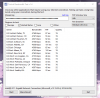
Can you do a Windows Snip of the TwitchTest results screen and upload it in a reply please.
 
thats the finished results im using LA usually

i hope this helps!
 

Attachments

  • sendhelp.png
    sendhelp.png
    77.7 KB · Views: 40
i dont really know i have Centry link who is pretty ok i think for net. Is there anything i could change in the twtich test to try and get better results or anything in OBS?

AMD chipset isn't gonna mess with the ethernet controller.. eh why i would it i dont know that much about computers to try and bs my way into that.
 
The link I provided is for a driver update to your Network Interface Controller (NiC) and is not part of your chipset. It is a part of your motherboard hardware. See the below link for some info on what a NiC is:
https://en.wikipedia.org/wiki/Network_interface_controller
It is very important (Especially in regards to AMD Ryzen based PC builds - As they are still pretty new architecture) to regularly check for updates and maintain an updated system for best performance and stability, least bugs/errors - Not just using Windows Update Utility.
You should do a once a month regular search for updates for your hardware (Driver) and software (Version) - If it does not have an auto-update feature in the software. The best way to do these searches is from the manufacturers website, your motherboard vendor, nVidia, etc for example.

- Note -
The only thing you should not always look to be updating is your BIOS.
The only time you should be looking to updating your BIOS is to try to resolve an issue you are having (Could be numerous, RAM speed not running at specified rates is a major one with Ryzen based systems) that has been fixed by a newer version than the BIOS you are running.
If you do not have any issues with your current BIOS, you should leave it alone.
If you do have issues with your current BIOS and plan on updating to a newer version, then you should always revert your current BIOS to default settings, for everything you have changed prior to updating.

The latest NiC driver may improve your connection stability/throughput, it may not. It is however the latest driver and has not been redacted from the list of updates,
As for other changes, you can't do much for Twitch side of things other than try a different ingest server.
For OBS settings, you can really only do what @SumDim suggested, which is to lower your bitrate by 250 at a time, do a several minute streaming test (Doing what you would normally do in-game) then stop the streaming test, look in your current logfile for the below line:
Output 'adv_stream': Number of dropped frames due to insufficient bandwidth/connection stalls:
If the above line is present in your logfile after a stream test, then you need to rinse and repeat until it no longer appears.
Once it no longer appears in your logfile, then leave the bitrate set to what it was for that stream test and do another stream test. This time do double the length of time duration as the first test, then check your logfile again. If it appears again, then drop your bitrate by a further 250 then call it a day, if it doesn't appear then you found the sweet spot for your upload speed.

I forgot to mention you could also improve slightly the quality by going to OBS Settings --> Video ---> Downscale Filter: And selecting the option of Lanczos filtering.

In regards to your Internet Service Provider (ISP) being CenturyLink,
I do not know how they are as an ISP as I reside in Australia. Maybe someone else can give you a better idea of how CenturyLink operates and what you should expect from their service.
Hopefully for the plan you have with your ISP, you are getting the (or close to) speeds you are paying for. This will vary depending on how far you are from the telecommunications exchange in your area.
You should however be getting far better quality than sub-80 at those ping times to Twitch ingest servers. I have uploaded a screenshot of my TwitchTest results to give you an idea (For example, the distance from where I reside in Australia to Hong Kong is over 6,800km or over 4,200mi)
 

Attachments

  • TwitchTest Asia + Sydney.PNG
    TwitchTest Asia + Sydney.PNG
    27.7 KB · Views: 32
"speedtest.net says 4.65 up and 45 down but fast.com says 32 down and it didn't give info on upload"

This is all about UPLOAD speed, not download speed. You are pushing data upstream to Twitch servers.

You need to run speedtest against the server located geographically near the Twitch server you plan to connect to. Not with one that is geographically near you that SpeedTest chooses by default. Far too many people miss this critical point. You want to estimate how long it will be going through all the hops to the target server. Of course, that route may not be the same one taken but at least it gives you a "general idea".

This is very important for those who have to connect to a Twitch server in an entirely different country than where they are located. More times than not, they will find that this connection sucks.
 
Back
Top