Computer extremely laggy when recording video calls with OBS

nulogic

New Member
I typically record my calls when I jump on a video call.

With OBS, my computer often lags really badly during recording.

Is there a way to tweak the settings to make it better?

I noted that one way was to set Hardware Encoder as NVENC. But if I use this option, I get an error message.

Thank you all.

 

Attachments

1. follow the big RED warning about NOT recording to MP4
2. Why in the world are you recording a video call at 60fps?

1. Sorry I did not see a warning not to use MP4 in either of these sections. May I know what file format I should be using?

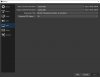
2. I amended it to 30 fps like the file attached. Is that better?

3. Are there any other changes I can make to improve speed?

Thanks
 

Attachments

  • 30.jpg
    30.jpg
    64.9 KB · Views: 71
Disable/Remove the Nvidia MX-450. That GPU is worthless...

Better off using the Intel Graphics IMHO...

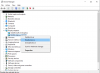
So I just disable my graphics card (like the attached file) and then update my driver?

Do I need to make any changes in OBS?

Thanks
 

Attachments

  • Disable.png
    Disable.png
    33.1 KB · Views: 64
Hook up your monitors to the Intel GPU. Update the drivers & then open OBS. You should now be able to use the QuickSync encoder (QSV) instead of x264.

Also, run OBS as admin & disable the following in Windows.
All Settings > Gaming
21:29:24.546: Windows 10 Gaming Features:
21:29:24.546: Game Bar: On
21:29:24.546: Game DVR: On
21:29:24.546: Game DVR Background Recording: On
 
May I know what file format I should be using?
You'd better switch it back to mkv files.

If you want to remux them to mp4 afterwards (take video and audio stream from .mkv and put them in a new .mp4 file), within OBS Studio you can go to File, Remux Recordings. Or even consider Settings, Advanced, Recording: check Automatically remux to mp4
 
Also, run OBS as admin
All good advice, but I'd 'belay that order' on running as Admin unless you absolutely have to. Your PC is modern enough though ultra-low power/performance CPU, that with proper OBS settings, I suspect you'll be fine at 30fps. So I doubt you'll need to run as Admin (to force a GPU scheduling priority workaround) but maybe.. I'd make that a sort of last resort type thing

As your system is not well-suited for real-time video encoding, be contentious of what is running in the background and make sure your system isn't running out of CPU, RAM, etc.
 
Hook up your monitors to the Intel GPU. Update the drivers & then open OBS. You should now be able to use the QuickSync encoder (QSV) instead of x264.

Also, run OBS as admin & disable the following in Windows.
All Settings > Gaming
21:29:24.546: Windows 10 Gaming Features:
21:29:24.546: Game Bar: On
21:29:24.546: Game DVR: On
21:29:24.546: Game DVR Background Recording: On

Hi Rockbottom, how do I " Hook up your monitors to the Intel GPU "?

I have googled it and there isn't clear guidance on how to do it.

Thanks.
 
Hi Rockbottom, how do I " Hook up your monitors to the Intel GPU "?

I have googled it and there isn't clear guidance on how to do it.

Thanks.

I looked up your MX-450 and I think it's a good GPU. The other poster may have been thinking of older MX graphics cards.

You should try setting recording to use NVENC. I think it will work fine. Also turn down the rate to Medium
1643676870271.png
 
New version or old version NVENC isn't on the MX-450.

There are no outputs on the MX-450, it uses the host machine output.

You are right, it doesn't seem to work with NVENC. I have changed it back to this (https://i.imgur.com/BrwTBY1.png).

Can I check if I am good like this?

Thanks.
 
Back
Top