I had set up a stream using OBS 26.1.1 which I believe is the latest version. I was using AnyDesk on one computer to access the screen of a second computer which was running a video camera. I streamed part of the AnyDesk screen. I had set up filters to block out all but the area I wanted to stream. It had worked fine on the previous day, but the next day I tried it, I could not remove a small section of the right side of the screen no matter ow I adjusted the filter. There are two boxes that show up. From what I surmise the red rectangle is apparently how the filters are set and the blue rectangle is what is set up to stream. I have no idea what is going on. No matter what I set the right filter number to, it is ignored. I have the "Relative" box selected. I have attached three images.
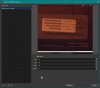
1. OBS_Screen_Image-0 shows the positions of the rectangles before accessing stream data.
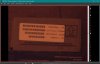
2. OBS_Screen_Image-1 shows the main screen with the stream data.
3. OBS_Filter_Image-1 shows the filter numbers I have applied.
Any help would be appreciated. Thanks,
JohnD
1. OBS_Screen_Image-0 shows the positions of the rectangles before accessing stream data.
2. OBS_Screen_Image-1 shows the main screen with the stream data.
3. OBS_Filter_Image-1 shows the filter numbers I have applied.
Any help would be appreciated. Thanks,
JohnD