Viivster
New Member
Greets,
I've recently upgraded my computers CPU, RAM and heat sink in order to be able to stream from my computer but I seem to have graphical issues on e.g Twitch when viewing the stream myself.
I've tried RTS, FPS and Platform games in between the range of 30 to 60 fps but the stream keeps showing blurrs or "potato quality" if you prefer to call it.
I can't seem to find any settings to change myself even after viewing Jack0rs OBS tutorials on youtube (which are really great by the way) nor anything on the forums by using the search function which is why I'm posting here.
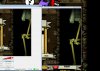
To show an example: http://puu.sh/aFVlq/a93abdab4c.jpg OBS to the left, the game itself (Adventures of Shuggy) in the middle and the twitch stream to the right.
My only guess is that perhaps I need to upgrade my GPU but that would make little sense as I've understood that the GPU only affects what I see in what I'm playing and not the stream itself.
I've also looked up multiple analyzer pages to see if the bitrate/settings/fps/frames are dropping or not but all webpages show "60 fps" and "No problems discovered". OBS own log analyzer simply tells me 4 minors,
1. That Aero is disabled
2. That I have 2 GPUs (one being a iGPU)
3. That I use an ASUS Xonar but the sound is fine
4. Possible slow server (ping is 738 ms) from the OBS page but for me using JTVPing the ping is 1 ms (Sweden)
My network speed is 100/100 and the bitrate is set to 2500 as I've received feedback that the twitch stream keeps buffering every 20 seconds if I have it higher, could the bitrate possibly be the reason? Or is it because I'm using quicksync instead of x264?
Thanks in advance.
Edit:
I have tried to increase the bitrate to 3500 and 4500 as the 3b Advanced OBS video suggested but the quality is still the same
4500: http://puu.sh/aFZ2b/d19913fc2c.jpg
3500: http://puu.sh/aFYYV/c9f12bf263.jpg
I've recently upgraded my computers CPU, RAM and heat sink in order to be able to stream from my computer but I seem to have graphical issues on e.g Twitch when viewing the stream myself.
I've tried RTS, FPS and Platform games in between the range of 30 to 60 fps but the stream keeps showing blurrs or "potato quality" if you prefer to call it.
I can't seem to find any settings to change myself even after viewing Jack0rs OBS tutorials on youtube (which are really great by the way) nor anything on the forums by using the search function which is why I'm posting here.
To show an example: http://puu.sh/aFVlq/a93abdab4c.jpg OBS to the left, the game itself (Adventures of Shuggy) in the middle and the twitch stream to the right.
My only guess is that perhaps I need to upgrade my GPU but that would make little sense as I've understood that the GPU only affects what I see in what I'm playing and not the stream itself.
I've also looked up multiple analyzer pages to see if the bitrate/settings/fps/frames are dropping or not but all webpages show "60 fps" and "No problems discovered". OBS own log analyzer simply tells me 4 minors,
1. That Aero is disabled
2. That I have 2 GPUs (one being a iGPU)
3. That I use an ASUS Xonar but the sound is fine
4. Possible slow server (ping is 738 ms) from the OBS page but for me using JTVPing the ping is 1 ms (Sweden)
My network speed is 100/100 and the bitrate is set to 2500 as I've received feedback that the twitch stream keeps buffering every 20 seconds if I have it higher, could the bitrate possibly be the reason? Or is it because I'm using quicksync instead of x264?
Thanks in advance.
Edit:
I have tried to increase the bitrate to 3500 and 4500 as the 3b Advanced OBS video suggested but the quality is still the same
4500: http://puu.sh/aFZ2b/d19913fc2c.jpg
3500: http://puu.sh/aFYYV/c9f12bf263.jpg
Attachments
Last edited: