
Application Audio Dropdown - Missing Discord

rachelskirts

New Member
I've been using OBS on Mac for almost two years now, and a few months ago, something changed about the way OBS interacts with Discord. I used to be able to add Discord audio to my scene using the "Application Audio" menu, but Discord no longer shows up in the dropdown. (See attached screenshot.) I'm forced to use "Desktop Audio" instead, which is less than ideal.

Is this an intentional change? A known issue? Any help is appreciated!

Additional context: I'm on the latest version of OBS (32.0.4) and Discord, and I'm on macOS 26.2.
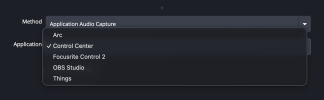
 

Attachments

  • Screenshot 2026-02-10 at 9.46.39 AM.png
    Screenshot 2026-02-10 at 9.46.39 AM.png
    112.7 KB · Views: 22
Discord recently changed how it handles audio on macOS, which broke the Application Audio Capture integration in OBS. Here are some workarounds:
Option 1: Use macOS Screen Capture audio instead
  1. Add a "macOS Screen Capture" source
  2. In its properties, set Mode to "Application Audio Capture"
  3. Select Discord from the application list
  4. If Discord does not show up, make sure Discord is running and playing audio first, then refresh the list
Option 2: Use a virtual audio device
  1. Install BlackHole (free) or Loopback
  2. In Discord Settings > Voice and Video, set the Output Device to BlackHole
  3. In OBS, add an "Audio Input Capture" source and select BlackHole
  4. Use macOS Audio MIDI Setup to create a Multi-Output Device if you want to hear Discord yourself while capturing
Option 3: Check Discord audio mode
  • In Discord Settings > Voice and Video, try switching between "Standard" and "Legacy" audio subsystem
  • Some users report that switching to Legacy makes Discord visible again in the OBS application audio dropdown
Also make sure both OBS and Discord are updated to the latest versions. OBS 31+ has improved macOS audio capture support.
 
Back
Top