David Faubion
New Member
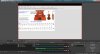
How do I make OBS capture just the window of only the content of my open, active software--instead of my entire screen? So I want OBS to capture and shoot just the 12" x 6.85" as seen in my attached FRAME TO BE RECORDED image. I know that OBS can do that because I have 94 OBS videos at
my YouTube channel since 2019.
I absently hit CTRL S, and the OBS view went to a full-screen mode. I can't find the default 'window of the app content capture' screen mode.
Please tell me how to get back to the 12" x 6.75" 'record the screen mode'. Thanks for trying to decipher my novice video terminology.
my YouTube channel since 2019.
I absently hit CTRL S, and the OBS view went to a full-screen mode. I can't find the default 'window of the app content capture' screen mode.
Please tell me how to get back to the 12" x 6.75" 'record the screen mode'. Thanks for trying to decipher my novice video terminology.