

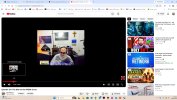
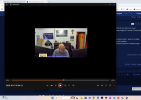
I have been using OBS for years and never encountered this problem. I have just received a new computer and I had to download a new version of OBS. 32.2.2. I checked and it is the same version of the one I was previously using. I produce a podcast video and like to add images and media sources to my show. On the old computer, I had no difficulty with adding a picture to the scenes. Now I have two problems, first the picture or video does not fit on to the preview screen. It's way too big. Using CTRL F only makes it bigger. I have to manually size the picture to fit. Second, I didn't notice to my embarrassment that the posted video on all of podcast platforms I use, the recording is small as seen in the attachment. I cannot get it to have a full screen. I have experimenting with different settings and nothing that I have tried works. Any advice?
You are using an out of date browser. It may not display this or other websites correctly.
You should upgrade or use an alternative browser.
You should upgrade or use an alternative browser.
After recording there is a small window,
- Thread starter SPassos1
- Start date
Thank you but it didn't work. The reason I used 3840x2160 was that I was trying to use the 4k for the Brio. In my old system I didn't have to do that. I tried lowering it to previous 1920x1080 as well as matching the Brio to that setting in OBS. Should I try to change the camera settings themselves?

qhobbes
Active Member
1. Audio buffering hit the maximum value. This can be an indicator of very high system load and may affect stream latency or cause individual audio sources to stop working. Keep an eye on CPU usage especially, and close any unnecessary programs if needed. Occasionally, this can be caused by incorrect device timestamps. Restart OBS as Admin to reset buffering.
Source affected (potential cause): Video Capture Device
2. OBS is not running as Administrator. Because of this, OBS will not be able to request a higher GPU priority for itself -- which is the likely cause of the 15.3% render lag you are currently experiencing. Run OBS as Administrator to help alleviate this problem.
3. The encoder is skipping 8.3% of frames because of CPU overload. Change the video encoder from "Software (x264)" to "Hardware (QSV, H.264)"
4. Right click on the source "Video Capture Device", go to Transform |>, Reset Transform.
If still having issues, provide a new log and screenshot.
Source affected (potential cause): Video Capture Device
2. OBS is not running as Administrator. Because of this, OBS will not be able to request a higher GPU priority for itself -- which is the likely cause of the 15.3% render lag you are currently experiencing. Run OBS as Administrator to help alleviate this problem.
3. The encoder is skipping 8.3% of frames because of CPU overload. Change the video encoder from "Software (x264)" to "Hardware (QSV, H.264)"
4. Right click on the source "Video Capture Device", go to Transform |>, Reset Transform.
If still having issues, provide a new log and screenshot.
Last edited:
qhobbes, thank you but nothing worked. When OBS records, the video still does not fill the screen. I tried everything you advised, but nothing has changed.
Attachments

arthurtully
New Member
You have canvas and your camera. You are need to resize those to match. Drag the corner and make it bigger. And from your log you don't want to record at 4k since you're dropping frames. Record at 1080p or 1440p.
If you need help how to resize look it up on youtube there's plenty of tutorials there. Also double click the camera and make sure you set it to 4k instead of 640x480.
If you need help how to resize look it up on youtube there's plenty of tutorials there. Also double click the camera and make sure you set it to 4k instead of 640x480.