baerenjagd
New Member
Hello
I tried searching the forum for black screen, but could not find anything related to my problem.
I'm trying to connect a microscope cam to OBS 32.1 on macOS 26.2 Tahoe but I always get a black screen.
Same cam works flawless on Windows 11... I tried different settings like "OpenGL / Metal" but nothing works.
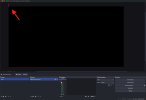
The only strange thing I noticed is that red line in the upper left corner (see screenshot).
It's not possible to pull / move it...
Any ideas?
Thanks!
Frank
I tried searching the forum for black screen, but could not find anything related to my problem.
I'm trying to connect a microscope cam to OBS 32.1 on macOS 26.2 Tahoe but I always get a black screen.
Same cam works flawless on Windows 11... I tried different settings like "OpenGL / Metal" but nothing works.
The only strange thing I noticed is that red line in the upper left corner (see screenshot).
It's not possible to pull / move it...
Any ideas?
Thanks!
Frank