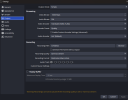
Recordings are saved to your PC automatically based on the file location you have determined within the settings (see screenshot attached)
Upon stopping your recording, these files should then be viewable as they would any other video file on your PC.
By default, OBS saves video files as a .mvk format, however, you can change this in the drop down menu to a format of your preference.. If you do not wish to install additional video codecs or apps, i suggest recording in .mp4 format for easier viewing compatibility.
With that said, there are plenty of free video codec packs and media players out there to expand your viewing capabilities: (PLEASE NOTE: I have been using these options as a basis with any new windows installed for a decade, however, better quality/more recommended options may now exist as I have not bothered to research alternatives)
K-Lite Codec Pack: A set of different multimedia formats and codecs that do not come pre-installed with Windows
VLC Media Player: a pretty robust media player that can handle most common media formats.
This site uses cookies to help personalise content, tailor your experience and to keep you logged in if you register.
By continuing to use this site, you are consenting to our use of cookies.