How to get OBS to show soft/feathered edges correctly with alpha channel video. (Screenshot included)

Screenshot 2026-02-04 16-31-38.png


Please someone solve this for me. I often feel like I am the only one in the world to experience certain problems.
I have simplified the issue for the sake of troubleshooting.

I used Vegas Pro, and created a solid blue screen rendered to MP4. That is the bottom layer in OBS.
I then created a smaller square using the exact same colour, and applied a feather/soft edge.
I used Prores444 MOV to create the alpha channel.

As you can see, OBS refuses to show the edges properly, and I get an outline with anything on the alpha video.

AI insists it's because of "Straight unmatted vs premultiplied", but the results are the same regardless.

If I disable the feathering on the alpha video, the line is very thin, but still there.

It also has the issue of weird fading: If I fade the small square in the alpha video, in OBS, it will turn dark halfway through the fade. It's like OBS can't show any level of semi-transparency.

I've heard good things about Shutter and WebM/VP9, and that "maybe" it might show correctly on OBS. I don't want to spend hours trying things that are destined not to work.

Please help? Thanks so much.
 
...it will turn dark halfway through the fade
Answers depending on how you making the pictures transparent in OBS. If you are using the filter (Color Correction) then its spinner for opacity/alpha is linear in math (but human eye is not linear, so half the value does not feel like half transparency).

Blending method in OBS can be switched from linear to "SRGB off" in the right-click menu over the source (for some sources it work OK).

What worked OK in OBS in the past was lossless "qtrle" encoder:
https://obsproject.com/forum/threads/stinger-dont-work.144329/post-529599

Support for transparency can depend on OBS build.

(Edit: today, embedded links looks awful, so I linked it as a simple text).
 
Hi, Can you explain more about why the fade turns dark? Is it related to the dark outline? Is there any way to create an alpha video and have OBS blend it correctly? All my masking gets briefly exposed, yet would not if it blended correctly. OBS can record alpha channel apparently, so is that something that can be taken advantage of?
 
I did the same troubleshooting test as you using Davinci Resolve. I created a solid blue mp4 file and added that to OBS. I then created a solid blue box with soft cropped edges and exported it to Prores 4444. Resolve exports alpha channels pre-multiplied by default. I overlaid this video in OBS over the solid blue background video and got the same dark edges. I then exported the soft cropped box from Resolve using "Straight" alpha channel. This box overlaid in OBS worked perfectly. No dark edge at all. I couldn't even tell there was a smaller box on top of the blue background until I disabled the background layer.
 
I did the same troubleshooting test as you using Davinci Resolve. I created a solid blue mp4 file and added that to OBS. I then created a solid blue box with soft cropped edges and exported it to Prores 4444. Resolve exports alpha channels pre-multiplied by default. I overlaid this video in OBS over the solid blue background video and got the same dark edges. I then exported the soft cropped box from Resolve using "Straight" alpha channel. This box overlaid in OBS worked perfectly. No dark edge at all. I couldn't even tell there was a smaller box on top of the blue background until I disabled the background layer.
Wow! Are you saying I can now have an alpha video display properly in OBS?? I am so excited! Please let this be true. Why doesn't Vegas Pro allow me to render straight rather than premultiplied? I can change the setting under the media event, but it doesn't seem to make any difference. If I install and learn how to use Davinci, will it be the end of this issue? It's not a complicated alpha video, so i could probably fairly easily transfer it to Davinci. Funny that you did the same experiment. I'd love my mask edges/outline to disappear into the main video, like it does in Vegas Pro. I was starting to think it was a limitation with OBS.

One for confirmation please, and I will get Davinci installed.
 
If you could explain in more detail what you want to accomplish for your use in OBS, it would be easier to show what steps to take in Resolve to reach that solution.
 
If you could explain in more detail what you want to accomplish for your use in OBS, it would be easier to show what steps to take in Resolve to reach that solution.
Yes, I use OBS just for viewing and recording (no gaming or streaming). I have 3 layers: MP4 which is the main bottom video, then a camera with green screen and chromakey, then the top layer as an alpha. The issue is dark outlines and dark fades. When editing in Vegas Pro, it looks correct, but when i import the prores 444 alpha MOV file into OBS, there is a dark outline to everything, and when the alpha video fades in and out, my masking is temporarily exposed, which is ugly. The idea is for it to blend perfectly, so that blue square above would not have a dark outline. I have realised that even creating a PNG in Vegas Pro, I still have this issue. I am wondering if Vegas Pro (or the version that I'm using) cannot render straight alpha.

I tried the blue square with Davinci Resolve, and it seems to be correct. However, I am completely new to Davinci, so I am trying to get some tips before I try learning it. I was willing to buy Vegas Pro 23 today, but apparently there is talk about the included Prores 444*4* being broken.

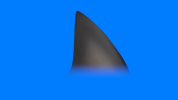
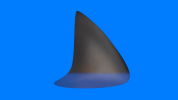
This picture is an example only. Bottom is a blue screen, the second layer is the shark fin, and then the top is the alpha (which is a narrow band of blue with a soft edge). I want to find a way to create an alpha video that blends in to whatever is underneath it.
Thank you.
 

Attachments

  • Screenshot 2026-02-08 16-05-05.png
    Screenshot 2026-02-08 16-05-05.png
    281.9 KB · Views: 18
I have just created a blue band using Davinci, and was able to select "straight" for the alpha mode, and it's worked, This is what it looks like in OBS. I feel like I am winning, and your input was important, thank you. It's now just a decision whether to recreate my alpha video using Davinci (which will be mentally taxing as I try to navigate unfamiliar software) or I find out how to do it in Vegas Pro to avoid having to recreate the project. Apparently Vegas Pro 23 has issues with it's Prores 4444 alpha rendering. It's looking promising though either way.
 

Attachments

  • Screenshot 2026-02-08 18-04-57.png
    Screenshot 2026-02-08 18-04-57.png
    275.8 KB · Views: 19
Update:
The next thing was to see how it fades in, but it doesn't do what I hoped. I got Davinci to fade from black, but this is how it fades in with OBS. What did I do wrong in Davinci?
 

Attachments

  • Screenshot 2026-02-08 18-42-29.png
    Screenshot 2026-02-08 18-42-29.png
    238.2 KB · Views: 16
...why the fade turns dark? Is it related to the dark outline? Is there any way to create an alpha video and have OBS blend it correctly?
In short (as you already figured it out), you need the movie which stored in the format that is compatible with current build of OBS - linear alpha, not pre-multiplied.

Details.
All starts from the display devices and how pictures appears on the screen. In OFF state (no picture displayed) the screen is black. Each pixel consist usually of 3 primary colors Red, Green, Blue, and all are OFF. If you want to display pure Red color (max intensity or 100%) then Red sub-pixel lights up to the maximum (1.0 in math or 100% for human understanding). If you light Red for 50% (0.5 in math) then rest is still remains pure black (in OFF state). If you need to make 100% Red half transparent - you need to take only half of the information from it. Alpha channels in images exist exactly for these purposes. In the alpha channel you specifying how many information should remain from the original picture (usually, these data can be specified per pixel). To get actual value (let say 50% or 0.5 in math) of information form the 100% Red pixel you need to multiply original value to alpha value: 100%*0.5=50%. This multiplication can be done once - before the image saved (this operation named pre-multiplication). Thus, you don't need to make this calculation for all pixels each time the picture is displayed with predefined transparency (pictures has millions of pixels, so this is resource heavy operation). Example: you had Red=255 (this is 100% for 8-bit) and want 50% transparency, this is 255*0.5=128. This Red=128 will be stored in the pre-multiplied alpha video while remains 255 in the linear alpha video. Alpha itself will be the same: Alpha=0.5 (or 128 for 8-bit videos) in both cases (pre-multiplied or linear). Side note: unfortunately, 50% in the math is not 50% in a human eye perception, so pixels in videos also stored gamma applied. OBS can properly display the files only if sources has compatible format or wrong math will be applied. Only imaging if 128 from the example above will be multiplied again to 0.5 to get 50% as stored alpha channel info states.

If you know how to work with FFmpeg from batch file or command line you may experiment with these commands to make OBS compatible videos and images:
Code:
ffmpeg -loop 1 -i "linear_R.png" -r 30 -t 20 -c:v qtrle "linear_R.mov"

ffmpeg -loop 1 -i "linear_mask.png" -r 30 -t 20 -c:v qtrle "linear_mask.mov"

ffmpeg -i "linear_R.mov" -r 30 -vf "movie='linear_mask.mov'[a];[in][a]alphamerge" -c:v qtrle "linear_R+mask_for_OBS.mov"

ffmpeg -i "linear_R+mask_for_OBS.mov" -vf extractplanes=planes=a -c:v qtrle "extracted_A_plane.mov"

ffmpeg -i "linear_R+mask_for_OBS.mov" -vf extractplanes=planes=r -c:v qtrle "extracted_R_plane.mov"

ffmpeg -i "linear_R+mask_for_OBS.mov" -vf "premultiply=planes=15:inplace=1" -c:v qtrle "linear_R+mask_RBG_premultiplied.mov"

ffmpeg -i "linear_R+mask_RBG_premultiplied.mov" -vf extractplanes=planes=a -c:v qtrle "extracted_A_plane_from_premultiplied.mov"

ffmpeg -i "linear_R+mask_RBG_premultiplied.mov" -vf extractplanes=planes=r -c:v qtrle "extracted_R_plane_from_premultiplied.mov"

ffmpeg -i "linear_R.png" -vf "movie='linear_mask.png'[a];[in][a]alphamerge" -c:v png "image_with_alpha_for_OBS.png"

Make the "linear_for_obs_vs_premultiplied_alpha.bat" text file and add to it the code from above. Place this ".bat" file together with attached "linear_mask.png" and "linear_R.png" next to your FFmpeg.exe (version ffmpeg-7.0.2-essential should work OK). Then run this batch file. It will save few small 240x144 movies and images in FFmpeg's folder. Files marked "_for_OBS" should look same in OBS when imported to the program. Files marked "A_plane" is a raw alpha mask from the movie file. Files marked "R_plane" is a raw red channel from the movie file.

Edit: fixed some typos/mistakes in the text; possible usage of the "unpremultiply" filter for FFmpeg mentioned few posts below.
 

Attachments

  • linear_mask.png
    linear_mask.png
    626 bytes · Views: 8
  • linear_R.png
    linear_R.png
    2.7 KB · Views: 59
Last edited:
I appreciate you trying to teach me, but I struggle to understand the theory and maths.
I would rather an instruction of steps I need to take with either Davinci or Vegas Pro.
I key-framed opacity in Davinci to create a new alpha MOV: In OBS, the screen starts off black, and then suddenly the picture shows, but the blue band fades in from black, not transparent. There is no outline however, so I am halfway there.
 

Attachments

  • Screenshot 2026-02-08 20-30-25.png
    Screenshot 2026-02-08 20-30-25.png
    268.4 KB · Views: 19
If you know how to work with FFmpeg from batch file or command line you may experiment with these commands to make OBS compatible videos and images:

Is it possible then, to modify, through ffmpeg, the premultiplied alpha MOV I created with Vegas Pro? Maybe ffmpeg can extract the black from the edges and make an OBS alpha compatible video?
 
I did it! AI came through for me!
It now fades in correctly, and no outline! And, I don't need to re-render it!
The screenshot is mid-fade, and this was the command:
ffmpeg -i input_premultiplied.mov -vf "unpremultiply=inplace=1" -c:v prores_ks -profile:v 4444 -pix_fmt yuva444p10le output_straight.mov
I am so happy. I can now convert my main video in the same way, and fingers crossed, I get the same result.
Premultiplied sucks! lol.
 

Attachments

  • Screenshot 2026-02-08 22-53-32.png
    Screenshot 2026-02-08 22-53-32.png
    367.8 KB · Views: 14
Back
Top