Am I dumb?

datnoob

New Member
Hello,

I really need help. I am unable to get a recording of my gameplay without this ugly stuttering every ~8 seconds for like ~2 seconds with OBS or Shadowplay.
Only the Xbox Gamebar records normally. Not native english, so pls excuse me.

So, I have a Ryzen 3600, a RTX 3070ti, 16GB DDR4 3200, 1 HDD, 1 SSD, 1 NVMe.

No madder what I do, shadowplay and obs videos always have this stuttering. When a game is installed on the SSD I record on the NVMe and in reverse to not use the same drive. I tried NVENC and x264 recording. I tried recording from 1440p 60 fps to 720p 30 fps, it doesn't madder. I tried various bitrates, no change, various settings in obs recommended by various youtube videos, forgiving.

The gameplay is fluent, for example: Wreckfest, GPU usage 40%, CPU 15%, recording the gameplay, everything runs smooth like butter, but the output has this lag. Wether I record with obs or shadowplay. xbox gamebar records just fine.

I have two 1440p 75hz monitors, set on 60 fps, so the games wont go above 60 frames. Tried vsync on and off, g-sync on and off. I backrolled the gpu drivers, no change, put my screens on 75hz, then it doesn't have this stuttering for a few seconds, but it all in all looks laggy. I turned off the gamebar when recording with obs or shadowplay. I just cannot understand why this is happening, last thing might be that it is some ingame settings or whatever.


Would be thankful for any kind of suggestions.
 
Do you really want me to answer that? ;^)
in all seriousness, don't ignore the BIG RED warning about not recording to MP4 . seriously. have OBS remux if need be

Your log is awfully short. You need to record/stream for something like 10-15 minutes or more for some key metrics to get recorded
See articles on why NOT to record using CBR

What are you doing for monitoring storage I/O and associated queueing, if any? is your system capable of sustaining a 16mb/s disk write? or security or other software interfering?
https://obsproject.com/forum/threads/best-settings.140188/#post-514693 @FerretBomb comment #2 1) NEVER RECORD TO MP4 DIRECTLY said:
Related to # 2 above ["FerretBomb, post: 529433, member: 4349"] Don't record with CBR or VBR, use CQP instead.
CQP is a quality-based encoding target that uses as much or as little bitrate as is needed to maintain a given image quality level.
22 is the normal 'good' point, 16 for 'visually lossless', and 12 is generally the lowest you'll want to go even if you plan to edit the video later (to cut down on re-encoding artifacts). The lower the number, the closer to 'lossless' video it gets. But below 16 the filesizes get ridiculously large very fast.

Jun 9 2021
NVENC. Tools > Auto-Configuration Wizard
Look-ahead allows the encoder to dynamically select the number of B-Frames, between 0 and the number of B-Frames you specify. B-frames are great because they increase image quality, but they consume a lot of your available bitrate (you should use CQP for recording so bitrate is not an issue), so they reduce quality on high motion content. Look-ahead enables the best of both worlds. This feature is CUDA accelerated; toggle this off if your GPU utilization is high to ensure a smooth recording.

Psycho Visual Tuning enables the Rate Distortion Optimization in the encoder, which greatly optimizes the way you use bitrate (not sure exactly how this works with CQP, possibly same quality at lower bitrate), improving image quality on movement. This feature is also CUDA accelerated.
If you're using something that uses the GPU, such as games, don't enable those. It depends on your source.
 
Last edited:
I am unable to get a recording of my gameplay without this ugly stuttering every ~8 seconds for like ~2 seconds with OBS or Shadowplay.
If your issue happens with OBS as well as Shadowplay, it is no OBS specific issue. Check your cooling. If CPU OR GPU overheats, it will throttle until it is cooled down. This might lead to performance issues every few seconds, exactly what you are experiencing.
 
What are you doing for monitoring storage I/O and associated queueing, if any? is your system capable of sustaining a 16mb/s disk write? or security or other software interfering?
Not doing any of that. I only monitor fps, gpu and cpu usage and temps.

I did a 15min recording with different settings.


In this Wreckfest example the game is on my SSD and is recording onto the NVMe since I heard that it is better to record on different drives. CPU usage is around 15%, GPU around 40% and the temps around 50 C°.

I only have Windows Defender installed, wouldn't know what software could interfere. When I try obs I turn off the nvidia overlay, gamebar and so on, so they don't mess with each other.
 
1. Turn off psycho tuning.
2. Change the color range from full to partial
3. Build your scene with game/window/ camera etc. Don't use display capture unless necessary and not in same scene as game capture.
 
1. Turn off psycho tuning.
2. Change the color range from full to partial
3. Build your scene with game/window/ camera etc. Don't use display capture unless necessary and not in same scene as game capture.
Thanks, but no improvement.
 
Programs running are coretemp, afterburner, rivatuner, dragon center, nvidia settings, ds4, steam and windows defender.
Tried turning turning off some of them, didn't change. I also tried downscaling to 1080p of course.

I mean, why on earth have shadowplay and obs the same problem but the gamebar records just fine. Something has to interfere.
I could just keep using it, I just would like to understand it.
 
Hast Du alle Änderungen, wie von qhobbes vorgeschlagen, umgesetzt? Nämlich auf game-capture umgestellt?
Und: Probier mal bitte 1080p60 als Ausgabegröße. Du gehst gleich mit 1440p60 und hoher Bitrate ziemlich in die Vollen.
Ich vermute weniger ein Disk-I/O-Problem (weil du immer über die Plattenverhältnisse schreibst), als mehr/möglicherweise ein Problem mit deinem Kopfhörerset. Da wird der Audiolag/Puffer zwischendurch größer gestellt...

Und nach jeder Änderung brauchen wir ein aktuelles Log von einem Test. Bitte beende dafür nicht nur das Recording, sondern auch OBS. Starte OBS danach neu und benutze den Menüpunkt zum Hochladen des letzten Logs zuvor: "Letzte Logdatei hochladen". Da kommt dann auch die Statistik mit, aus der man lesen kann, womit sich dein Rechner bzgl. OBS wie lange beschäftigt hat.
 
Also Game Bar und Game DVR sind immer noch an.

Aktivier die Skalierung auf 1080p mal nur in den Video-Settings, nicht im Encoder! Der Encoder hat dann jetzt nämlich auch auf ffmpeg zurückgestuft. Genereller Hint: Bei Änderungen immer nur eine Änderung ausprobieren, sonst kann man Effekte nicht mehr den Einstellungen zuordnen, was was macht.

Auch ist jetzt der Hardware-Scheduler in Windows an. (Das kann auch gerne durch ein kürzliches Windows-Update (re)aktiviert worden sein.)
Stell mal in den globalen Windows-Grafikeinstellungen den Hardware-Scheduler aus. Der richtet mehr Schaden an als Nutzen in unserem Fall.

Dankenswerterweise stehen jetzt unten die Statistiken drin. Allerdings ist da irgendwas doppelt. Zum Beispiel zum interessanten Bereich graphics_thread. Da gibt es widersprüchliche Werte. Einmal sagt tick_sources, dass es über eine geschlagene Sekunde gebraucht hat, die Grafikquellen anzuzapfen...
 
Also Game Bar und Game DVR sind immer noch an.
Sorry, vergessen.

Aktivier die Skalierung auf 1080p mal nur in den Video-Settings, nicht im Encoder! Der Encoder hat dann jetzt nämlich auch auf ffmpeg zurückgestuft. Genereller Hint: Bei Änderungen immer nur eine Änderung ausprobieren, sonst kann man Effekte nicht mehr den Einstellungen zuordnen, was was macht.
Ok, halte mich von nun an dran.

 
Und nu...? Problem wech...?

(Was mir im letzten Log noch auffiel: Deine Monitore stehen auf 59fps, du produzierst und streamst mit 60fps...)
 
Nee, das Problem besteht leider weiterhin.

(Was mir im letzten Log noch auffiel: Deine Monitore stehen auf 59fps, du produzierst und streamst mit 60fps...)
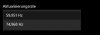
Das ist mir auch aufgefallen. Wenn ich die Monitore in den Adaptereigenschaften auf 60Hz stelle, stellen sich selbst zurück auf 59Hz, bzw. 59,951 laut den erweiterten Anzeigeeinstellungen. Nun habe ich natürlich auch das mal in den Videoeinstellungen bei obs angepasst, hat auch nicht geholfen.

Zudem fällt mir auf, dass die Ruckler bei der Wiedergabe nicht immer an der selben Stelle sind, quasi so als würde das Video buffern. Es kann sein, dass es an der einen Stelle ruckelt, dann spule ich etwas zurück, beim zweiten oder dritten mal schauen ruckelt es dann dort nicht mehr, aber an anderen Stellen. Ich benutze VLC zum Abspielen, habe aber auch schon Windows Media Player probiert.
 
Zudem fällt mir auf, dass die Ruckler bei der Wiedergabe nicht immer an der selben Stelle sind, quasi so als würde das Video buffern. Es kann sein, dass es an der einen Stelle ruckelt, dann spule ich etwas zurück, beim zweiten oder dritten mal schauen ruckelt es dann dort nicht mehr, aber an anderen Stellen. Ich benutze VLC zum Abspielen, habe aber auch schon Windows Media Player probiert.

Aaaaaah, oooooohhhh....! Das ist sooooo ein wichtiger Hinweis! Der hätte früher geholfen, echt.
Also wenn die Wiedergabe ruckelt, und zwar immer mal an unterschiedlichen Stellen (bei jeder Wiedergabe, wie Du schreibst), dann ist die Aufzeichnungsdatei 100% in Ordnung. Sonst könnte die gleiche Stelle in der Aufzeichnung nicht mal falsch, und mal richtig wiedergegeben werden (sondern immer nur falsch). Also sind die Stellen in der Aufzeichnung korrekt!

Und beim Abspielen gibts ein Problem... Vielleicht hängt das nun mit den 60fps der Datei, und den (warum auch immer) krummen Werten deiner GraKa bzw. Monitore zusammen.

Und wir suchen uns hier blöde... ;-)
 
Kann mir auch gut vorstellen, dass es damit zusammenhängt. Die Gamebar hat damit aber kein Problem und das check ich nicht.

Der Wert in den erweiterten Anzeigeeinstellungen ist 59,951 oder 74,968.

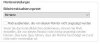
In den Adaptereinstellungen kann ich ihn auf 59, 60, 75 einstellen, wenn ich ihn auf 60 einstelle, stellt er sich aber zurück auf 59Hz.

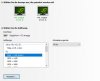
In der nvidia Auflösung ist der Wert bei 60Hz, dort gibt es noch 75, aber keine 59.

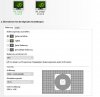
In der Desktop-Größe und -Position Einstellung steht der Wert bei 75Hz, wenn ich auf 60 stelle, springt er direkt nach Übernahme
wieder auf 75Hz, lässt sich also nicht ändern.

Kein Plan, aber danke für deine Hilfe :)
 

Attachments

  • Erweiterte Anzeigeeinstellungen.JPG
    Erweiterte Anzeigeeinstellungen.JPG
    11.5 KB · Views: 34
  • Adaptereigenschaften.JPG
    Adaptereigenschaften.JPG
    21.7 KB · Views: 29
  • nvidia auflösung ändern.JPG
    nvidia auflösung ändern.JPG
    33.8 KB · Views: 28
  • desktop-größe und -position.JPG
    desktop-größe und -position.JPG
    51.3 KB · Views: 26
Ok, I figured it out. I know it's late, but I post the solution. The problem really was my monitors being on 59,951Hz. With the Custom Resolution Utility I was able to put them to straight 60Hz, now the stutter in my recordings are gone.
 
Back
Top