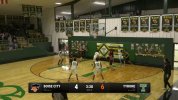
I wanted to share a project I've been working on for our high school basketball broadcasts here in Boise City, Oklahoma.
Originally, my only goal was to polish up our own stream, so I started vibe coding a custom HTML overlay. I shared a short video of it in the High School A/V Production group on Facebook just to show it off, and got a fair bit of interest.
After working with a few other schools to get it running for them, I ended up adding a few more features —like using a json file instead of manually editing the html each time for a new game, then making an html interface to sort of supplant the json file, and even a manual failover control panel (in case you didn't want to pay for scoreboardOCR or if the OCR camera acts up)
I’ve decided to just put the whole thing up here and on GitHub for anyone to use. It requires a little bit of technical know-how (installing a PowerShell script and enabling WebSockets in OBS), but once it's set up, it's very robust.
Link to github repo:
https://github.com/david-mcgaughy/scorebug

Here's a screenshot of the scoreboard controls:

And here's a screenshot of the Game Configuration:

Originally, my only goal was to polish up our own stream, so I started vibe coding a custom HTML overlay. I shared a short video of it in the High School A/V Production group on Facebook just to show it off, and got a fair bit of interest.
After working with a few other schools to get it running for them, I ended up adding a few more features —like using a json file instead of manually editing the html each time for a new game, then making an html interface to sort of supplant the json file, and even a manual failover control panel (in case you didn't want to pay for scoreboardOCR or if the OCR camera acts up)
I’ve decided to just put the whole thing up here and on GitHub for anyone to use. It requires a little bit of technical know-how (installing a PowerShell script and enabling WebSockets in OBS), but once it's set up, it's very robust.
Link to github repo:
https://github.com/david-mcgaughy/scorebug
What it looks like
Here's a screenshot of the overlay with score ticker and youtube popup:Here's a screenshot of the scoreboard controls:
And here's a screenshot of the Game Configuration:
Key Features
- Hybrid Data Source: It works with Scoreboard OCR (if you have it) for fully automated clocks/scores. If you don't, you can use the included Control Dashboard to run the scoreboard manually from a laptop or tablet.
- Manual Failover: Even if you use OCR, the manual dashboard acts as a failover. If the OCR freezes, you just click a button on the dashboard, and it instantly overrides the data feed for 10 seconds so you can fix the score manually.
- Automated Ticker: I included a PowerShell script that scrapes Skordle.com for Oklahoma high school scores. You can easily modify the URL in the script to pull scores for any class or sport on Skordle.
- Live Configuration: You can change team names, records, and even swap logo images mid-game without ever opening the OBS properties window.
How it works
The system is just a set of local HTML files.- overlay.html: You add this as a Browser Source in OBS.
- control.html: You open this in Chrome on any computer on the same network. It connects to OBS via WebSockets to send data.
- skordle.ps1: A background script that pulls scores and saves them to a CSV file, which the overlay reads automatically.
Installation Guide
1. Download Dependencies
The system relies on the OBS WebSocket JavaScript library.- Download the download.zip file and extract them to a folder like C:\Scoreboard
- You will need to download obs-websocket.min.js into the folder
- Open the folder where you extracted these files.
- Right-click empty space > Open in Terminal.
- Paste this command and hit Enter:
Invoke-WebRequest -Uri "[https://cdn.jsdelivr.net/npm/obs-we...websocket-js@5.0.7/dist/obs-ws.global.min.js)" -OutFile "obs-websocket.min.js"
2. Configure OBS Studio
To allow the dashboard to talk to the overlay, enable WebSockets:- Open OBS.
- Go to Tools > WebSocket Server Settings.
- Check Enable WebSocket server.
- Set Server Port to 4455.
- Set Server Password to exactly: ScoreboardRemote (Note: This password is hardcoded in the HTML files for ease of use. If you change it in OBS, you must edit the .html files).
3. Add the Overlay
- Add a Browser Source.
- Check Local file and browse to overlay.html.
- Set Width: 1920, Height: 1080.
- Check Refresh browser when scene becomes active.
4. Using the Control Dashboard
- Open control.html in a browser on your OBS computer.
- Ensure the status indicator at the bottom is Green (Connected).
- Scoreboard Tab: Use this to drive the score and clock manually.
- Game Setup Tab: Use this to browse for team logos and set team names. Clicking "Apply" updates the stream instantly. (You can also edit the gameconfig.json file directly if you prefer, but the interface handles file browsing for you).
5. Setting up the Ticker (Optional)
If you want the scrolling ticker:- Download ChromeDriver (matching your Chrome version) from the Chrome for Testing dashboard.
- Place chromedriver.exe in a folder named chromedriver/ inside your scoreboard directory.
- Run the skordle.ps1 script with PowerShell. It will scrape the scores and the overlay will automatically start scrolling them.
- Note: If you don't want the ticker, simply delete the script and the CSV file; the overlay will detect they are missing and hide the bar automatically.
Remote Control (Tablet/Laptop)
You can run the control.html dashboard on an iPad, laptop, or phone connected to the same Wi-Fi network to let a producer or volunteer control the score remotely.- Find the Local IP Address of your OBS computer (e.g., 192.168.1.50).
- Open control.html with Notepad on your computer.
- Scroll to the bottom <script> section and look for this line:
await obs.connect(`ws://localhost:${OBS_PORT}`, OBS_PASSWORD); - Change localhost to your computer's IP address:
await obs.connect(`ws://192.168.1.50:${OBS_PORT}`, OBS_PASSWORD); - Save the file and transfer it to your remote device (or host it on a local web server).
I hope this helps some other schools or small broadcasters out there!
https://github.com/david-mcgaughy/scorebug